Stream Tools
Widgets: goals, timer, leaderboards and more
Add TikTok LIVE widgets in Livecade, such as a like goal, a subathon timer, a top gifter leaderboard and a gift jar, then move them on your stream.
Updated
Widgets are small panels that sit on top of your game: goals, a countdown timer, leaderboards, a gift jar, your own text and more. They play inside the overlay you already use, so there is nothing new to add in OBS or TikTok LIVE Studio.
Where to find it
Open a game, then click Widgets at the top of the preview, next to the game name. The button shows only while a game is open.

Set it up
-
Click Widgets and make sure Show on overlay is on.
-
Under Add a widget, click the widget you want. The i shows a picture of it.
-
Change its settings in the list below. Click its name or gear to open or close them.
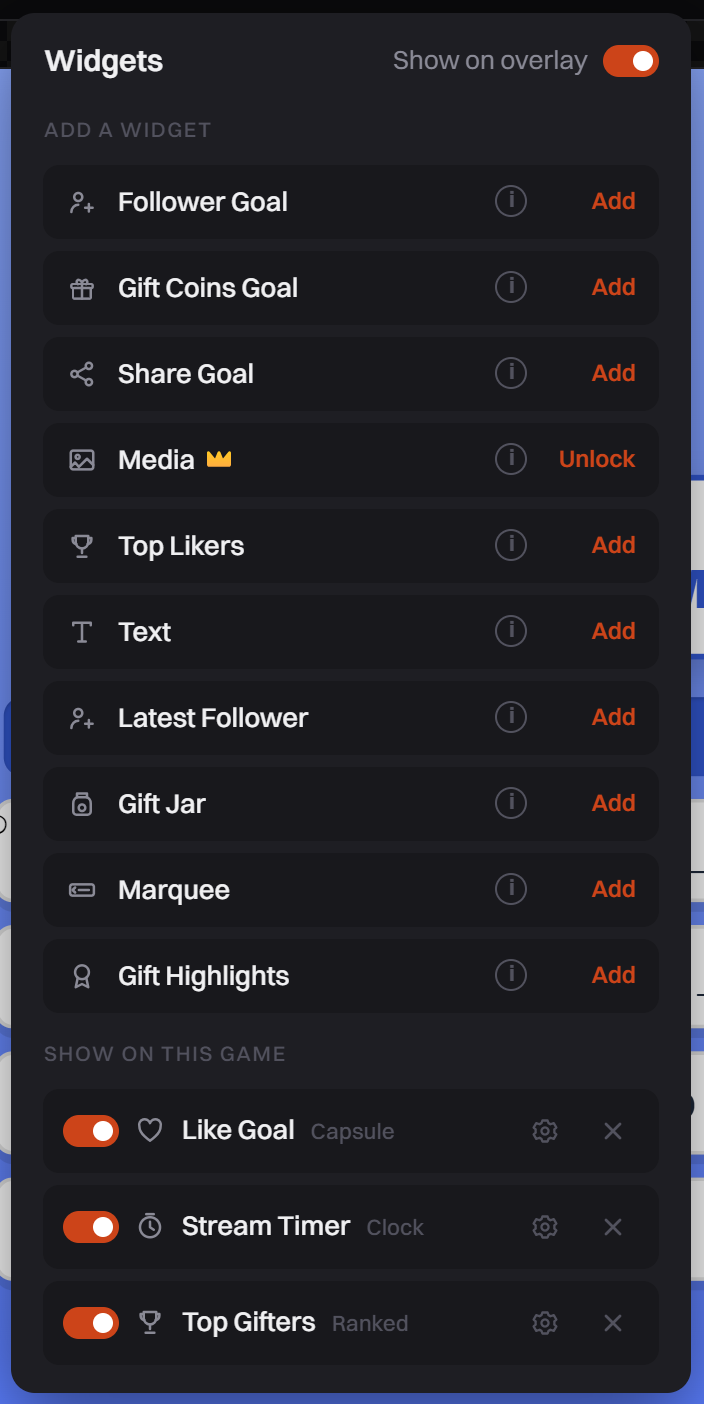
Add widgets at the top. Widgets you added are listed under Show on this game. -
Place the widget on the preview with Move overlay elements (see below).
Changes save on their own and reach your stream right away.
Move and resize widgets
- Click Move overlay elements, the four-arrow button beside the preview. Point at a widget or game part and an outline shows that you can drag it.
- Drag a widget to move it. Drag its corner to resize it.
- Click the button again when you are done.
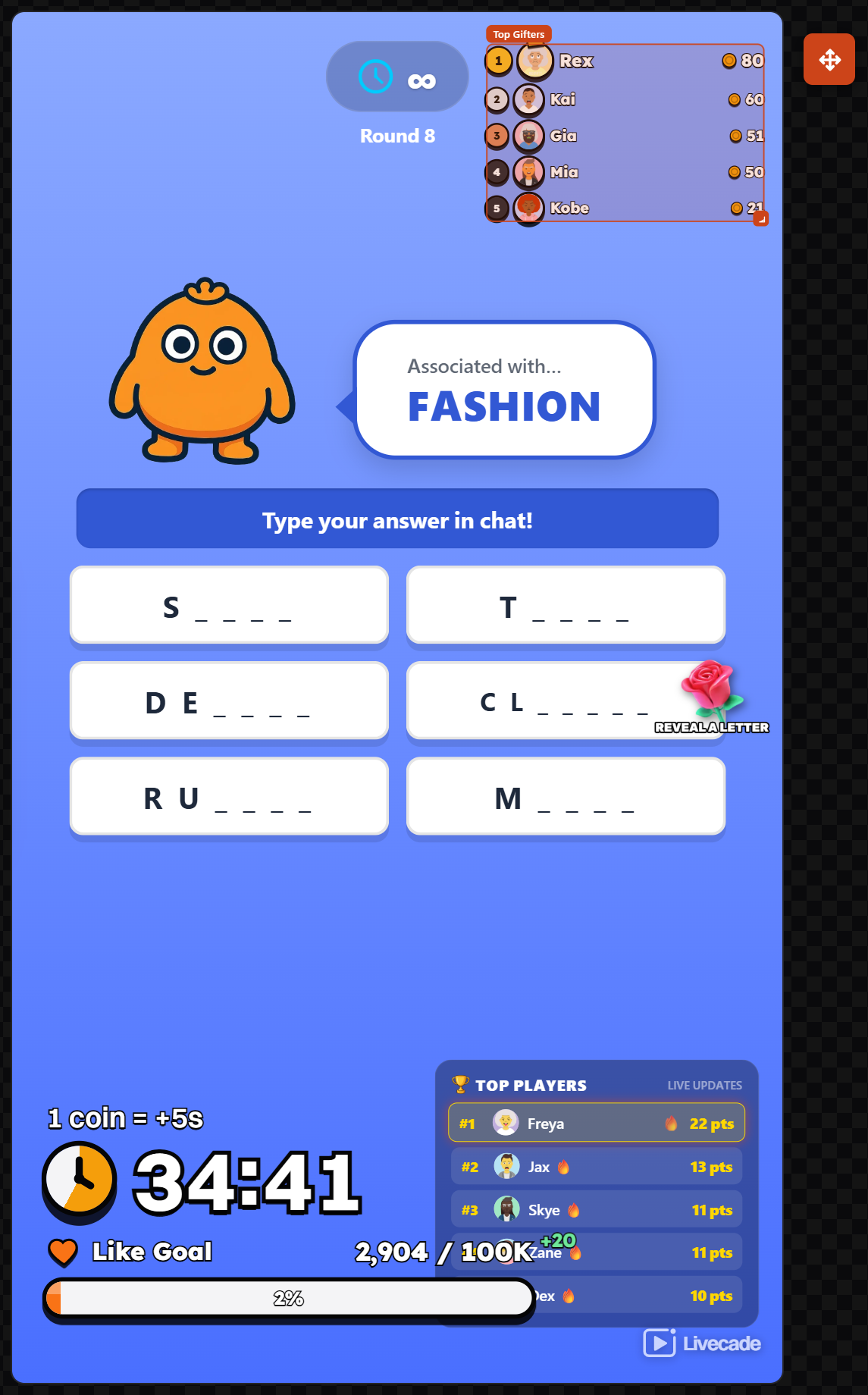
Each game keeps its own layout, so a widget can sit in a different spot on each game. The settings (text, target, colour) are the same on every game. To hide a widget on one game only, turn off its switch under Show on this game.
The widgets
Like, follower, share and gift coin goals
Like Goal, Follower Goal, Share Goal and Gift Coins Goal fill up toward a number you set.
- Add the goal and set its Label and Target.
- Pick a Style. With Countdown, you can change the Countdown text (
{left}is the number still to go) and the When reached text. - Pick a Font and Color, and choose what to Show: Numbers and Icon.
Stream Timer (subathon timer)
A countdown that gifts can add time to.
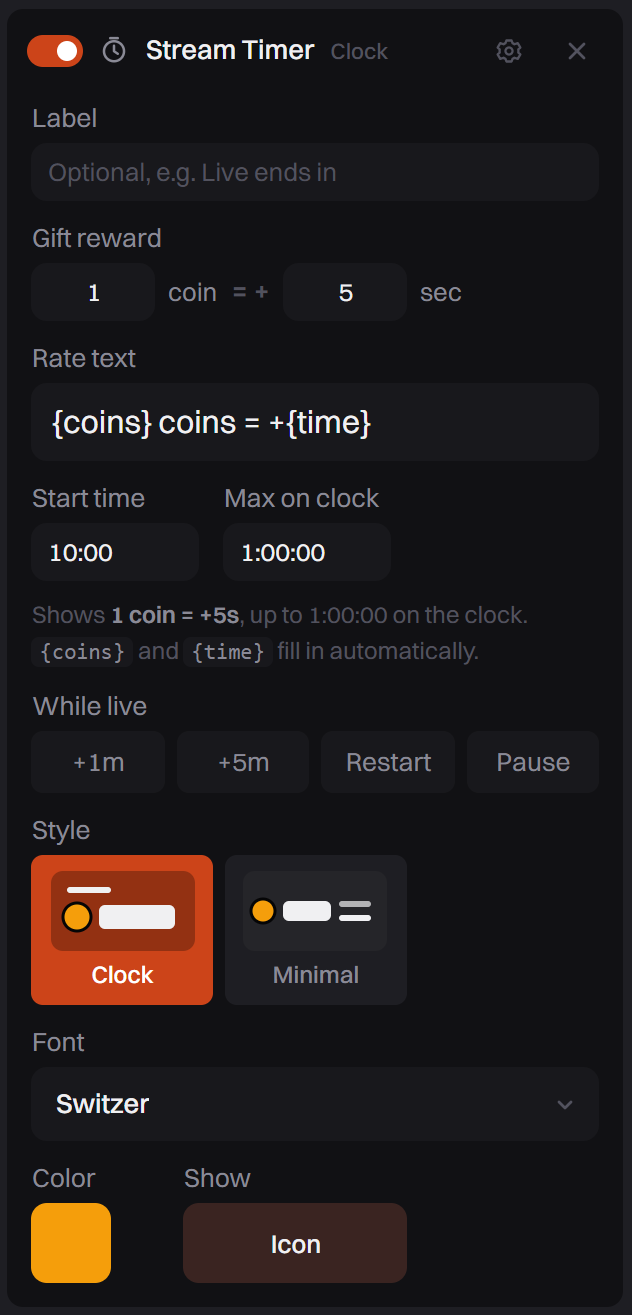
- Add Stream Timer and set the Gift reward, for example 1 coin = +5 sec. Set it to 0 sec if gifts should add no time.
- Set Start time (10:00 by default) and Max on clock (1:00:00 by default). The cap stops one big gift from adding hours.
- Optional: change Rate text.
{coins}and{time}fill in on their own. Leave it empty to hide the rate. - While live, use +1m, +5m, Restart and Pause under While live.
The clock starts when TikTok connects. A send counts in full, so 5 Roses are 5 coins. At 0:00 the clock stops and your stream keeps going. The next gift starts it again.
Top Gifters and Top Likers
- Add Top Gifters or Top Likers and set Rows (1 to 20). One row shows just your top gifter.
- Pick a Style and a Side (Left or Right).
- Choose what to Show: Score and Name. Empty text shows until someone makes the board.
Gift Jar
- Add Gift Jar and pick a Style: Mason, Tip jar or Bowl.
- Set Gift size, and choose what to Show: Total, Sender and Top donors.
- With Sender on, set how long the sender's name stays up in Sender stays up for.
Gift Highlights
- Add Gift Highlights. Under Cards, turn on Top gift, Best streak or Gift goal.
- For Gift goal, pick the Gift and the Target, like 100 Roses.
- With two or more cards on, set Each stays and Changes with (Fade or Slide).
Latest Follower
- Add Latest Follower. It shows the name and picture of your newest follower.
- Change the Label, or empty it to hide it. Empty text shows until the first follow.
- Pick a Style.
Text and Marquee
- Add Text (up to 4) for fixed words, or Marquee (up to 3) for messages that scroll.
- Type in Text (up to 3 lines), or in Messages, one message per line.
- Pick a Style and Font. Text has Align and Motion. Marquee has Scrolls, Width, Text size and Speed.
Media (Pro)
- Add Media (up to 4). On a free account the row shows Unlock.
- Pick an image, GIF or short video in Media. Video plays muted.
- Choose Fit: contain shows all of it, cover fills the box. Drag its edges to size it.
Why the numbers differ from TikTok's
- Livecade counts only what arrives while it is connected to your LIVE. TikTok counts the whole LIVE.
- Goals, the gift jar, gift highlights and Latest Follower start at 0 each time you connect TikTok, so numbers from the Live Simulator never carry over.
- Top Gifters and Top Likers also start over when you switch games.
Common problems
I can't find the Widgets button
It shows only while a game is open. Open any game first.
I added a widget but it is not on my stream
Check that Show on overlay is on, and that the widget's switch under Show on this game is on.
The timer is stuck at the start time
It starts counting when TikTok connects. Before that, the preview shows the start time on purpose.