Getting Started
Test your game before you go live
Test a Livecade game before your TikTok LIVE. Run the Live Simulator with mock viewers, fire Test Actions and test each trigger without going live.
Updated
You can try any game with mock viewers, chat and gifts before you go live. You don't need to be live on TikTok, and nothing you test reaches TikTok.
Where to find it
Open a game: click its tile on the dashboard home. The Live Simulator is in the Connection panel at the top of the left panel. Test Actions is under the game's name. Each row in Action Triggers also has its own test button.
Set it up
Run the Live Simulator
- Open a game. If the Connection panel shows Resume Game, click it: a paused game ignores mock viewers and test buttons.
- In Connection, find Live Simulator.
- Pick how busy the chat is: Calm, Chill, Active or Hyped.
- Click Start Simulator. A Running badge appears.
- Watch the preview. Mock viewers join, chat, like and send gifts, and the dashboard reacts like a real LIVE.
- Click Stop Simulator when you are done.
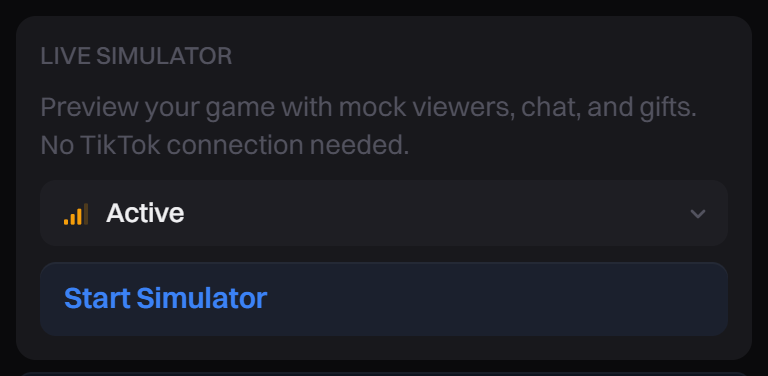
The simulator follows your own Action Triggers, so mock viewers type your keywords and send the gifts you picked. The gifts are real TikTok gifts, mostly cheap ones, like on a real LIVE. You can change the level while it runs.
Fire Test Actions
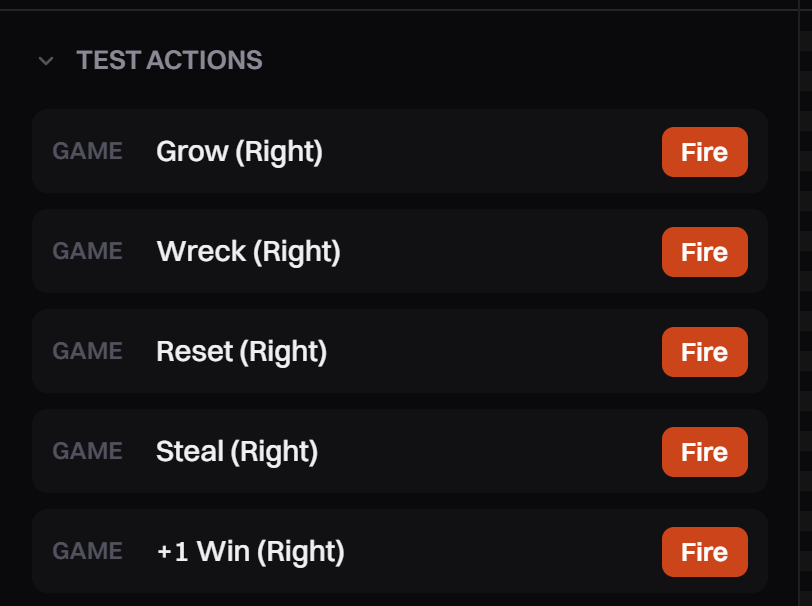
- Under the game's name, open Test Actions. It is closed at first.
- Click Fire next to an action. The action runs right away, with no trigger needed.
- Some actions have options. Click the small arrow next to Fire to set them first.
Test one trigger
In Action Triggers, each row has a small play button (tooltip Test this trigger). It sends one event that matches that row. Use it to check a keyword, gift or like count you just set.
Test an AI game with mock viewers
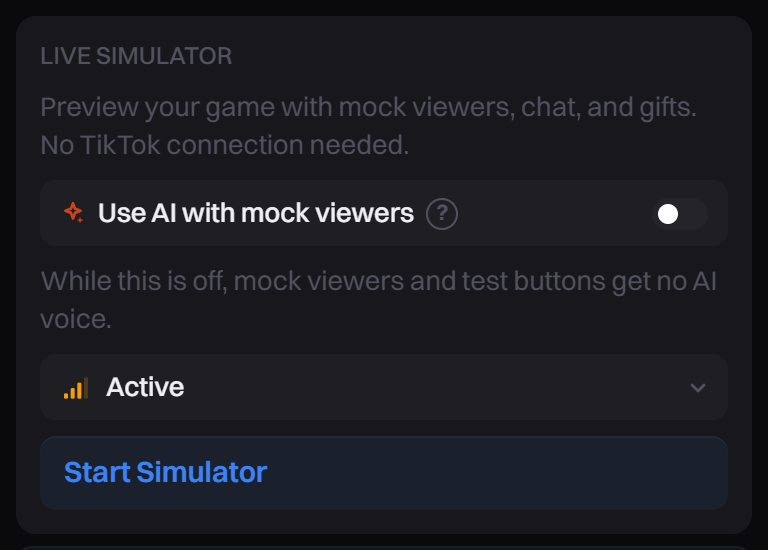
By default, mock viewers and test buttons don't use AI. In a game with AI, like AI Host, the Live Simulator shows Use AI with mock viewers.
- Turn it on to have the AI answer mock viewers the same way it answers real ones.
- It uses your free AI first, then your own AI keys or your AI credits, like a live stream.
- It turns off again each time you open a game, and when you connect TikTok. Turn it on each time you test.
- Without Pro, the box says AI answers need Pro. Mock viewers get ready-made lines.
Tips
- Test with the same game and triggers you will use live. The simulator reads your saved triggers.
- When you connect your real LIVE, the simulator stops, and the numbers from testing are cleared. Your real stats start at zero.
Common problems
It works in testing, but real gifts do nothing
- You are not connected to your real LIVE. Start your LIVE on TikTok first, then click Connect TikTok in the Connection panel. The simulator never connects to TikTok.
- The game is paused. A Game paused bar shows above the preview. A paused game ignores everything viewers do. Click Resume game.
- It is a Pro game and you are on the Free plan. You can open and test it, but Connect TikTok opens the upgrade window instead of connecting.
For other messages, see Connection Problems.
The simulator runs but nothing happens in the game
The game is paused. Click Resume game in the Game paused bar above the preview.
The Live Simulator is gone
It hides while TikTok is connected or connecting. To use it again, click Disconnect TikTok.
The test button is greyed out
Open a game first. Before that, the tooltip says Start the game to test triggers.
AI Host doesn't answer mock viewers
Turn on Use AI with mock viewers in the Live Simulator. It turns off each time you open a game. Without Pro, mock viewers get ready-made lines. See Set up AI Host.