Games & Triggers
Trigger HUD: the on-screen gift guide
Show TikTok LIVE viewers which gift, like or comment does what with the Trigger HUD. Turn it on or off, resize it, move it and change its style per game.
Updated
The Trigger HUD is the set of icons on your overlay that shows viewers what each gift, like or comment does in the game. It is built from your Action Triggers, so it always matches them.
Where to find it
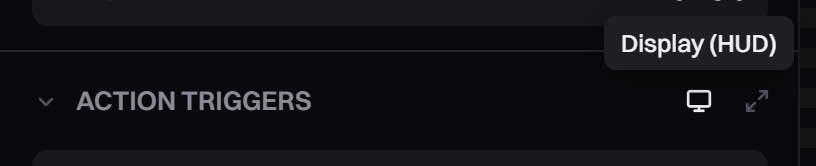
Open a game, then open Action Triggers in the left panel. In the section header, click the small screen icon (tooltip Display (HUD)). The section switches to the Display settings. Click the same icon again (tooltip Back to triggers) to go back.
Set it up
Each icon is one trigger row: the game's picture for the action with the gift picture on it, the action name, and a badge with the coins, the likes ("every N") or the keyword. Actions you switched off in Action Triggers are not shown.
-
Turn Trigger HUD on or off with its switch. When it is off, the triggers still work. Viewers just don't see the icons.
-
Pick a Look: Classic (icons) or Panel (a list of rows on a dark plate). For Panel, set how dark the plate is with Background.
-
Pick a Position: Sides, Top, Bottom or Custom. Some two-team games also offer Corners. With Custom, drag the HUD in the preview to place it, and drag its corner to resize it.
-
Move it with Offset Y (up and down). Top and Bottom also have Offset X. With Sides, set Left side and Right side to Top, Middle or Bottom.
-
Pick an Icon size: S, M or L.
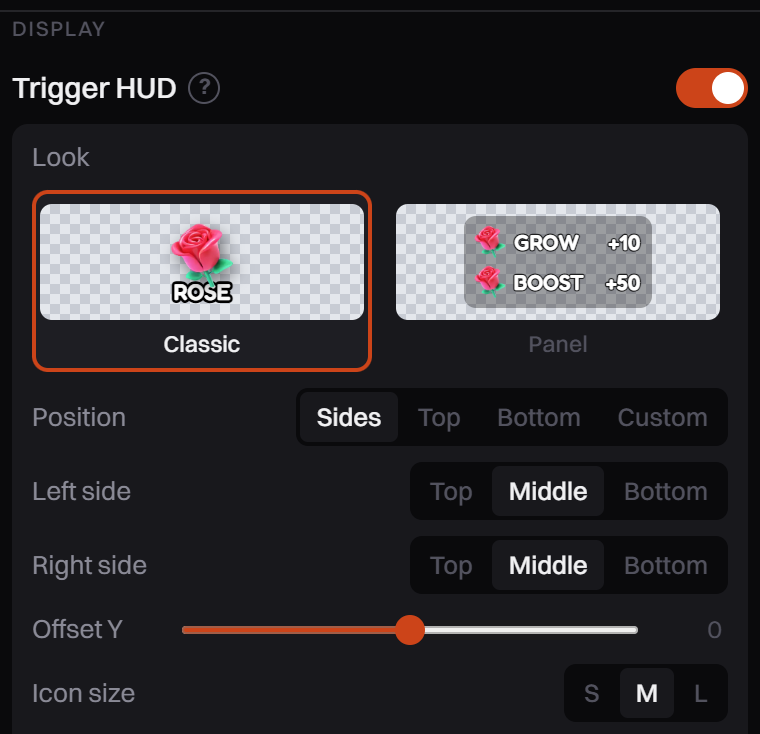
The Display panel. Settings below Icon size change with the position you pick. -
Check the preview. Changes save on their own (Display settings saved) and show on your overlay right away.
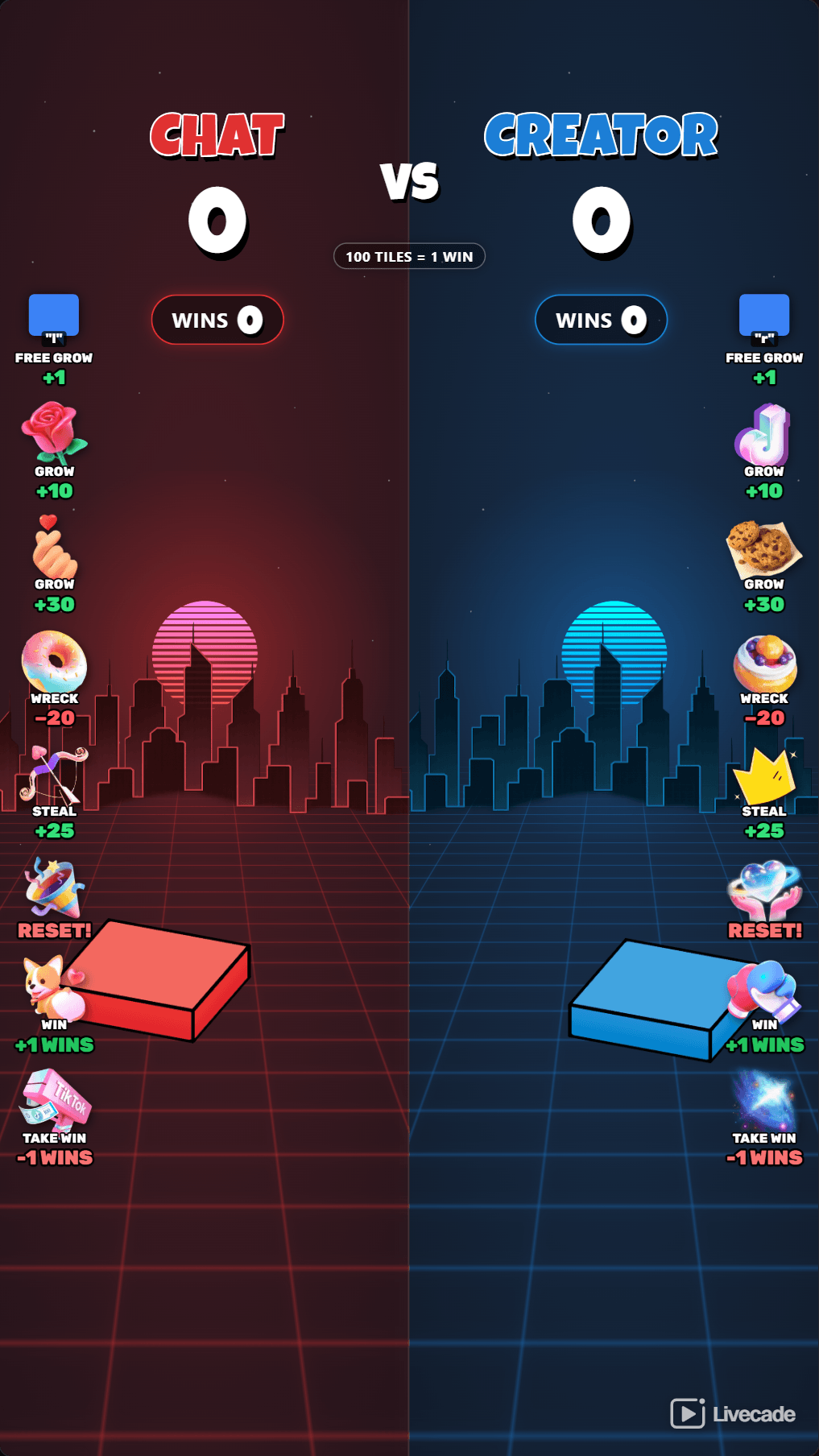
The Trigger HUD on the sides of the game, as viewers see it.
Options
| Setting | What it does |
|---|---|
| At a time | All, or show only 1, 2 or 3 triggers and rotate through the rest every few seconds. |
| Max shown | The most triggers on screen. Triggers past it still work. They are only hidden. |
| Max per row | How many icons fit in one row or column. Not offered in every position. |
| Arrangement | Stacked (label over the picture) or Inline (picture and label side by side, one line per trigger). Sides and Custom only. |
| Show | Tick Labels, Multiplier (the ×N), Req. count (coins, likes or keyword). Some games also have Amounts. |
| Icon style | Clean or Outline for the gift pictures. |
| Grey gift icons | Shows the gift pictures in grey. The game's own pictures keep their colour. |
| Gift images only | Hides the game's picture, so the gift picture is the main image. |
| Auto-hide briefly | The HUD disappears for about a second at random times, so it is not on screen non-stop. |
| Animation | Off, Pulse, Bounce, Shake or Sway, with an Interval in seconds. |
These settings save per game, so each game keeps its own HUD layout.
A long list of gifts on screen is what TikTok tends to flag. Show fewer triggers: set At a time to 1, keep Auto-hide briefly on, or turn the HUD off. See TikTok Live Restrictions.
Common problems
I can't find the HUD settings
They open from the small screen icon in the Action Triggers header. The four-arrow button beside the preview, Move overlay elements, is different: it moves parts of the game and your widgets (see Game settings).
The gift icons look grey
Grey gift icons is ticked. Untick it to show the gifts in full colour.
Some triggers are missing from the screen
Check At a time (1, 2 or 3 rotates through the triggers) and Max shown. A trigger whose action is switched off in Action Triggers never shows. With Auto-hide briefly on, the HUD also disappears for a second now and then.
There is no Position option
Some games pin their triggers to a fixed side. The panel then says This game pins its triggers to a fixed side. You can still shift them up or down. Use Offset Y instead. A few games, such as Horse Race, place their triggers next to the action themselves and have no Position or Offset.
The HUD covers the game
Pick a smaller Icon size, move it with Offset Y, or choose Custom and drag it to a free spot in the preview.