Stream Tools
Read comments out loud (TTS)
Turn on the Livecade comment reader for TikTok LIVE TTS: pick one of 18 voices, mute words, and hear comments read out loud in OBS.
Updated
The Comment Reader reads your viewers' comments out loud on your overlay. It is text to speech (TTS) for your TikTok LIVE, and every voice is free on every plan.
Where to find it
- Quick switch: in the left panel, open Stream Settings. The Comment Reader row has an on/off switch and a gear.
- All settings: open Settings from your account menu, then the Stream tab.
Set it up
Turn on the Comment Reader
-
In the left panel, open Stream Settings.
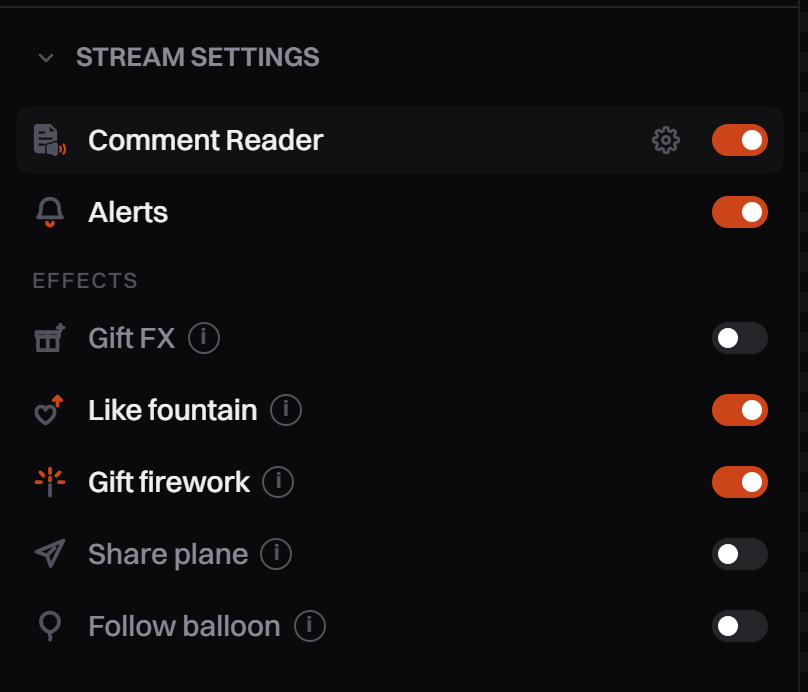
The Comment Reader row. The gear opens its settings. -
Click the gear next to Comment Reader. The Stream settings open.
-
Under Voice, click the voice name to open the list.
-
Click the play button next to a voice to hear a short sample.
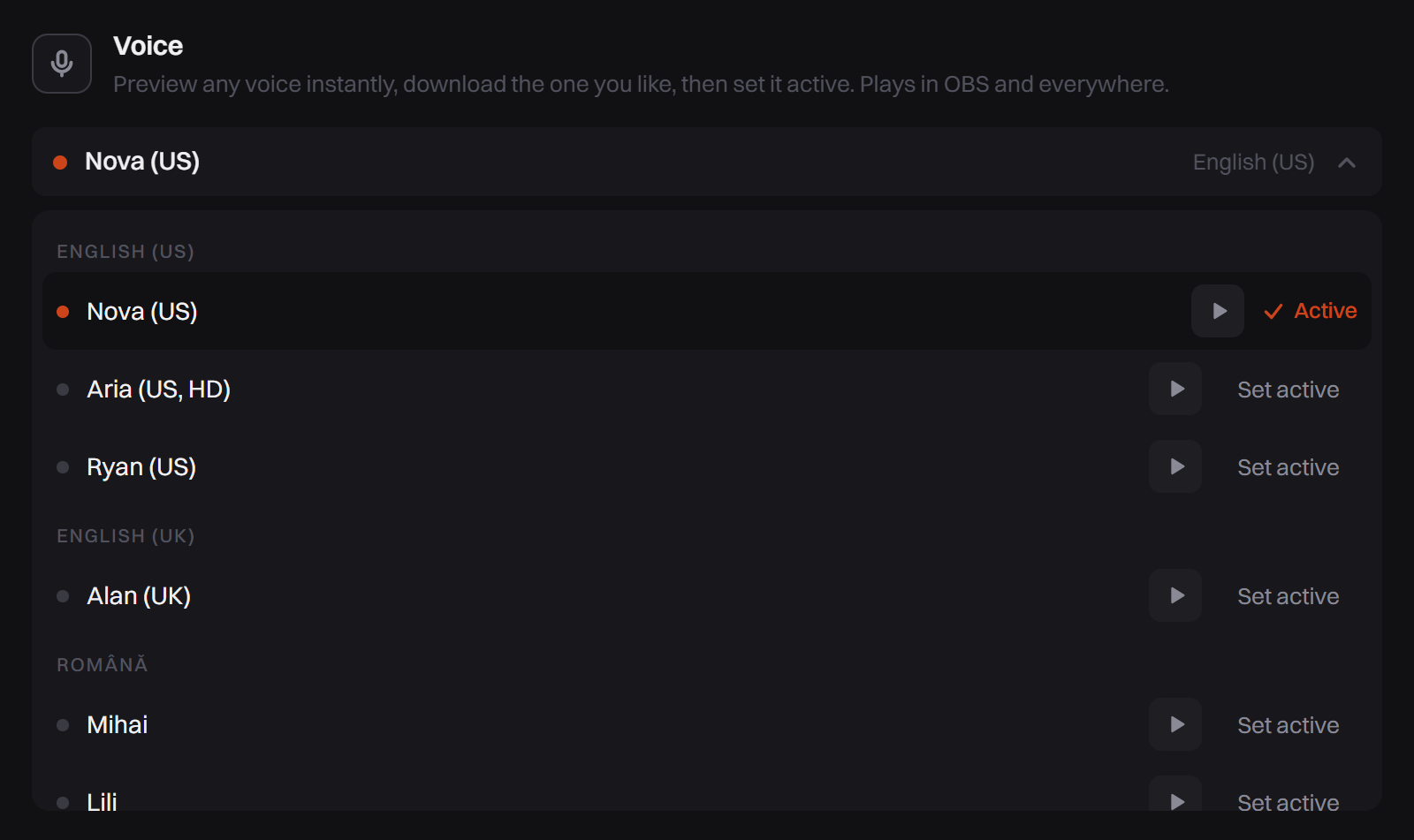
Play a sample, then click Set active on the voice you like. -
Click Set active on the voice you want.
-
Turn on Read comments aloud.
-
Set Max length. Comments longer than this are skipped, not cut short.

Read comments aloud is on. Max length starts at 100 characters.
Changes apply right away, even while you are live.
Mute words
Mute words is on from the start, with Filter common profanity checked.
- In the Stream tab, find Mute words.
- Type a word in Custom mute words, then click Add.
A muted word is removed and the rest of the comment is still read. A comment made only of muted words is skipped. Matching is by whole word, and capital letters do not matter. The same filter also applies to alert callouts.
Read shoutouts aloud
In the Shoutouts card, check Read shoutouts aloud. Each shoutout you send from the dashboard is then spoken when its banner appears. This works even when the Comment Reader is off.
Voices
Every voice reads every comment, whatever language the comment is in. Pick the language most of your viewers write in.
| Language | Voices |
|---|---|
| English (US) | Nova, Aria (US, HD), Ryan |
| English (UK) | Alan |
| Spanish | Dave, Claude (MX) |
| Portuguese (Brazil) | Faber, Cadu, Jeff |
| French | Tom |
| German | Thorsten |
| Italian | Riccardo |
| Romanian | Mihai, Lili |
| Russian | Irina |
| Polish | Gosia |
| Turkish | DFKI |
| Arabic | Kareem |
The voice you choose here is also the voice games use when they read questions out loud.
What gets read
- Read: viewer comments, the text only. It does not say who wrote the comment.
- Not read: your own comments, comments longer than Max length, and comments while the AI Host game is running (the host answers chat itself).
- Gifts, follows, shares and joins are not read by the Comment Reader. They are spoken by alerts: fill in Read aloud for each alert. Alerts use the same voice.
- Busy chat: it reads one comment at a time. While one is being read, only the newest waiting comment is kept. The others are skipped, so the voice never falls minutes behind.
The voice is made inside your overlay page, on the computer that runs it. That is why it plays in OBS and Streamlabs, where normal browser voices are silent. Your viewers hear it only if your streaming app sends the overlay's sound to TikTok.
Tips
- Turn the reader on and open OBS a few minutes before you go live. The first time, the overlay downloads the voice (about 63 MB), and the first comments wait for it.
- To change how loud the voice is, use Voice in the Mixer. There is no volume setting in the Stream tab.
Common problems
Viewers cannot hear the voice
Open the Mixer and check that Voice and Master are above 0 and Mute all is off. Then check that OBS sends the overlay's sound to TikTok: see No Sound on Stream.
Some comments are not read
The comment is longer than Max length, it contains only muted words, or chat is busy and a newer comment replaced it. Raise Max length if long comments matter to you.
I hear the voice twice
Your dashboard preview and your streaming app both play the overlay. See I hear everything twice for the fix.
The first comment after changing voice is late or missing
The overlay is downloading the new voice. Wait a minute, or change voices before you go live.