Going Live
Livecade desktop app for Windows
An optional Windows app that renders your overlay for TikTok LIVE Studio without OBS. Install it, add it as a source, and route the game audio.
Updated
The Livecade desktop app is an optional way to get your overlay on stream. It opens the overlay in its own window for TikTok LIVE Studio to capture, and handles the window sizing and audio routing for you.
You do not need it. It is one of four ways to go live, and the others work with software you already have.
Should you use it?
- You want your camera visible behind the overlay. Window capture has no transparency, so the overlay is always a solid image. Use the OBS browser source.
- You are on macOS. The app is Windows-only. LIVE Studio itself runs on macOS, so use screen capture or OBS there.
- You just want the quickest route. Screen capture adds nothing beyond the browser you already have.
The app suits you if you are on Windows, the overlay fills the whole screen, and you would rather not run OBS or babysit a browser window.
Download
Download Livecade for WindowsWindows 10 or 11. Around 82 MB.
Installing it
Your browser and Windows may show extra prompts for an app they have not seen many times yet. How many you get depends on your machine and browser: some people see all of the ones below, some only the first, some none at all. Work through whichever appear.
Always download Livecade from cdn.livecade.io using the button above, so you know you are getting
the real thing.
1. Your browser asks you to confirm the download
Chrome flags the download and holds it. Open the downloads icon in the toolbar, find
Livecade-Setup.exe, and click Download suspicious file to let it finish.
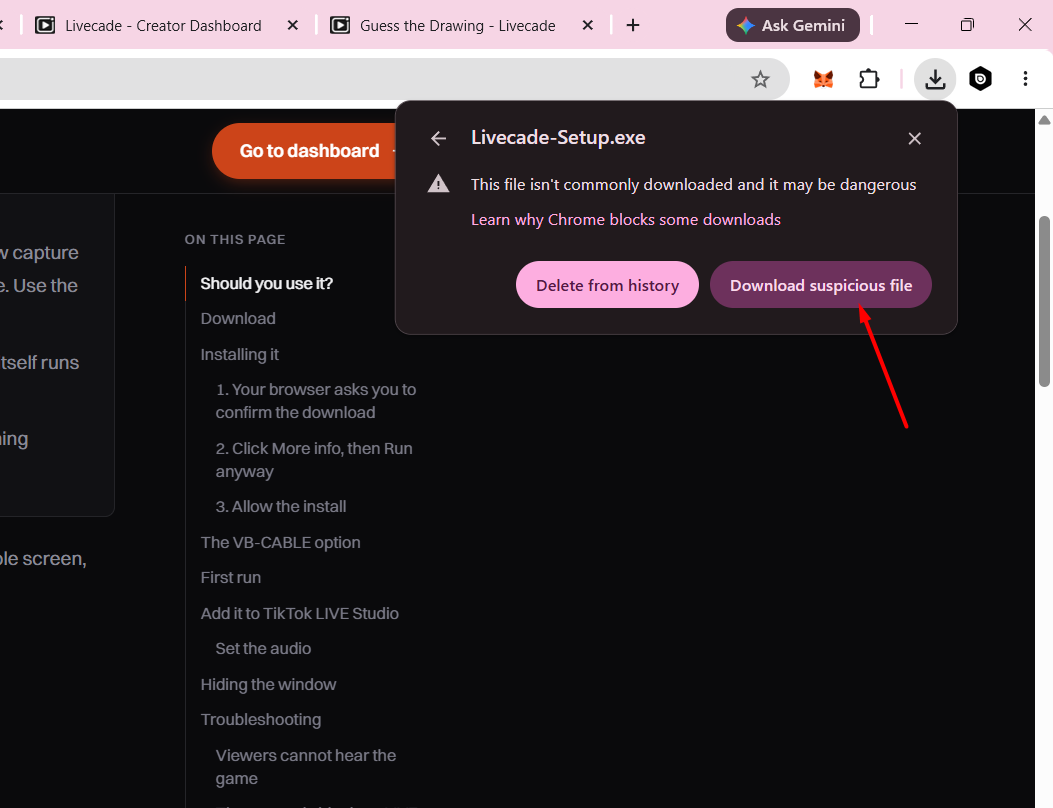
Chrome shows this for any installer it has not seen many times yet. Edge words it differently and uses Keep or Keep anyway.
2. If Windows shows a blue box, click More info
Some machines show a blue "Windows protected your PC" box when you run the installer. If yours goes straight to the next step, skip this.
The button you want is hidden until you expand it, which is the only reason this catches people out.
- Click More info. It is the small link under the message.
- Click Run anyway, which appears at the bottom once expanded.
3. Allow the install
Windows asks for permission to install for everyone on the PC. Click Yes. This is the same prompt OBS and most desktop apps show, because the installer writes to Program Files.
The VB-CABLE option
During setup, on the Choose Install Location page, there is a checkbox offering to install VB-CABLE, a free virtual audio driver by VB-Audio. It is ticked by default, but it is not required. Viewers hear the game either way.
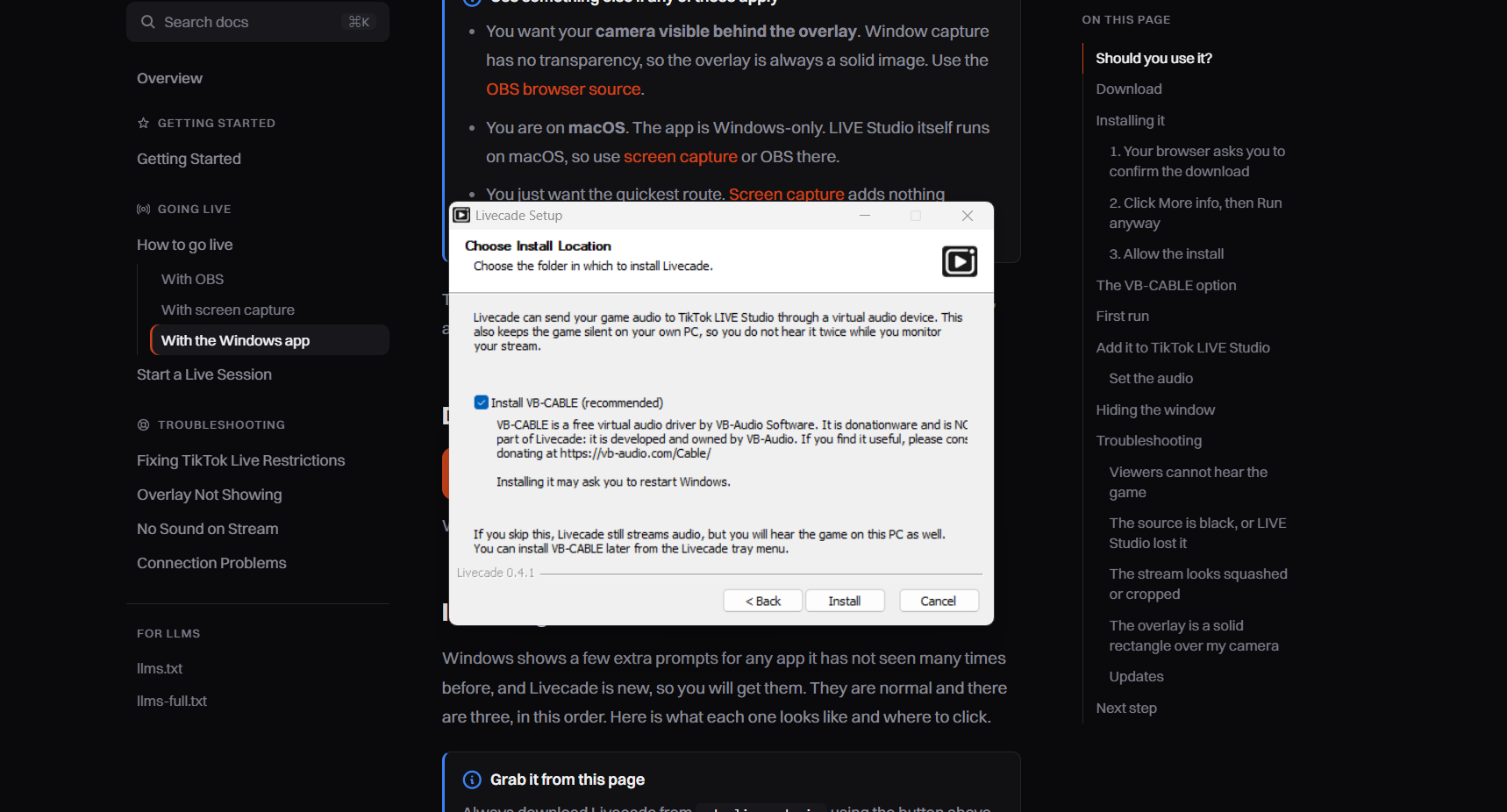
Without VB-CABLE, LIVE Studio captures the app's audio directly. In its Audio mixer, pick Livecade from the list of applications. You then hear the game from the app itself, so mute the dashboard tab (right-click the browser tab, Mute site) and you are back to hearing exactly one copy of the audio while still working in the dashboard.
With VB-CABLE, the app's audio goes down a silent virtual device instead, so your PC stays quiet and you monitor through the dashboard.
| VB-CABLE installed | Declined | |
|---|---|---|
| Game audio on stream | yes | yes |
| You monitor from | the dashboard | the app, with the dashboard tab muted |
| Your volume and the stream's | separate | the same setting |
| Extra driver | yes, and it may ask to restart Windows | none |
The real difference is that last row. With the cable, turning your own volume down does not affect what viewers hear. Without it, one volume controls both. Pick the cable if you want that separation, skip it if you do not.
Skipping is not final: you can install VB-CABLE later from the Livecade tray menu, and the app's audio output is changeable there at any time.
VB-Audio's installer sets CABLE Input as the Windows default output device. If your music, Discord, or notifications go quiet after installing, open Windows Settings, System, Sound and set your usual speakers or headphones back as the default. Livecade keeps working either way.
VB-CABLE is developed and licensed by VB-Audio as donationware. If you find it useful, consider donating to them.
First run
- Launch Livecade from the Start menu.
- Paste your overlay URL when it asks. You will find it in the dashboard, in the top right of the preview, under Overlay URL.
- The overlay appears in a plain window with no title bar. Leave it open.
To move the window, hold Alt and drag anywhere on it. It has no title bar to grab, so this is the only way. Everything else lives in the tray icon near the clock: hide the window, reload the overlay, change the audio output or capture size, and quit.
Add it to TikTok LIVE Studio
LIVE Studio will not pick up a window that is parked off-screen. If you have already used Hide, open the tray menu and choose Show window first, add the source, confirm you can see the overlay in LIVE Studio, and only then hide it again. Hiding after the source is working is fine.
-
In LIVE Studio, click Add source.
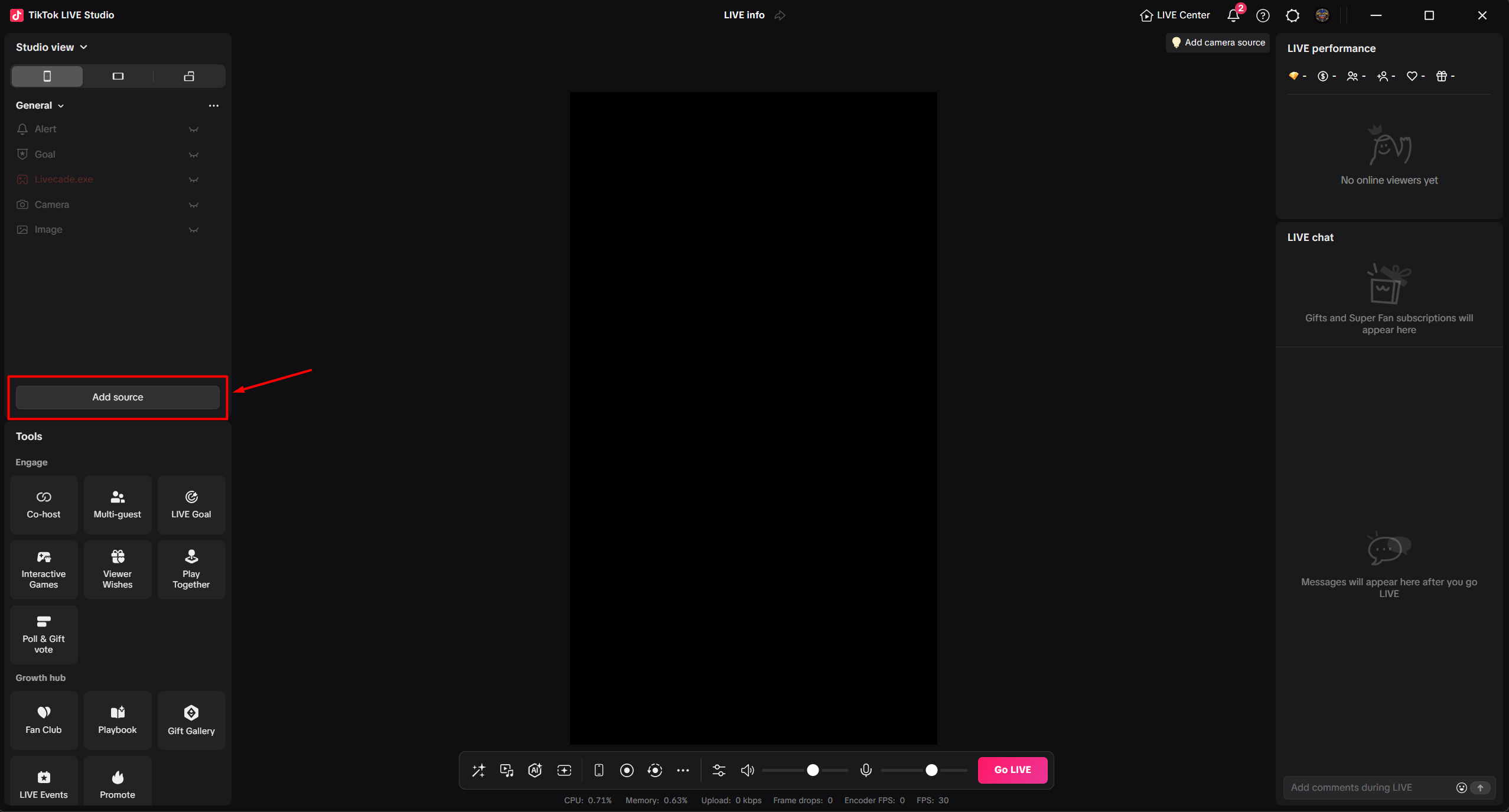
Add source sits under the sources list on the left. -
Choose Window capture, then click Add.
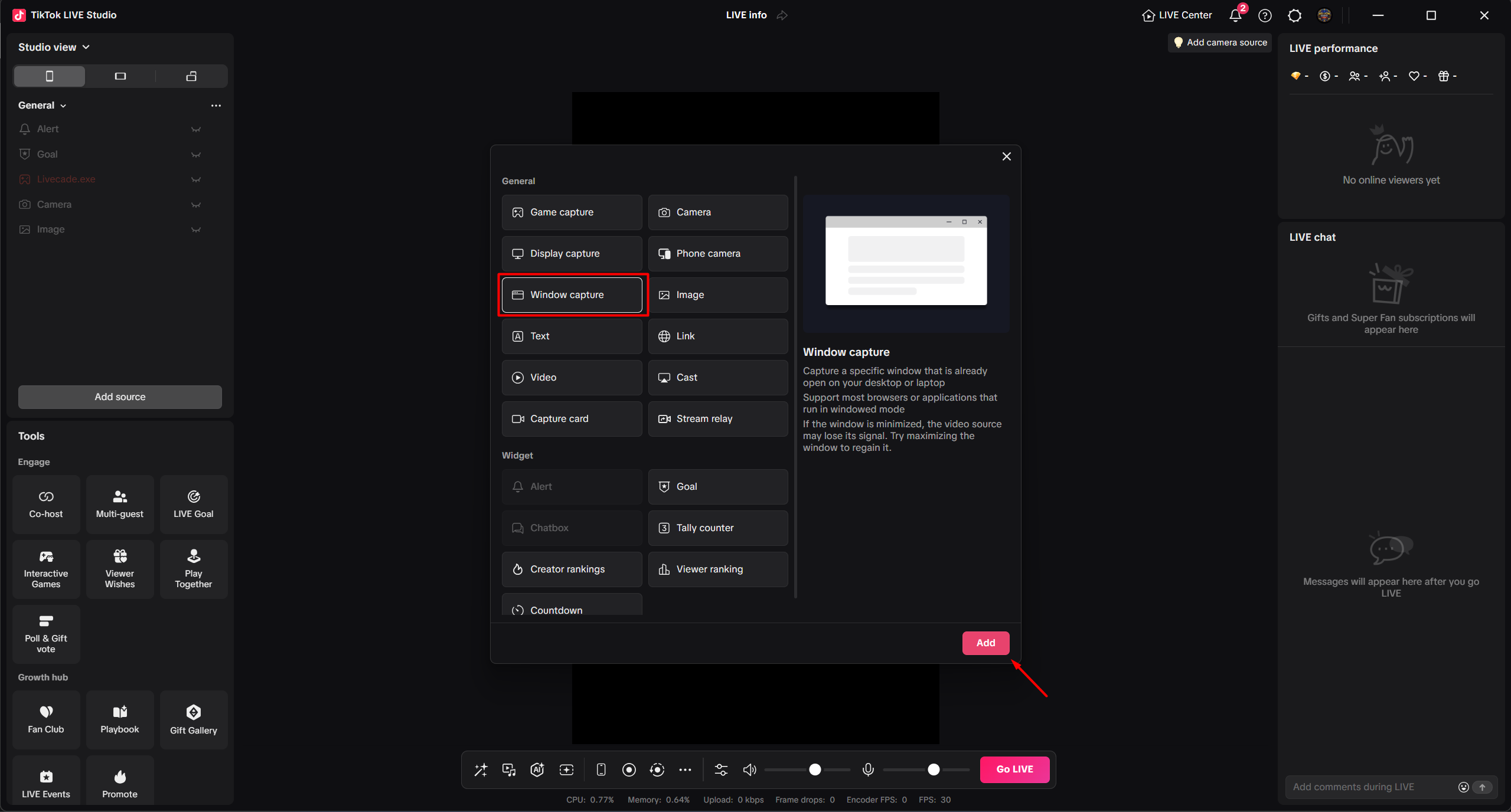
Window capture takes the Livecade window on its own. -
Open Select program and pick Livecade.exe. It is listed by program name, which is why the app is named that way.
-
Click Add source, then drag the corners so it fills the canvas. The app already renders at 9:16, so it should need very little adjusting.
Set the audio
Window capture takes the picture only, so add the sound separately. Open the Audio mixer from the toolbar at the bottom, then:
-
With VB-CABLE: set the speaker source to CABLE Input (VB-Audio Virtual Cable).
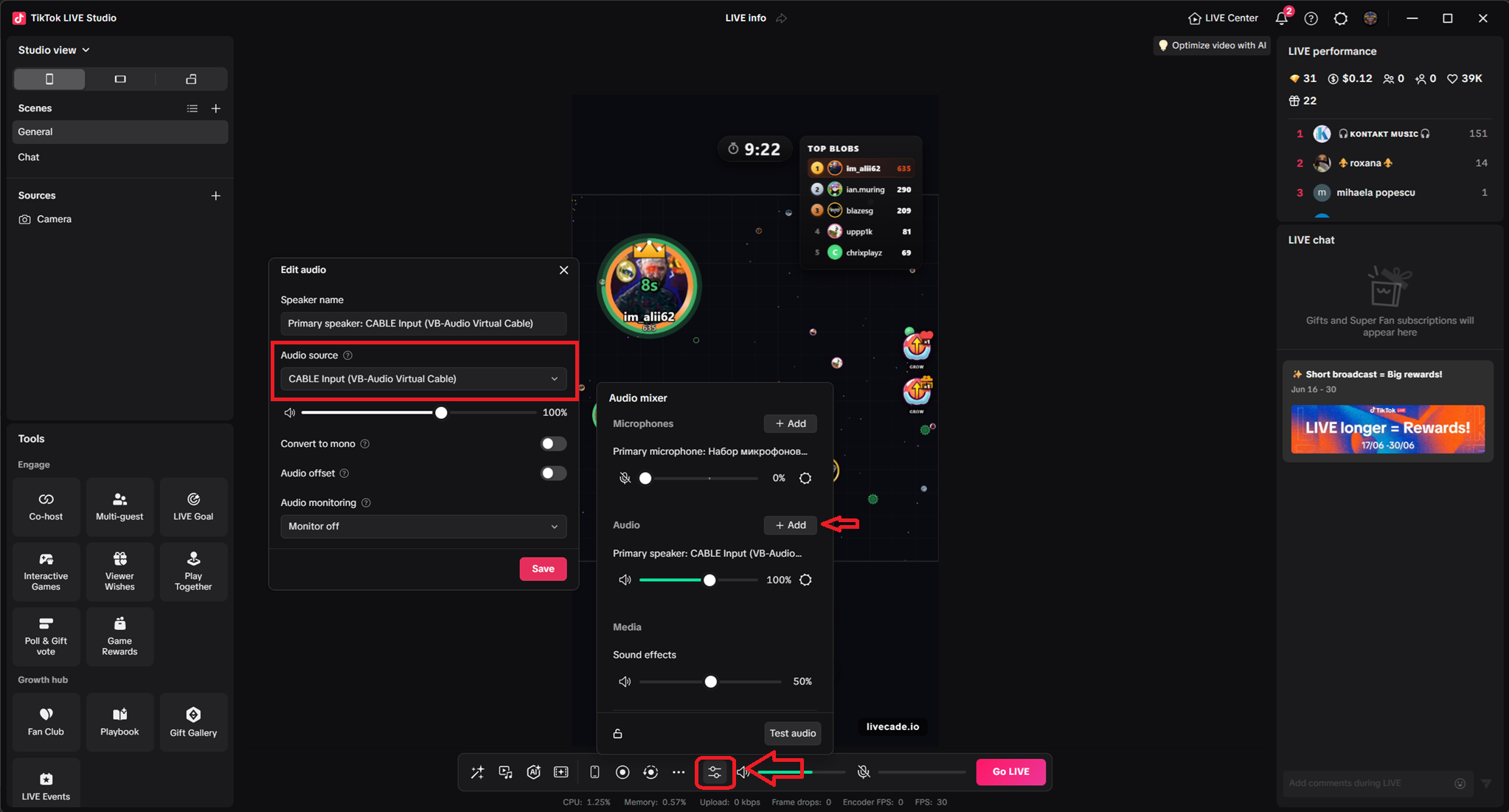
With the cable installed, point LIVE Studio at CABLE Input. -
Without VB-CABLE: next to Audio click Add, set Type to Application and Device to Livecade.exe.
Play a sound in the game and watch the meter move in the mixer. A silent stream looks completely normal from your side, so the meter is the only way to know viewers can hear it.
In LIVE Studio, open Settings, Video and set Screen adaptation to Portrait, Fit to screen. Fill screen crops the edges, and the overlay is already the right shape. If the Screen adaptation section is missing entirely, see the stream looks squashed below.
Hiding the window
The tray menu has a Hide option that parks the window off-screen so it is not in your way. LIVE Studio keeps capturing it, because the window still exists and is still rendering.
Hiding a window that is already being captured works. Adding the source while the window is hidden does not: LIVE Studio needs to see it on screen to start capturing, and you get a black source. Always add the source with the window visible, check the overlay appears in LIVE Studio, then hide it.
If you added Livecade as a Game source, confirm the overlay still shows after hiding before you go live. Do not close the window: closing it stops the capture and LIVE Studio shows an error.
Troubleshooting
Viewers cannot hear the game
Open the tray menu and check Audio output. If it is set to a cable that is not installed, switch it to your PC's output. Then confirm LIVE Studio's audio mixer is capturing the matching source, and watch its meter while the game makes a sound.
The source is black
The Livecade window looks perfectly normal on your desktop, but the source in LIVE Studio is solid black. This is a LIVE Studio capture problem, not the overlay: the app is still rendering the whole time. Work through these in order, checking after each one.
-
Make sure the window is on screen. If you have used Hide, open the tray menu and choose Show window. LIVE Studio cannot start capturing a window that is parked off-screen. Hide it again once the source is working.
-
Set both apps to the same graphics performance. Open Windows Settings, System, Display, Graphics. Add TikTok LIVE Studio and Livecade if they are not listed, then set both to High performance. Restart both apps afterwards. This matters most on laptops with two graphics chips, where Windows can otherwise run the two apps on different ones. Some creators have had a black source fixed by this step alone, and this walkthrough shows it being done for LIVE Studio.
-
Delete every source in the scene, then add Livecade again. Not just the Livecade source, all of them. LIVE Studio picks how it captures a window when the source is created and remembers that choice, and clearing the scene is what makes it choose again. This is the fix that works when the first two do not.
-
If it went black after changing the capture size, that creates a new window LIVE Studio no longer recognises. Remove and re-add the source.
Bring the window back on screen from the tray, then delete and re-add the source as above. We have seen this happen once after about half an hour of streaming and have not been able to reproduce it since. If it happens to you, please tell us what you were doing at the time. It helps more than you would think.
The stream looks squashed or cropped
This is a LIVE Studio configuration problem, not the app. The giveaway is that Settings, Video offers only landscape resolutions, or the Screen adaptation section is missing. Close LIVE Studio completely and reopen it. If it persists, contact us and we will walk you through resetting its stored video settings.
The overlay is a solid rectangle over my camera
Expected. Window capture cannot carry transparency, so the app cannot composite the overlay over a camera. Use the OBS browser source route for that, and note that your camera has to be a source inside OBS as well. A camera added in Live Studio will stay hidden behind the overlay.
Updates
The app does not update itself yet. When a new version ships, download it from this page and install it over the top. Your overlay URL and settings are kept.
Next step
With the overlay on screen, start your dashboard session so chat and gifts reach the game. See Start a Live Session.