Billing
Use Your Own AI Keys
Connect your own OpenAI and Fish Audio accounts and pay them directly for the AI in your games, at about a third of the AI credit price. How to get each key, where to paste it, and what happens if one stops working.
Updated
AI in your games (AI Host, Roast Your Photo, Guess Your Future) runs on OpenAI and Fish Audio. By default you pay for it with AI credits. If you connect your own accounts instead, they bill you directly at their own prices, which comes to about a third of the credit price.
How it works
- Each day's free AI still comes first. It is on us, keys or not.
- After that, your keys pay where credits would. Credits pay for anything your keys do not cover.
- If a key stops working during a live, that AI pauses and we tell you. Your credits are never used in its place.
You can connect one key or both. Each one pays for its own part:
| Key | Pays for |
|---|---|
| OpenAI | AI Host answers, AI roasts, AI fortunes |
| Fish Audio | The AI Host's voice |
The voice is most of what an AI Host line costs, so for AI Host the Fish Audio key saves the most.
What it costs
Typical prices, after the free AI each day. The real cost depends on each request.
| 100 of these | With AI credits | With your own keys |
|---|---|---|
| AI host lines | about 191 credits | about $0.21 |
| AI roasts | about 51 credits | about $0.06 |
| AI fortunes | about 9 credits | under $0.01 |
Step 1: Get an OpenAI key
-
Sign in at platform.openai.com/api-keys and click Create new secret key.
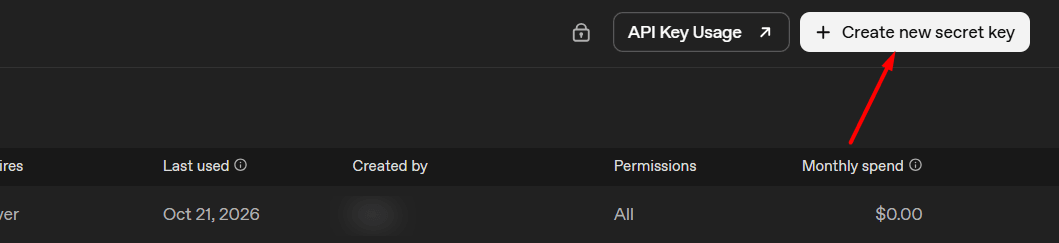
Your API keys, with Create new secret key in the top right. -
Name it Livecade. Under Permissions, keep All. Choose an expiration, then click Create secret key.
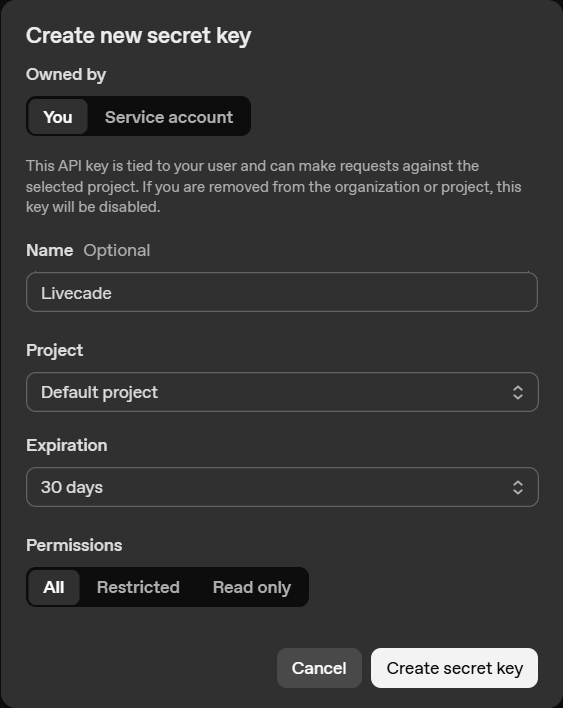
Permissions must be All. A Restricted or Read only key cannot run AI. -
Click Copy. OpenAI shows the key only once.
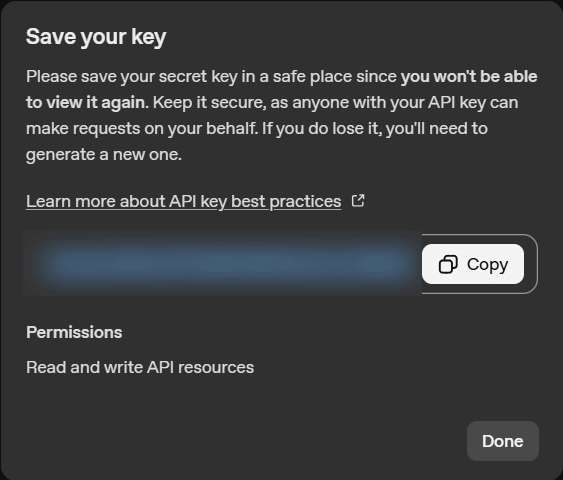
Copy it now. If you lose it, make a new one. -
Add credit to your OpenAI account under Billing. OpenAI does not run requests on an empty balance.
Step 2: Get a Fish Audio key
-
Sign in at fish.audio/app/api-keys and click Create API Key.
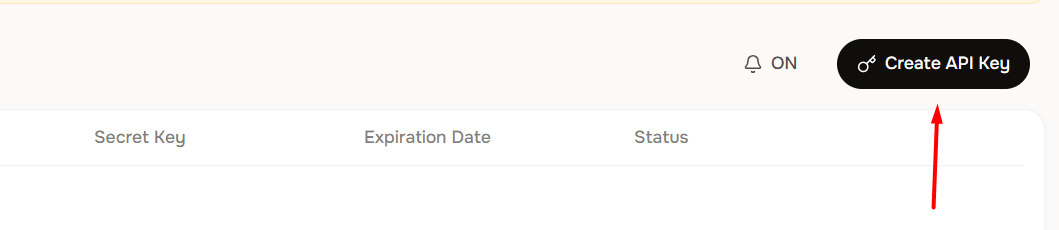
Developer, then API Keys, then Create API Key. -
Name it Livecade, pick Never under Expiration, and click Create.
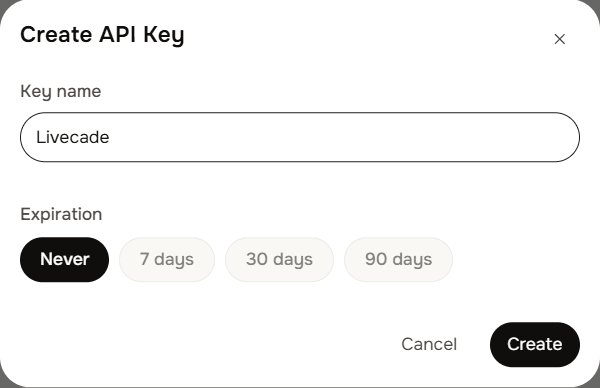
Never means you will not have to paste a new key later. -
Copy the key, then click I've saved my key.
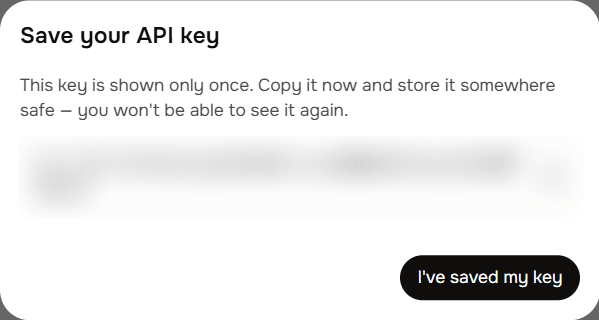
Fish Audio also shows the key only once. -
Add credit under API Billing.
Step 3: Paste them into Livecade
-
In the dashboard, open Settings and then AI, or go to app.livecade.io/settings/ai.
-
Paste each key into its card and click Connect. Livecade checks the key with the provider first, which costs a tiny fraction of a cent on your account.
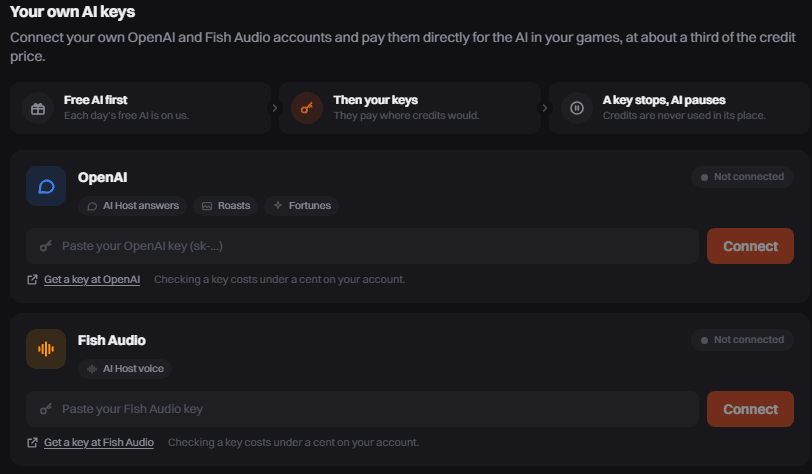
One card for each provider. -
When a card says Connected, that key pays for its AI from now on.
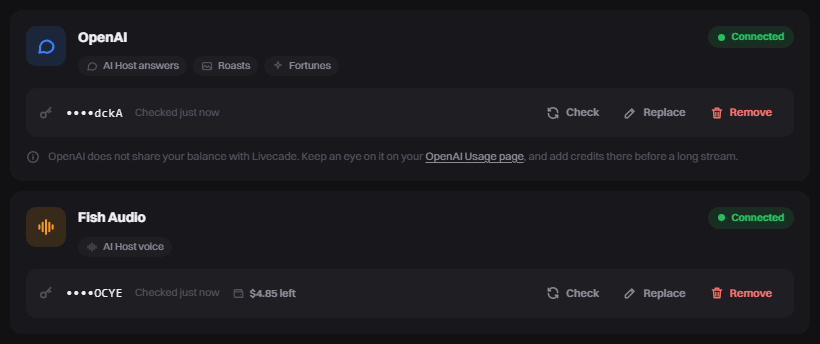
Connected keys show the last characters of the key and, for Fish Audio, your balance.
Past the free AI, a game only pays for more AI if you allow it. In the game's settings, set When the free AI runs out to Keep going. AI Host always keeps going.
If a key stops working
The card and your AI usage in Game Info say what happened. The AI that key pays for pauses until you fix it. The rest keeps going: with a stopped Fish Audio key, the AI Host still answers, in text only.
| The card says | What to do |
|---|---|
| Out of balance | Add credit at the provider, then click Check. During a stream, AI comes back within a minute of adding funds. |
| Key rejected | The key was deleted or expired. Make a new one and click Replace. |
| Missing permission | Make a new OpenAI key with Permissions set to All, and click Replace. |
| Paste it again | Click Replace and paste the same key again. |
Good to know
- Your provider bills every request, including lines prepared for viewers who never reached the stage. AI credits are only taken for AI that reaches your stream.
- Watch your balance. Fish Audio's balance shows on its card. OpenAI does not share yours, so check it on your OpenAI Usage page before a long stream.
- Your keys are stored encrypted and are never shown again after you connect them.
- Remove a key at any time with Remove. After the free AI, that AI goes back to your credits, or stops if the game is set to Stop.
- Every request is listed under Usage on your keys in Settings, AI, with an estimated cost. Your provider's bill is the exact amount.
- Own keys work with the AI games, which are part of Pro.