Going Live
Go live with screen capture
Put your Livecade overlay on stream by capturing a browser window in TikTok Live Studio. No OBS and no extra software.
Updated
The quickest way to get your overlay on stream: open it in a browser window and have TikTok LIVE Studio capture that window. Beyond LIVE Studio and a browser, there is nothing extra to install.
The trade-off is that you are capturing a real browser, so the overlay is a solid image (your camera cannot show behind it) and anything that pops up over the window can end up on stream. Both are manageable, and this page covers how.
Before you start
- Your overlay URL, copied from the dashboard. See Getting Started if you do not have it yet.
- TikTok LIVE Studio installed and open, with LIVE creator access on your TikTok account.
The steps below use Windows keys and menu names. LIVE Studio also runs on macOS and the approach is the same, but the fullscreen shortcut and some labels differ.
Open the overlay in its own window
-
Open a new browser window, not just a tab in the one you already use.
Why a separate windowWhatever is in that window is what goes on stream. Keeping it separate means your other tabs, bookmarks, and notifications cannot appear mid-broadcast.
-
Paste your overlay URL and load it.
-
Keep it as a normal window, not fullscreen. A fullscreen or minimised window often does not appear in the list you are about to use.
Add the window in LIVE Studio
-
In LIVE Studio, click Add source.
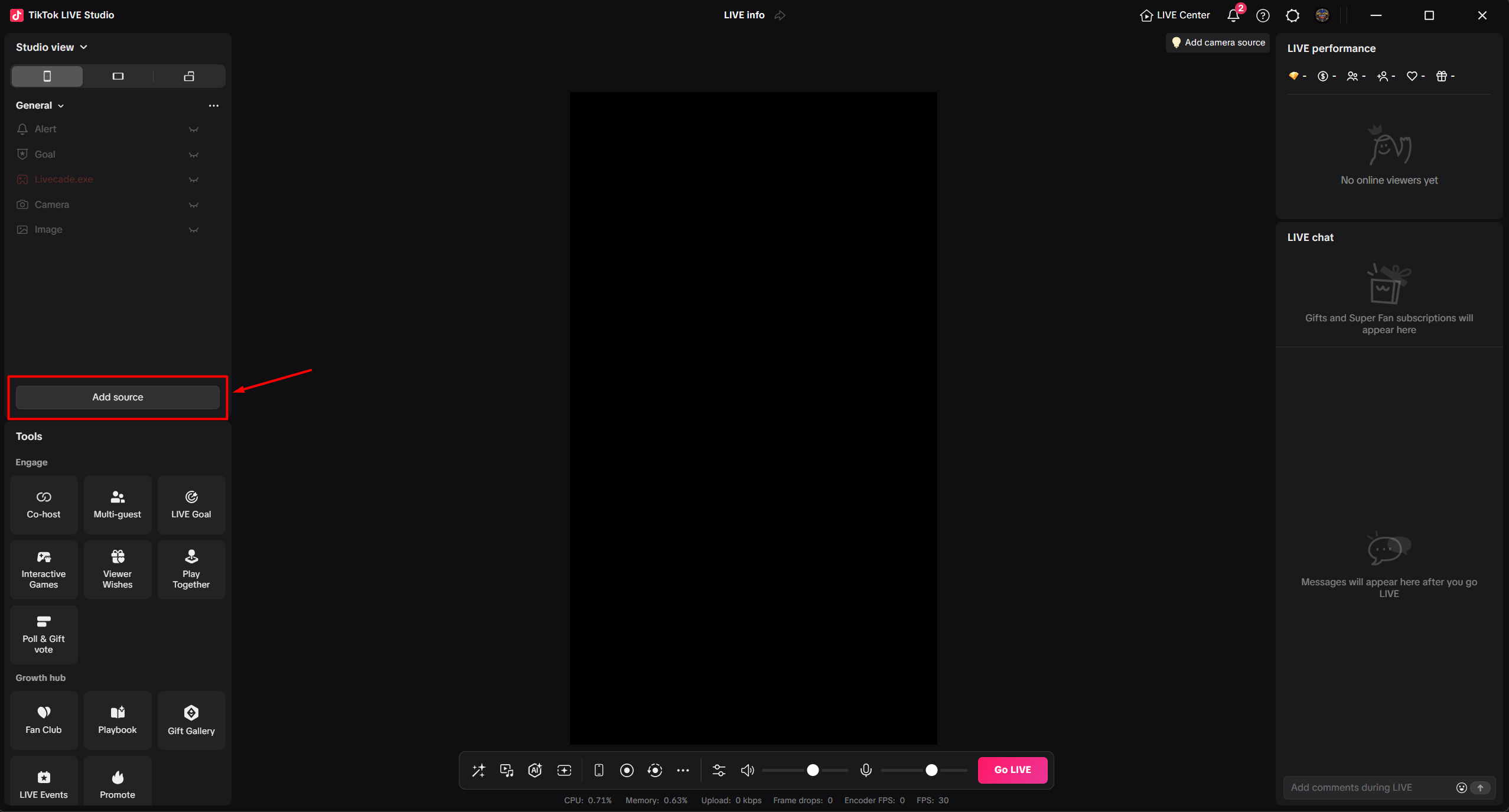
Add source sits under the sources list on the left. -
Choose Window capture, then click Add.
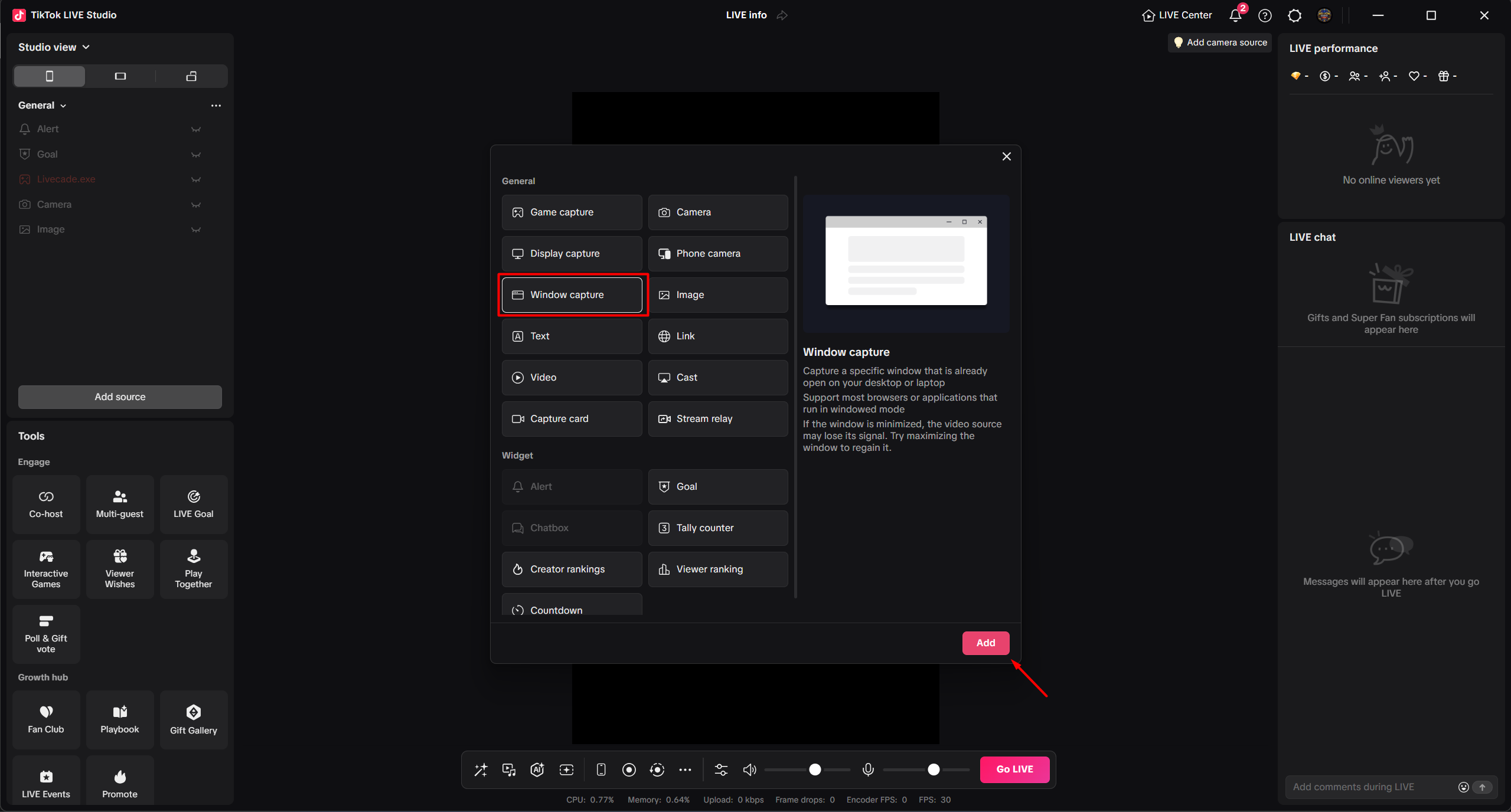
Window capture takes a single window, unlike Display capture which takes a whole screen. -
Open Select program and pick your browser from the list. It is listed by program name and window title, for example
chrome.exe.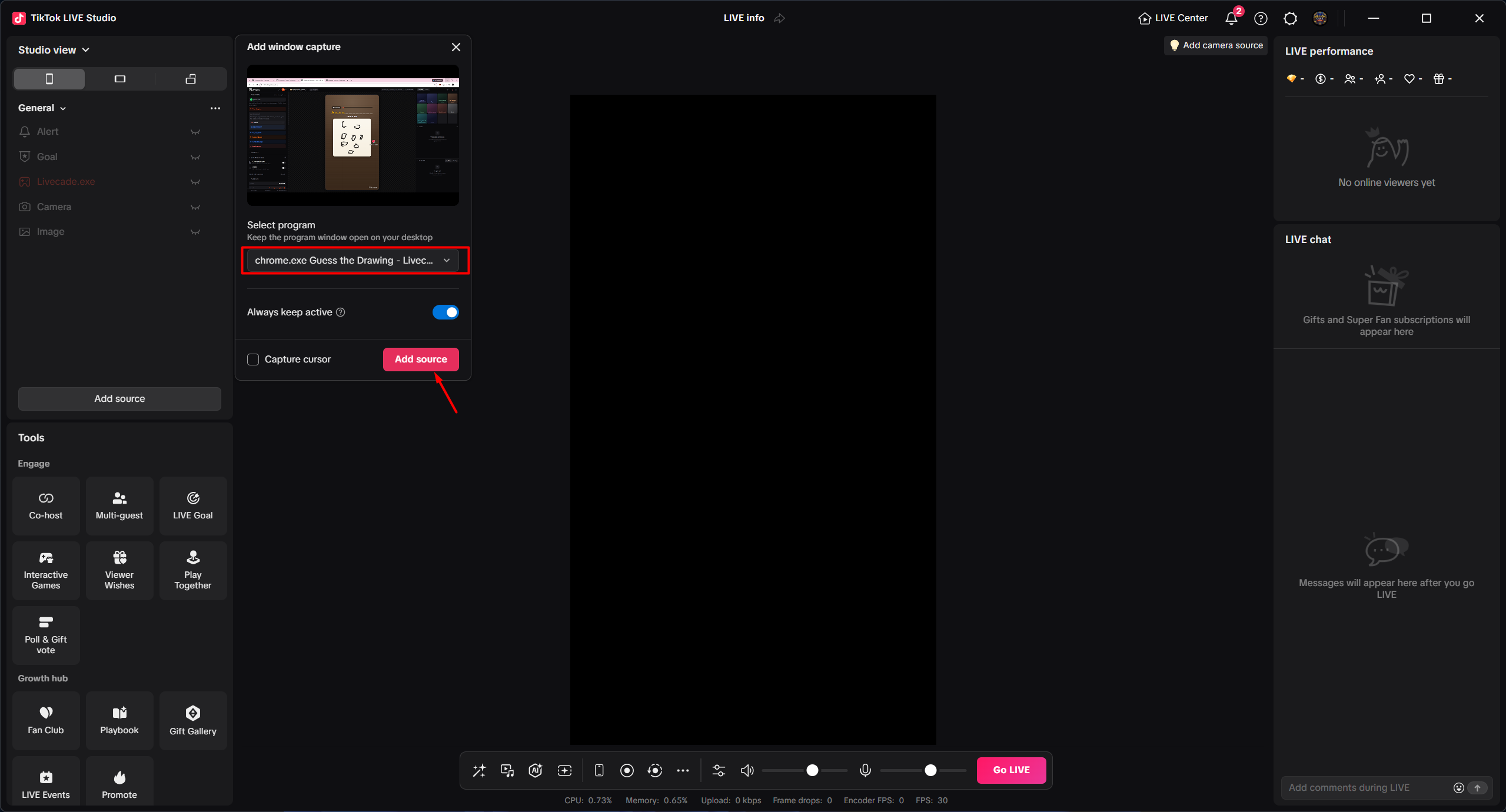
Pick the browser window that has your overlay open, then click Add source.
It is almost always because the window is fullscreen or minimised. LIVE Studio says the same thing in that dialog: "If the window is minimized, the video source may lose its signal." Restore the window, resize it slightly, and reopen the list.
Frame it so only the game shows
Right after adding the source you will see the whole browser window, including the tab bar and whatever else is on the page.
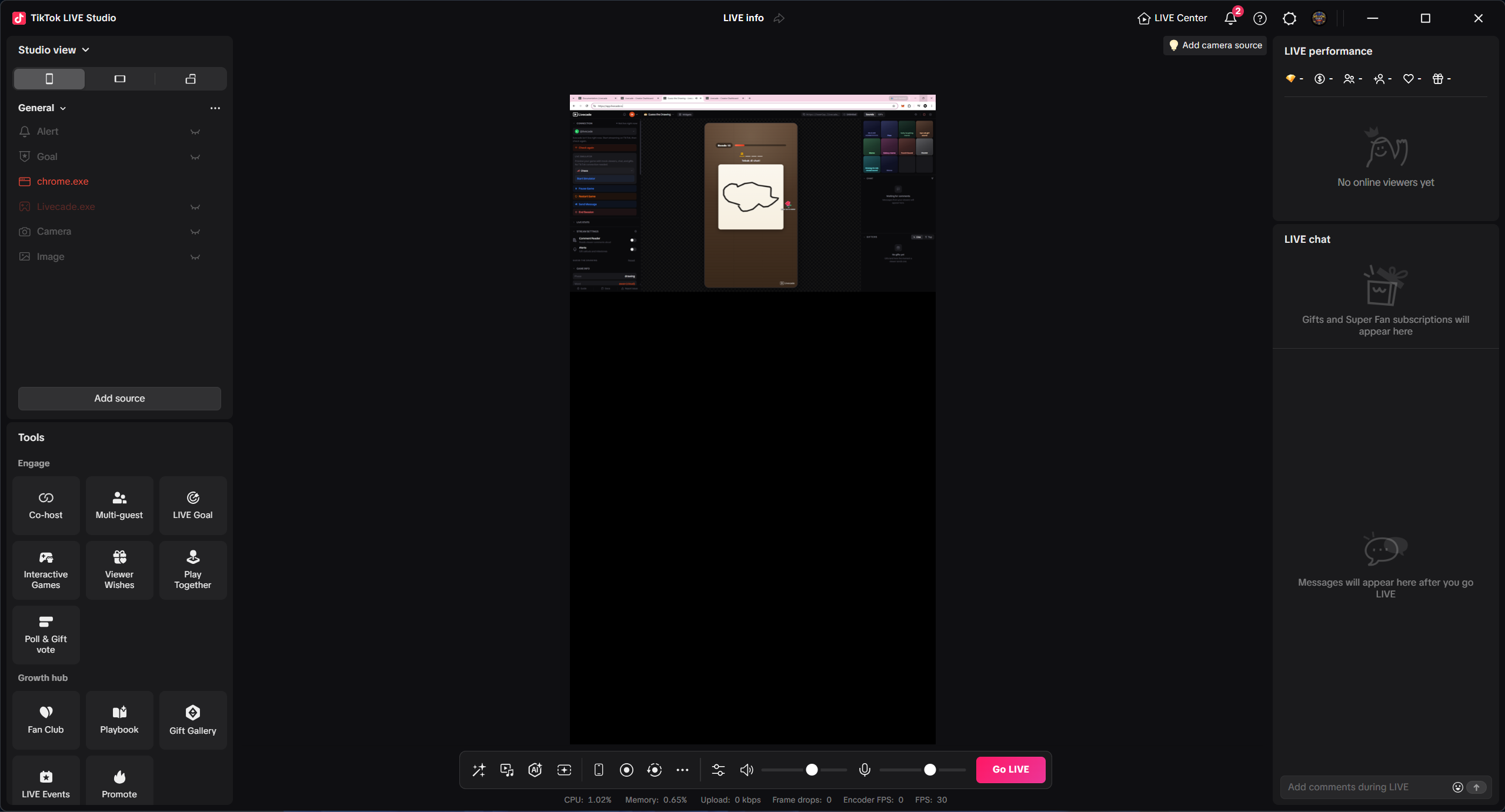
Drag the source's corners and edges in the LIVE Studio canvas until only the game fills the frame. Crop the browser chrome out and scale the overlay to fill the vertical canvas.
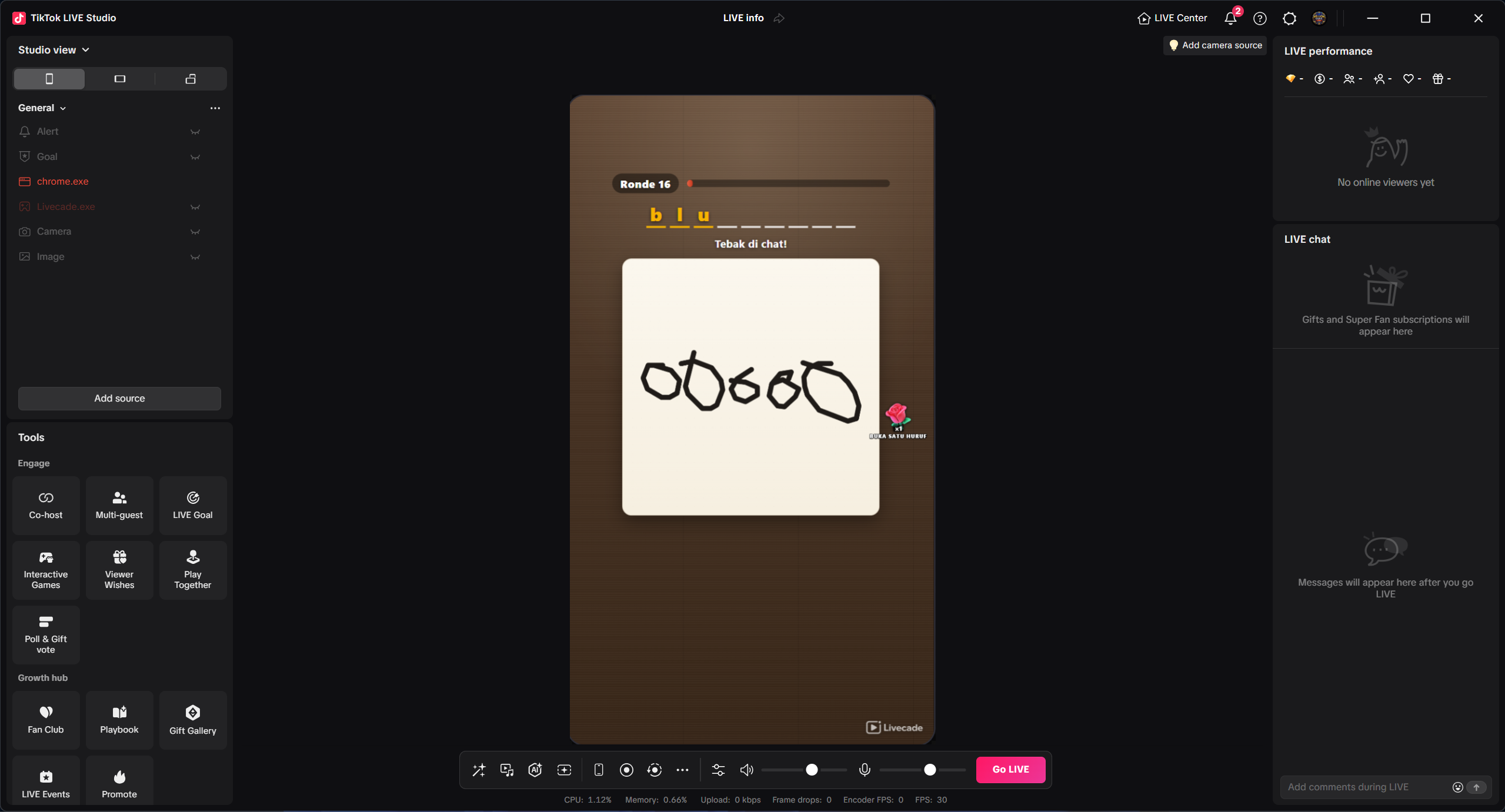
Leave the browser window open for the whole stream. It can sit behind other windows, but do not minimise it, or the capture can lose its signal.
You can also press F11 in the browser to hide the tab bar, which means less cropping. Add the source first and go fullscreen after, since a fullscreen window may not show up in the list.
Get the audio across
Window capture takes the picture only, so the game's sound needs adding separately.
- Open the Audio mixer from the toolbar at the bottom of LIVE Studio.
- Next to Audio, click Add.
- Set Type to Application and Device to your browser, for example
chrome.exe. - Click Add.
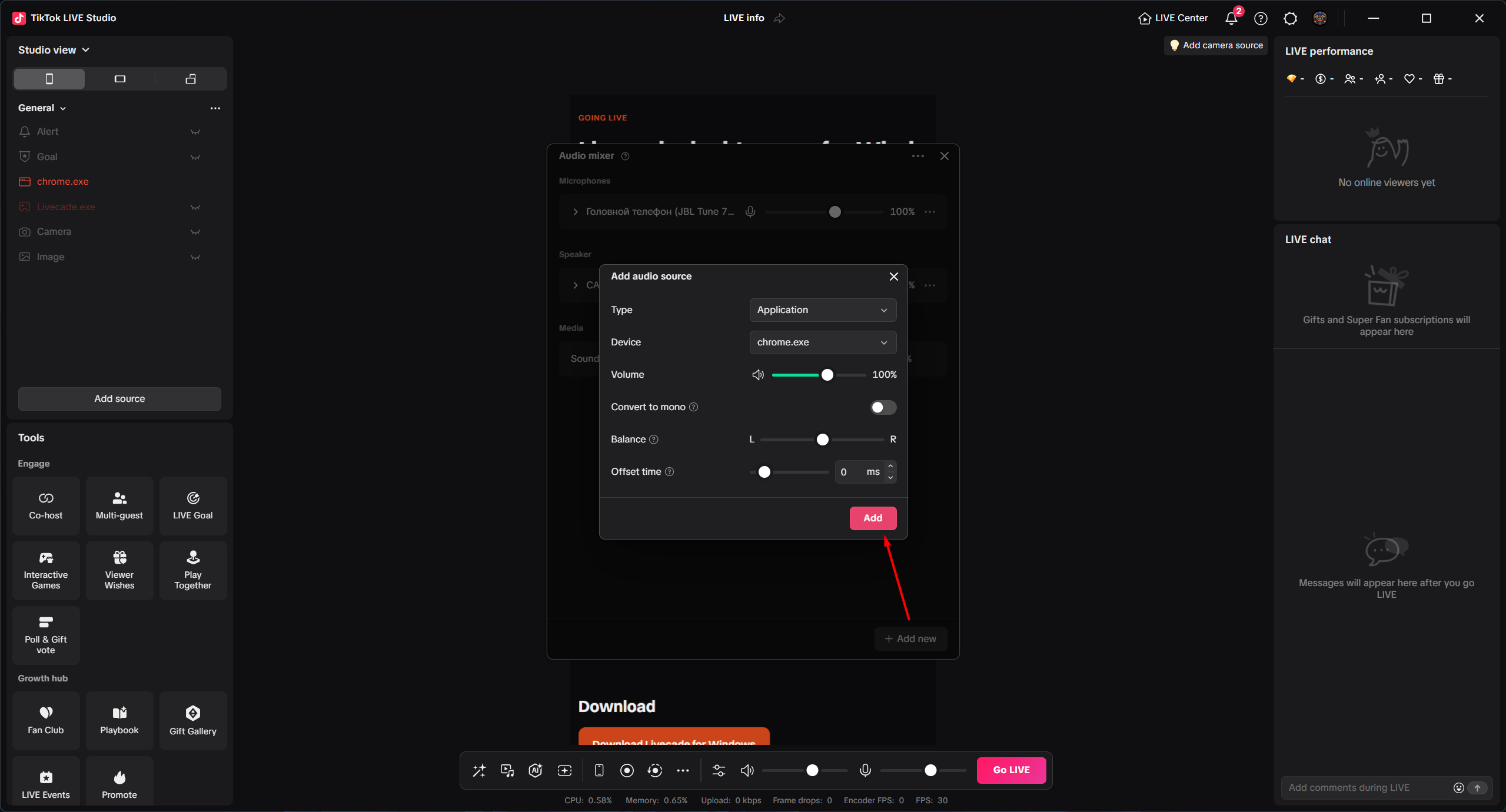
Play a sound in the game and watch the meter move in the mixer. A silent stream looks completely normal from your side, so the meter is the only way to know viewers can hear it.
Because the browser is playing the sound, you will hear it too. To avoid hearing two copies, mute the dashboard preview and let the browser be your monitoring.
Muting the browser tab itself is riskier: depending on how LIVE Studio captures the audio, it may mute the stream as well. If you try it, re-check the meter afterwards.
Check the shape
TikTok is a vertical 9:16 screen. In LIVE Studio, open Settings, Video and set Screen adaptation to Portrait, Fit to screen. Fill screen crops the edges, and the overlay is already the right shape.
If the overlay looks stretched or cropped after that, see the overlay is not showing correctly.
Common problems
The overlay is a solid rectangle over my camera
Expected. Window and screen capture cannot carry transparency. If you want your camera behind the overlay, use the OBS browser source route instead, and add your camera as a source in OBS too. A camera added in Live Studio will stay hidden behind the overlay.
My browser is not in the Select program list
Almost always because the window is fullscreen or minimised. Windows only offers a window to capture tools while it is drawn as a normal window.
- Exit fullscreen with F11, or restore the window if it is minimised.
- Drag its edge to resize it slightly. That forces it to redraw, which is usually enough to make it appear.
- Reopen Select program. It should now be listed.
- Select it, add the source, and press F11 afterwards.
If it is still missing, close and reopen the browser window, then check the list again before launching anything else.
The source went black after restarting the browser
LIVE Studio binds to a specific window. Closing the browser or restarting it creates a new window that the old source no longer points at. Remove the source and add it again.
Viewers cannot hear the game
Check LIVE Studio's audio mixer is capturing the browser and not just your microphone. Muting the tab in the browser does not stop application capture, but muting the browser in Windows Volume mixer does.
The overlay pauses or stutters when I switch windows
Some browsers throttle background windows. Keep the overlay window visible on a second monitor if you have one, or use the Livecade Windows app, which is built to keep rendering while parked out of the way.
Next step
With the overlay on screen, start your session in the dashboard so chat and gifts reach the game. See Start a Live Session.