Account & Billing
Your account, TikTok accounts and history
Add and switch the TikTok accounts you go live with, read your TikTok LIVE history and analytics, and manage notifications, your profile and support.
Updated
Your Livecade account holds the TikTok accounts you stream with, the history of your lives and your settings. This page covers each part and how to get help.
Where to find it
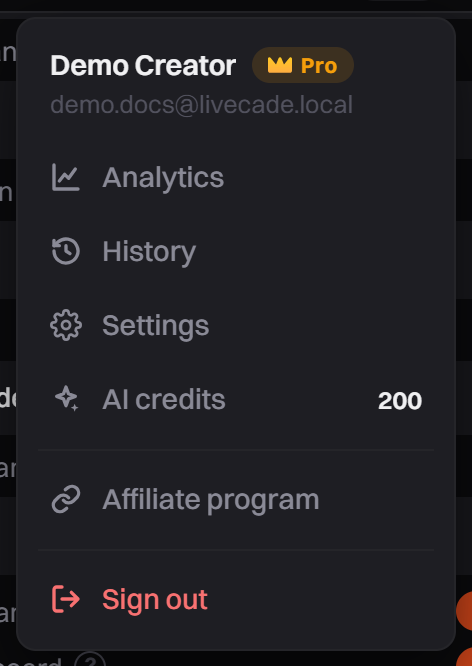
At the top of the left panel, next to the Livecade logo, are the bell (Notifications) and your account button. The account menu has Analytics, History, Settings and AI credits. Support is at the bottom of the left panel.
Set it up
Add a TikTok account
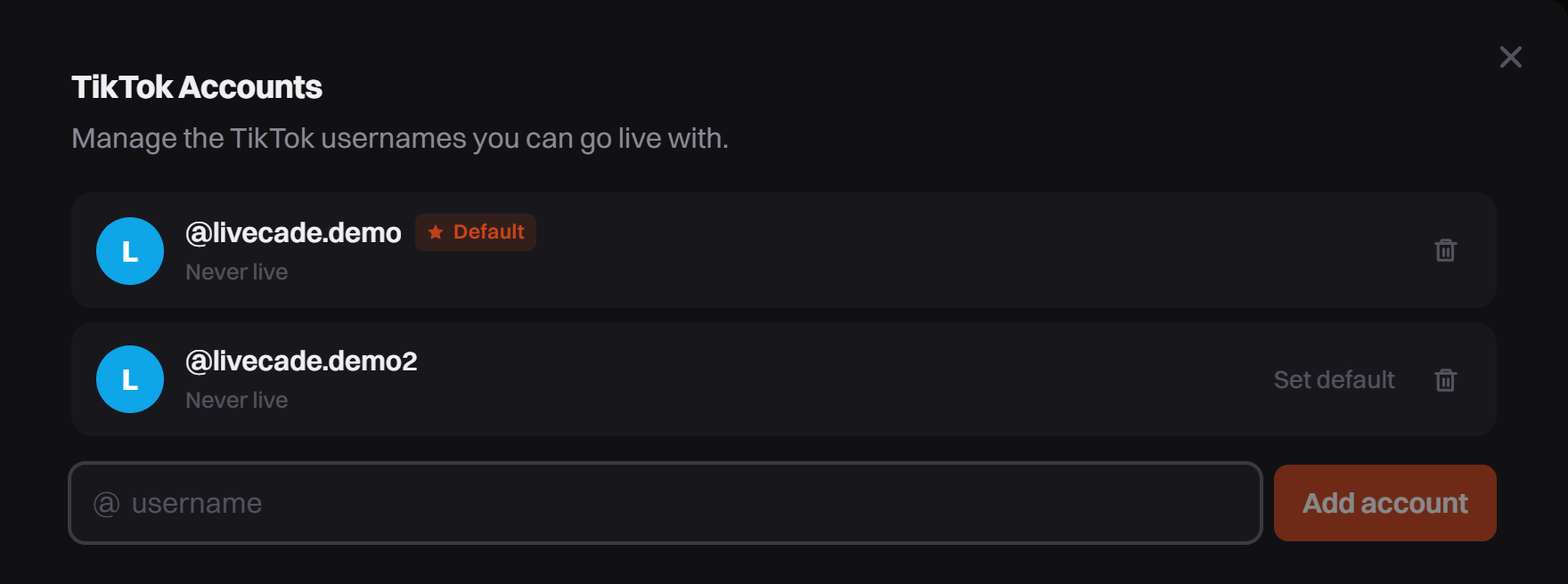
- Open the account menu, click Settings, then TikTok Accounts.
- Type the TikTok username after the @, exactly as it is on TikTok.
- Click Add account.
The first account you add becomes your Default. You can also add one from the account list at the top of the Connection panel, with + Add account. How many accounts you can keep depends on your plan. When you reach the limit, the dashboard tells you.
Choose and switch accounts
- Set default on an account makes it the one a game uses when you open it.
- To stream as another account, pick it in the account list at the top of the Connection panel. If chat or gifts already came in, you confirm first: live stats, chat and gifters start over for the new account.
- One live at a time. You can keep many TikTok accounts, but your Livecade account runs one session at a time.
- To remove an account, click the bin icon (Remove account). The account your running session uses can't be removed until you end the session.
Read your history
Open the account menu and click History. Each card is one run: the game, the TikTok account, how long it ran, Peak Viewers, Comments, Gifts, Likes, New Followers and Top Gifters.
A run is saved when you click End Session (Session ended), switch account (Account switched) or switch game (Game switched). The time is how long the session ran, not your TikTok LIVE time.
Read your analytics
- Open the account menu and click Analytics.
- Pick a range: 7 days, 30 days, 90 days, All time, or your own dates.
- Filter by game (All games) or account (All accounts) if you want.
- Use the tabs: Overview, Games, Audience and Lives. Audience and Lives have Export CSV.
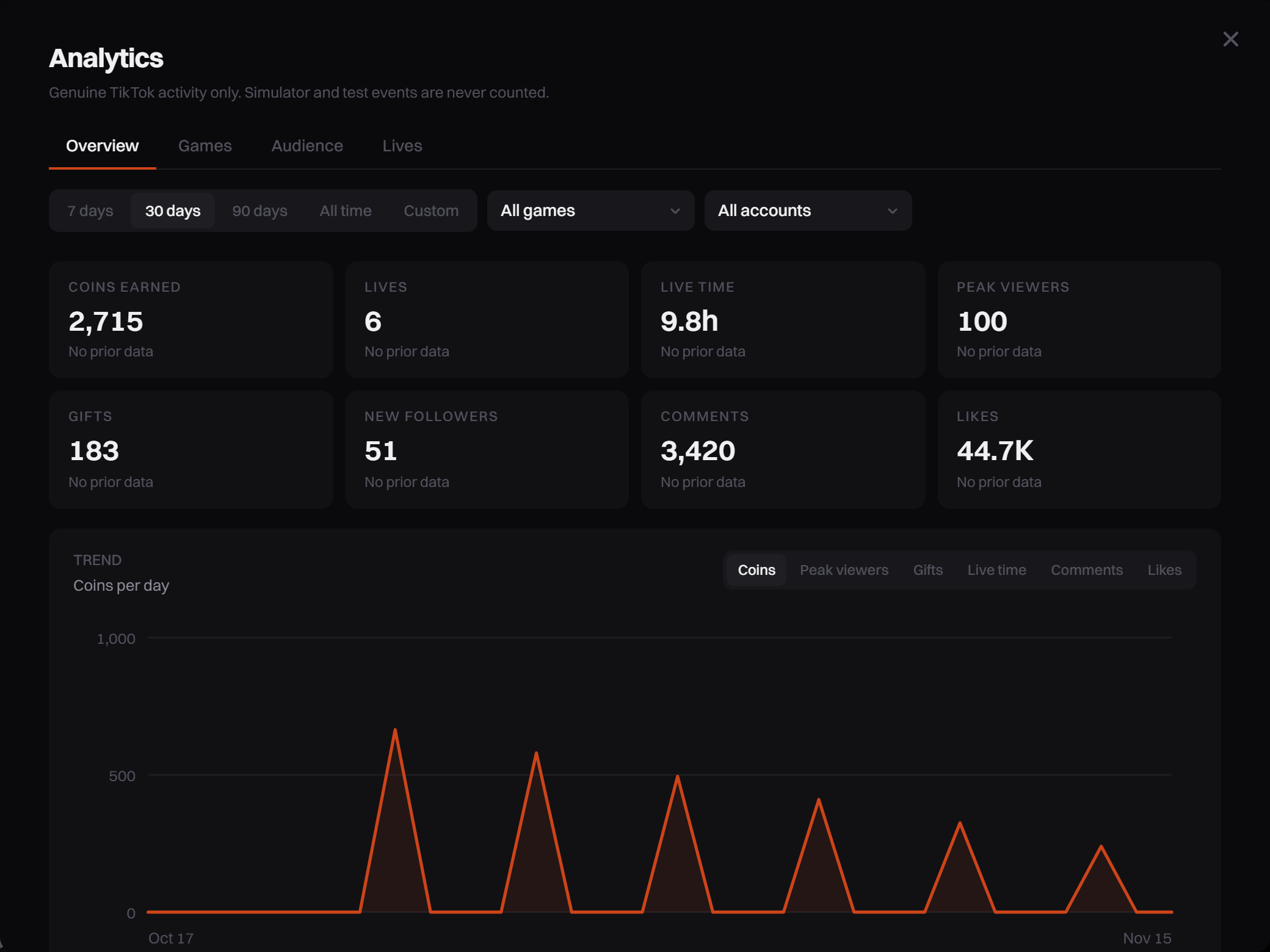
History and analytics count real TikTok activity only. The Live Simulator and test buttons are never counted, and a run with only those is not saved.
Notifications and email
Click the bell to read news and messages from Livecade. A number shows what you have not read, and Mark all read clears it. Replies to your support messages arrive here too.
Announcement emails have an unsubscribe link at the bottom. After you unsubscribe, you still get important account emails, like receipts and security notices.
Your profile
Open Settings, then Profile:
| Setting | What it does |
|---|---|
| Display name | Your name in Livecade. Click Save after you change it. |
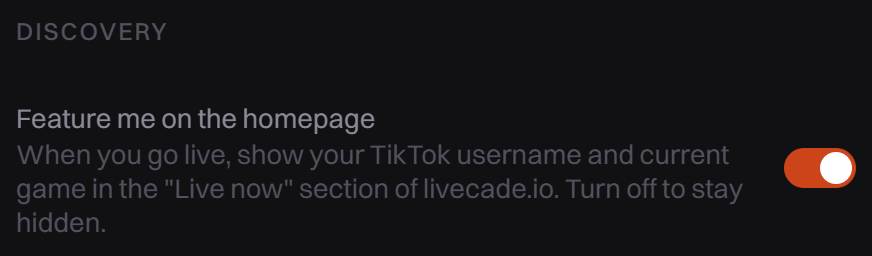
| Feature me on the homepage | On by default. When you go live, your TikTok username and current game show in the "Live now" section of livecade.io. Turn it off to stay hidden. |
| Change password | Type your current password and the new one twice. |
| Linked accounts | Connect or Disconnect Google and Discord sign-in. |
Redeem a Pro Code
- Open Settings, then Billing.
- Paste your code under Have a Pro Code?. It looks like
LC-XXXX-XXXX-XXXX-XXXX. - Click Redeem. The dashboard says until when you have Pro.
The upgrade window has the same Have a Pro Code? link.
Delete your account
In Settings, Profile, scroll to Danger zone and click Delete account, then confirm. It deletes your TikTok account links, sessions and stream history, DJ Pad sounds and layout, and all saved game settings. Any active subscription is cancelled. This cannot be undone.
Get help
- Click Support at the bottom of the left panel.
- Choose Get help, Feature idea or Game idea.
- Write what happened. If something broke, list the steps. Click Send.
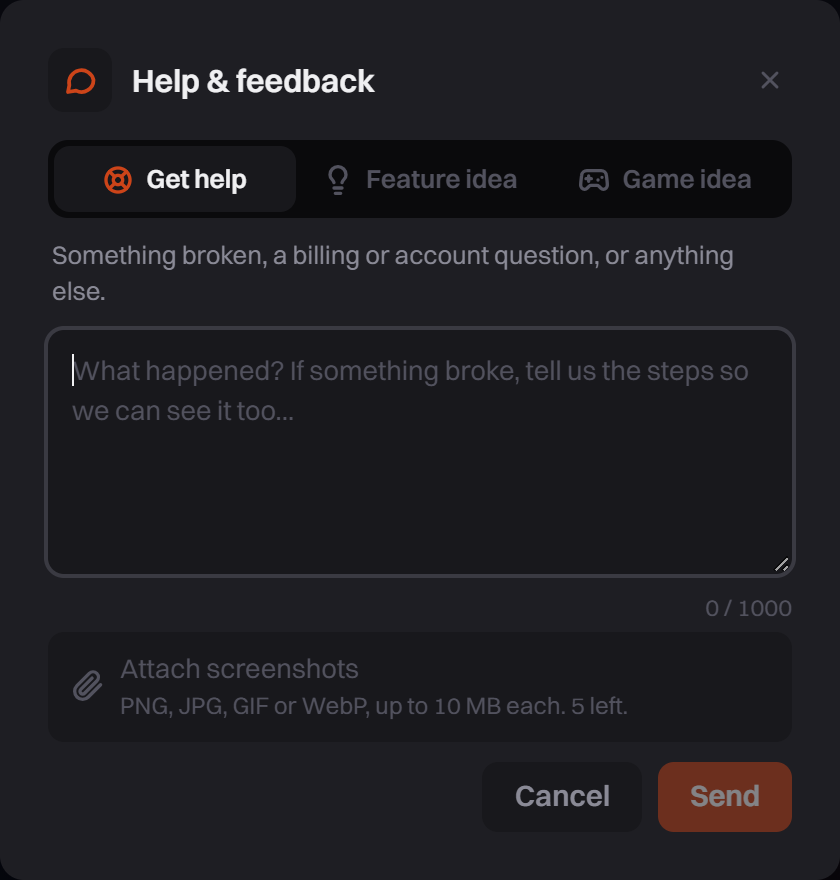
You can also email contact@livecade.io.
Common problems
"Your plan allows up to ... TikTok accounts"
You reached your plan's limit. Remove an account you no longer use, or see Plans and Billing.
My live is missing from History
A run is saved only when it had real TikTok activity. A session that only ran the Live Simulator or test buttons is not saved.
Analytics shows less than the stats bar
The stats bar in the dashboard also counts the Live Simulator and test buttons. Analytics counts real TikTok activity only.