Going Live
How to go live on TikTok with interactive games from your phone
Stream TikTok LIVE games from your phone with no PC and no OBS. Step-by-step with screenshots. Use TikTok's Mobile gaming source and run Livecade from your phone browser so viewers play with chat and gifts.
Updated
You do not need a computer to run interactive games on your TikTok LIVE. If you go live from the TikTok app on your phone, you can run a Livecade game from that same phone, with the dashboard open in your mobile browser. Your viewers play with chat, likes, and gifts exactly as they would on a PC stream.
No OBS. No TikTok LIVE Studio. No PC anywhere in the setup.
This guide walks the whole thing with screenshots from a real phone.
What you need
- A TikTok account that can go LIVE from mobile. That is normally 1,000+ followers, and you must be 18 or older.
- A Livecade account, opened in your phone's browser. Chrome and Safari both work.
- Your TikTok username added in the Livecade dashboard. See Getting Started if you have not done that yet.
One phone is running the broadcast and the game. Charge it, and stop the screen auto-locking before you start, since a locked screen can pause the browser and stall the game.
Step 1. Open the TikTok camera
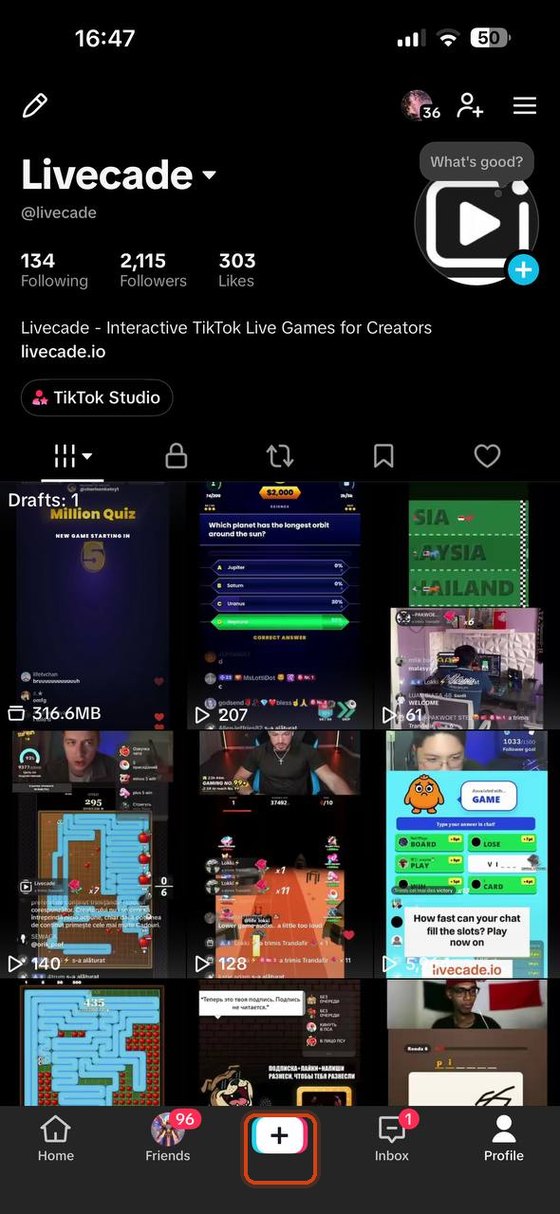
In the TikTok app, tap the + button in the bottom bar.
Step 2. Switch to LIVE, then Mobile gaming
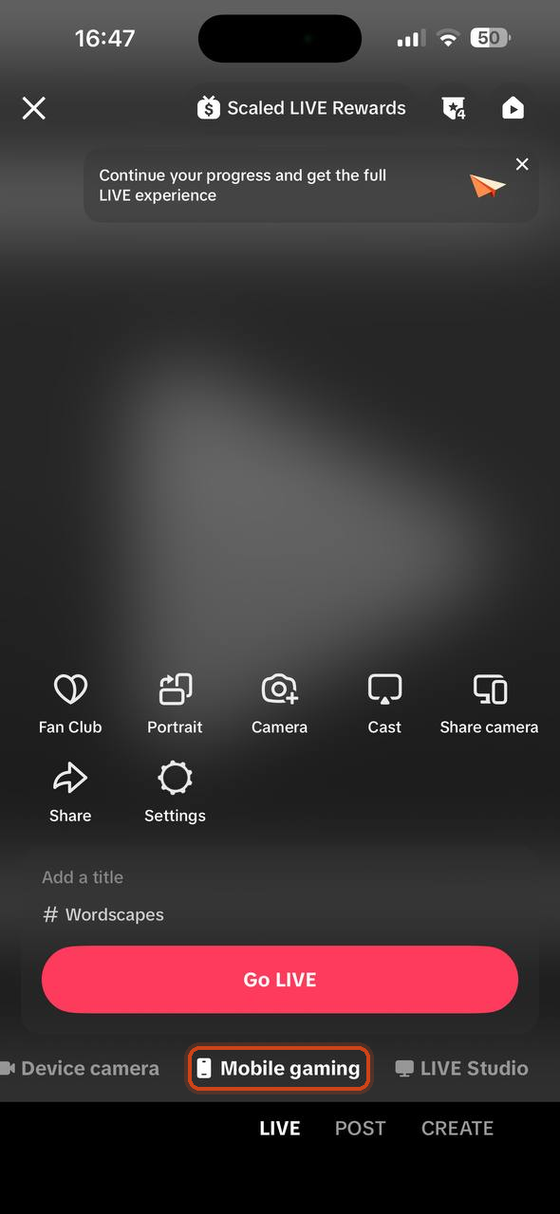
Along the bottom, select the LIVE tab. Then pick Mobile gaming as your source, not Device camera and not LIVE Studio.
Mobile gaming is the key to this whole method. It broadcasts your phone screen, which is what lets your Livecade overlay reach your viewers.
Step 3. Pick a game so the stream goes portrait
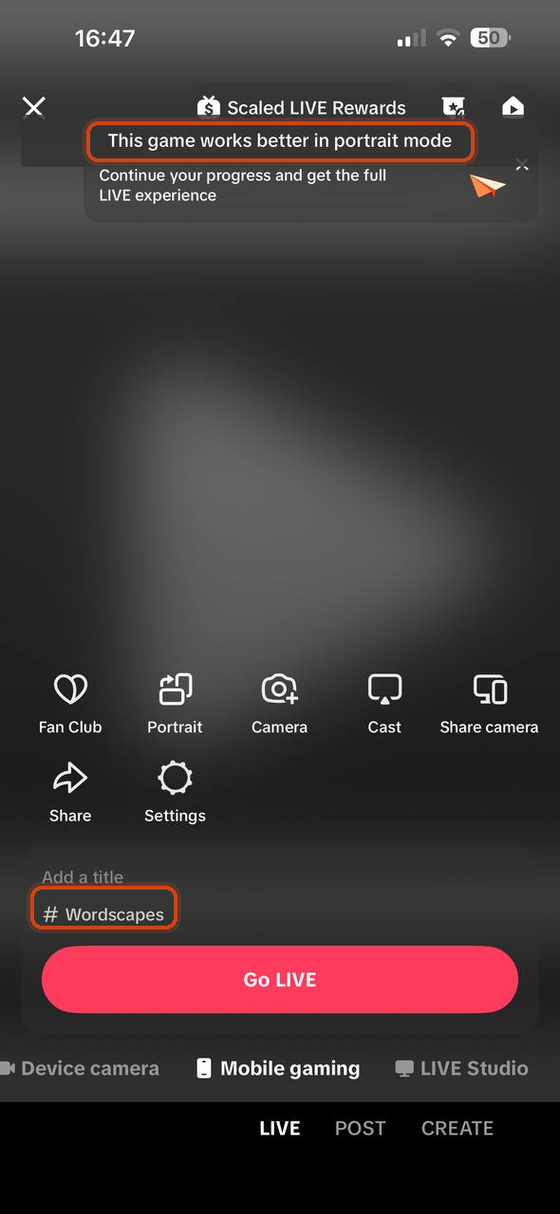
Tap the hashtag field and set a game. This matters more than it looks: choosing a portrait game such as Wordscapes makes TikTok stream in portrait mode, which is the shape Livecade overlays are built for. TikTok confirms it with a "This game works better in portrait mode" notice.
Pick a landscape game and your LIVE goes out sideways, with the overlay letterboxed.
Step 4. Go LIVE
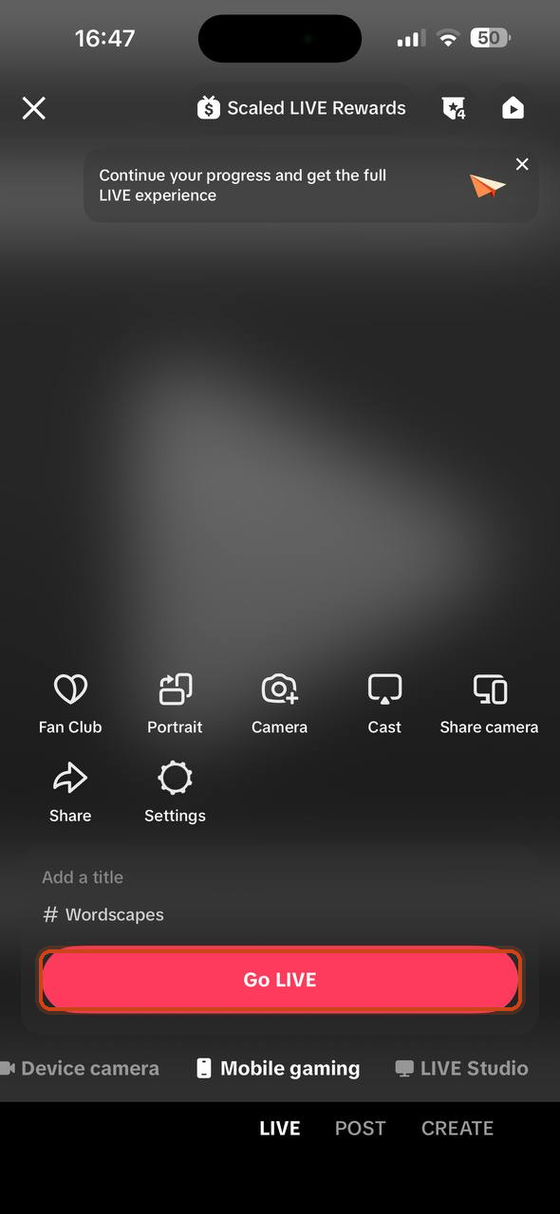
Add a title if you want one, then tap Go LIVE.
Step 5. Start the broadcast
Your phone asks to share the screen. Make sure TikTok is selected, then tap Start Broadcast.
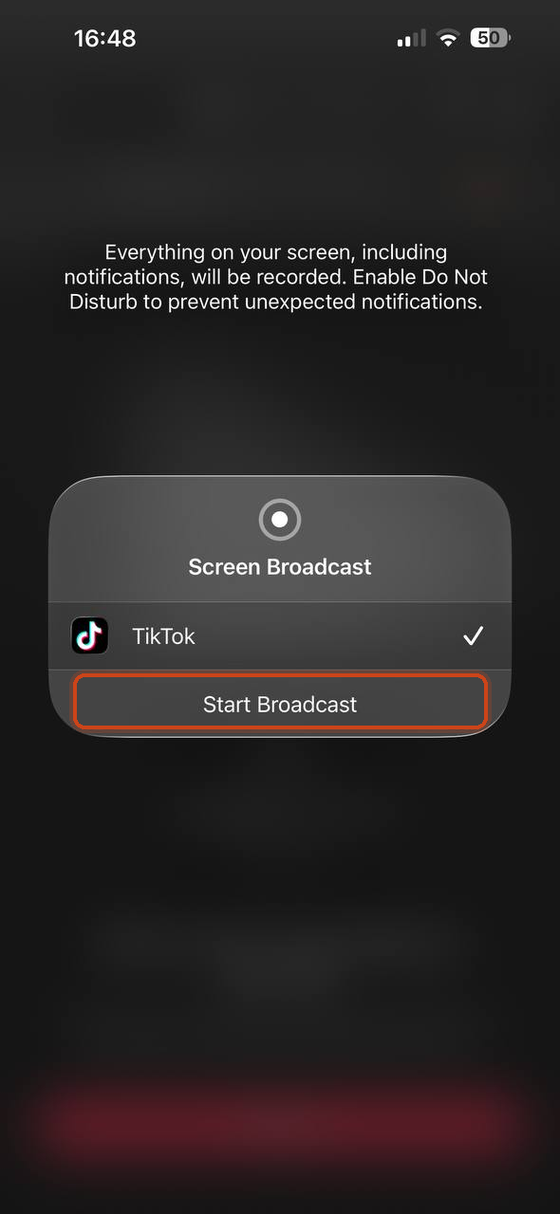
Screen sharing captures notifications too. Turn on Do Not Disturb before you go live so a message preview does not land on your stream.
Step 6. Open the Livecade dashboard
Leave TikTok running and switch to your browser. Go to app.livecade.io and sign in. Check that the right TikTok account is selected at the top of the Controls tab.
Step 7. Choose your game
Open the Game tab at the bottom and pick the game you want to stream.
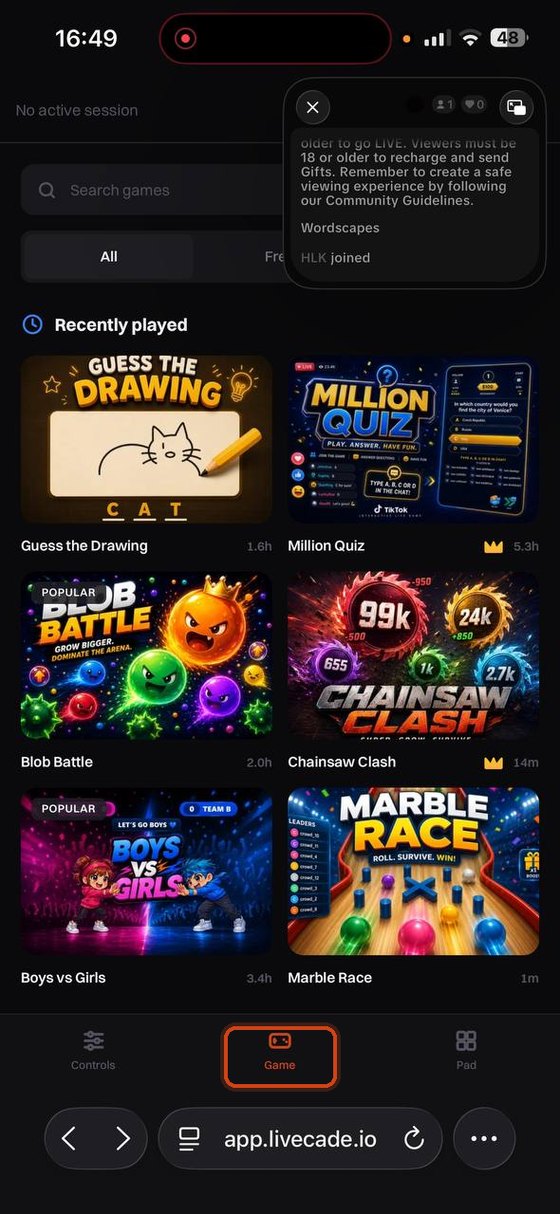
Step 8. Connect TikTok
Go back to the Controls tab and tap Connect TikTok.
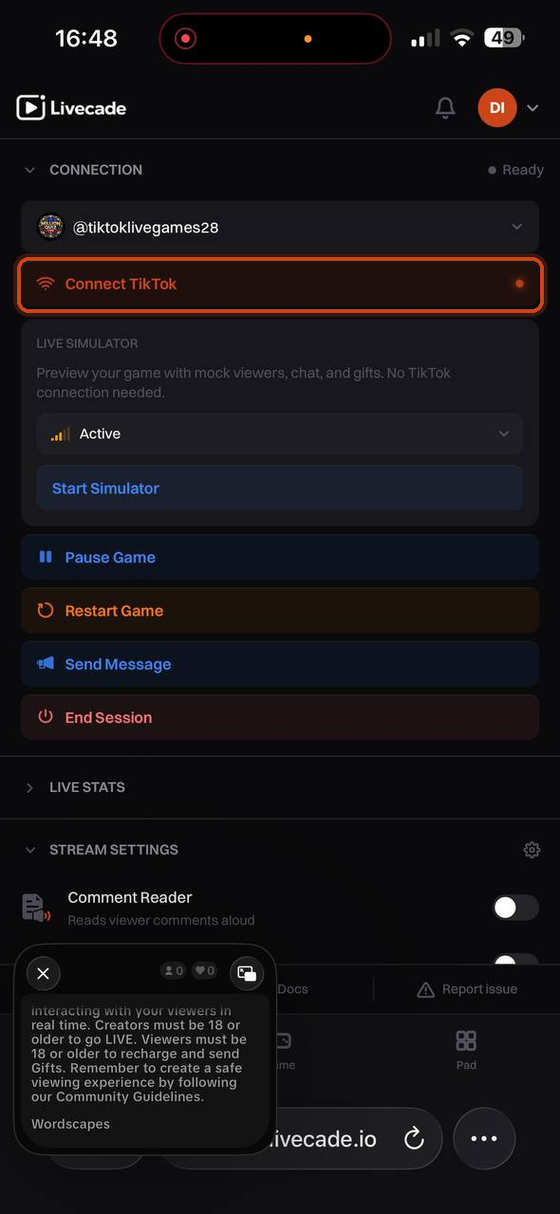
Wait for the status in the top right to change from Ready to Live. That is the confirmation that chat, gifts, and likes are reaching your game.

You have to actually be live on TikTok before connecting. If it will not connect, check your LIVE is running and that the username in the dashboard matches the account you are streaming from.
Step 9. Expand the game
Back on the Game tab, tap the expand icon in the top right. The game takes the whole screen, which is what your viewers see.
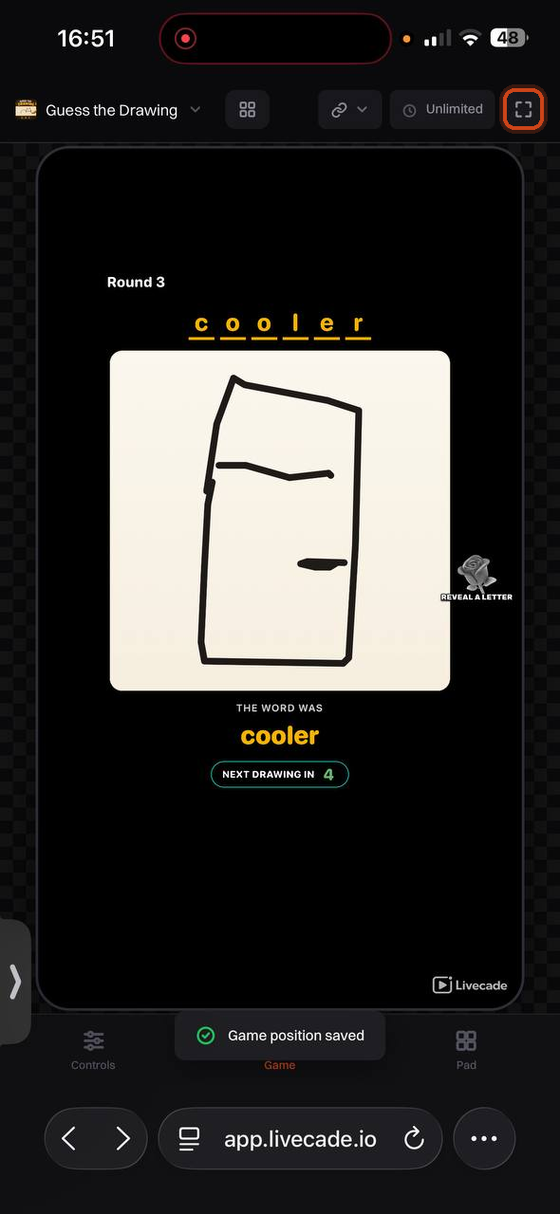
That is it. You are live, and your viewers can play.

Running the stream from your phone
The dashboard splits into three tabs on a phone:
- Controls — pause the game, send a message, end the session.
- Game — the live game and the game switcher.
- Pad — your DJ Pad sounds, GIFs, and music.
While the game is expanded you still get a sounds button and a pause button in the top corner, so you can fire a DJ Pad sound without leaving the game view. Tap the X to come back to the normal view.
Your last tab is remembered, so if you reload you land where you left off.
Moving your HUD on a phone
You can reposition overlay elements like the timer or leaderboard by dragging them in the preview. On a phone there is no hover, so tap an element first to select it. Its outline, name, and resize handle appear together, and you can then drag it, or drag the corner to resize. Tap elsewhere to deselect.
While the game is expanded this is switched off on purpose, so a tap meant for the game cannot nudge your layout mid-stream.
What does not work from a phone
Games you control yourself. A few games are played by the streamer with a keyboard or with mouse aiming, and a phone has neither. Those are not playable from a mobile-only setup yet.
Everything driven by your viewers works normally, which is the large majority of the catalogue. Chat games, gift battles, quizzes, and viewer-vs-viewer games all run fine.
Adding your camera
TikTok handles this for you, so there is nothing to set up on the Livecade side. Use Camera on the LIVE setup screen, or Add camera on the countdown before you go live.
If the sound stops
If you switch away from your browser for a while and come back to silence, reload the dashboard page. Phone browsers suspend audio for backgrounded pages, and a reload restores it.
Next step
Moving to a PC setup later? See How to go live for the desktop methods.