Troubleshooting
TikTok Live Restrictions
Why TikTok restricts Live streams, what its rules actually say, and what lowers the risk when you stream a game. Restrictions come from TikTok, not from Livecade, and no tool can remove or appeal one for you.
Updated
Restrictions come from TikTok's automated moderation, not from Livecade. No tool can remove, lift, or appeal one for you, and false positives happen. Nothing here is a guaranteed fix: it is what TikTok's own rules point to, quoted so you can check them.
The short version
- Be on camera and talk to your viewers. TikTok's own rules ask for this directly.
- Pause the Live when you step away. Don't leave the game running unattended.
- Turn the trigger panel down. Smaller, fewer at a time, or off.
- Host team battles, don't just run them. Two sides plus gifts is a format TikTok's rules name.
Which restriction did you get?
TikTok's inbox notification names the feature, the reason and how long it lasts. Past ones are in Creator tools → LIVE Center → Rules and guidance → Restrictions.
| What TikTok told you | What it means | What helps |
|---|---|---|
| "Not eligible for recommendation", "restricted in search results" | Feed eligibility. Below TikTok's bar for being recommended. Often time-boxed. | Presence, camera, trigger panel |
| "Unoriginal or reproduced content" | Originality. Read as a recording, a loop, or reused content. | Presence, make the game look like yours |
| "Fake engagement", "inorganic gift solicitation" | Gift solicitation. Gift asks read as mechanical or pressuring. | Trigger panel, team battles, presence |
| "Integrity and Authenticity", "suspicious activity" | Authenticity. About account behaviour, not overlay design. | See Authenticity flags |
| "Gifting is suspended", "LIVE monetization restricted" | Monetization. The most serious tier. Repeated feed ineligibility can lead here. | Everything below |
What TikTok actually says
Using games and other third-party tools is allowed. TikTok's Community Guidelines say creators "can use TikTok's LIVE Studio or third-party tools to share the device screen to showcase gameplay." What gets restricted is how the stream comes across. From TikTok's LIVE Monetization Guidelines, which list what "we may demonetize":
Content that is generated or operated primarily through automated systems, such as AI or other third-party tools, without meaningful creator presence, interaction, or facilitation of the LIVE experience.
Content that is largely passive or unattended, such as sleeping during LIVE or performing routine or task-based activities without interaction or engagement with viewers.
Content that tricks, manipulates, or mechanically and repeatedly solicits viewers to increase Gifts or engagement metrics through deceptive, inauthentic, baiting, or non-interactive behaviors.
Content or behaviors where creators solely present two or more opposing viewpoints and ask viewers to send Gifts, comments, likes, or shares.
And from TikTok LIVE Studio's rules for Live creators:
Using a no-face effect might be easily regarded as low interaction, and LIVE might be regarded as a recording. Creators are recommended to be present and on screen throughout the duration of the LIVE.
On-screen gift information is not banned in itself. TikTok's own Small Gift Guidance gives "Rose 🌹 = Pick my next character" on screen as an example. The line TikTok draws is between a creator running the show and a stream that runs itself.
TikTok also makes you responsible for your tools. Its guidelines say Live creators are "responsible for anything that happens during their sessions", third-party tools included.
Be present on stream
- Show your face. LIVE Studio's rules say "Make sure your face is visible on camera." Give the camera real space, not a corner tile.
- Talk and react. Read comments out, greet people, call the score. TikTok's rules recommend "reading comments in real-time."
- Pause instead of leaving. "If you need to step away, pause the LIVE." In TikTok LIVE Studio, Pause LIVE is under the end Live button. A game left running with nobody there is the "unattended" case above.
- Don't mirror your camera. Mirrored background text looks like reprocessed video.
The only number anyone quotes for screen space is roughly half the frame for the game and overlays together.
The ~50% figure comes from TikTok Shop's quality rules for shopping Lives plus third-party guidance. It is a design budget, not an official threshold for game streams. TikTok publishes no exact number.
Some guides suggest running a camera hidden behind a scene element so a camera is technically active. There is no evidence it works, and it fakes the signal rather than meeting it.
Turn the trigger panel down
A large, always-on gift panel is the overlay element creators blame most. In most games it is also the only thing telling new viewers how to join, so shrink it before removing it. In HUD settings on the control panel:
| Setting | Effect |
|---|---|
| Icon size S | Takes less of the frame |
| At a time 1, 2 or 3 | Shows a few triggers and rotates through the rest every few seconds |
| Auto-hide briefly | Stops the panel being permanently on screen |
| Grey gift icons | Removes the saturated gift artwork |
| Show Labels off | Drops the action names under each icon |
| Trigger HUD off | Removes the panel entirely |
Binding fewer gifts also shrinks it. Keep gift instructions out of your stream title and description too, since that text is read directly. And keep other platforms' handles, links and QR codes off screen: LIVE Studio's rules say "Do not display QR codes" and "Do not show information from a third-party platform."
Or use TikTok's own gift bar
Switch Trigger HUD off and let TikTok show viewers what to send. Viewer Wishes in TikTok LIVE Studio (Tools → Engage) lists your chosen gifts and renders TikTok's own gift bar over the stream.
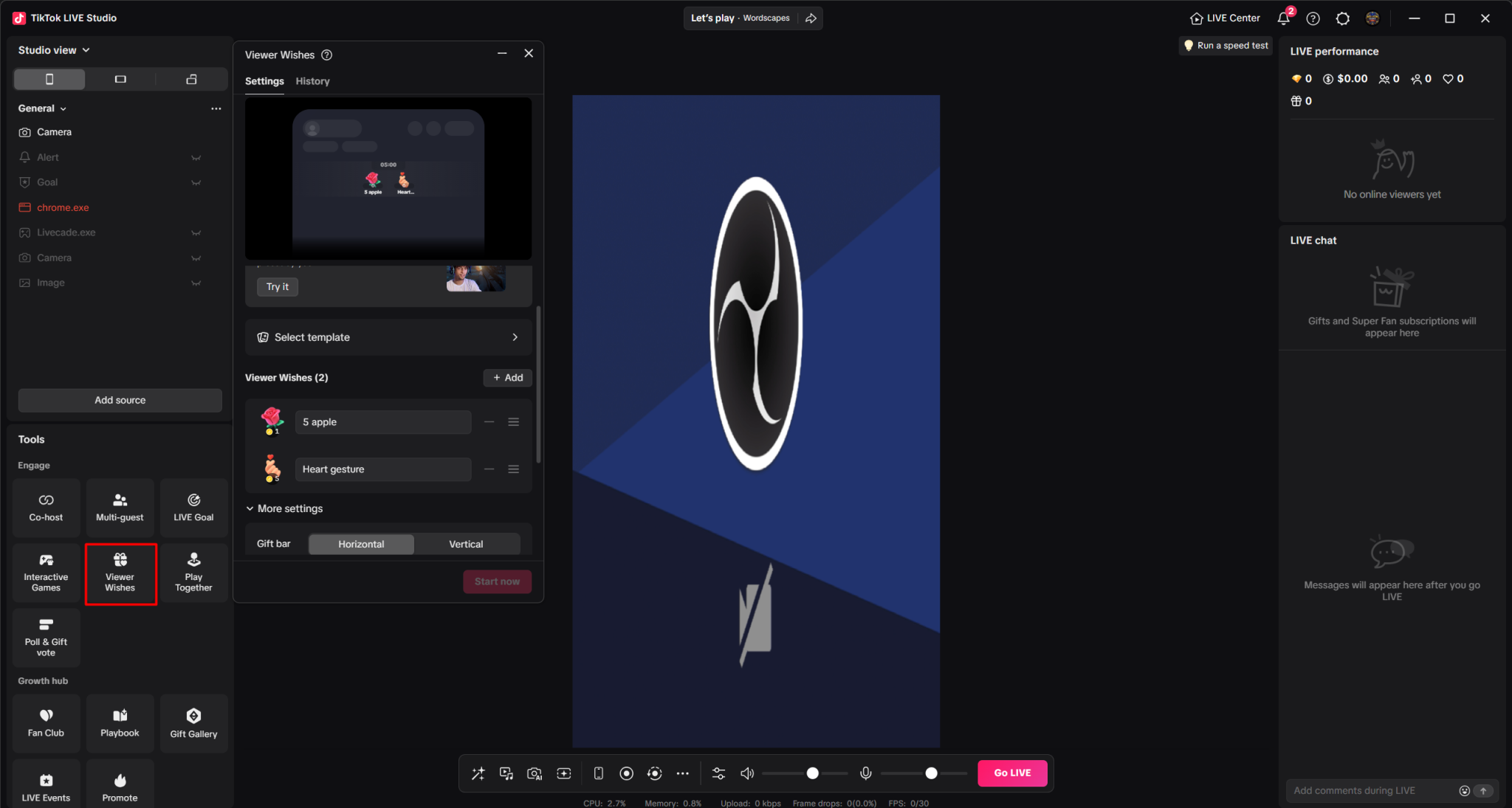
- Your game still works. Gifts trigger Livecade actions from the live feed, not from the panel. You only lose the on-overlay reminder of which gift does what.
- It holds a few wishes, so it suits headline gifts rather than a full trigger list.
Some creators report fewer restrictions after turning the HUD off. We cannot confirm cause and effect.
If you switch the panel off, watch a round back and check a new viewer could still tell how to join in. You can also say it out loud, which counts as interaction too.
Team battle games
Games where viewers pick a side and gifts push it forward, such as Boys vs Girls and Messi vs Ronaldo, match one of TikTok's examples closely: "creators solely present two or more opposing viewpoints and ask viewers to send Gifts, comments, likes, or shares." We read solely as the key word: a creator who hosts the battle is doing more than that, and a battle left running on its own is not.
- Host it. Commentate, react to big pushes, talk to both sides.
- Leave instant wins unbound. "One gift wins the round" is the most pay-to-win thing these games can show. Pushes alone keep the game playable.
- Don't run it for hours on end. Mix in other games and keep the stream varied.
Make the game look like yours
For "unoriginal or reproduced" flags. Many streams run the same games with the same art, so change what you can:
- Art, sounds and music in a game's asset manager (Pro, on a growing set of games; the manager opens on any plan so you can see the slots first).
- Questions and prompts with Edit Your Game Content.
- Background, layout and intro in your own scene, on any plan.
Static or looping screens are also named in TikTok's rules. Live gameplay usually covers this; long stretches where nothing happens do not.
Authenticity flags
Integrity and Authenticity and suspicious activity flags are about account behaviour. Layout changes will not clear one. (A fake engagement message that mentions gifts is the gift solicitation case in the table above.)
Joining your own stream from other accounts, inflated likes, comments or follows, and coordinated engagement draw them. If none of that applies, it is likely a false positive.
If you are already restricted
- Appeal from the inbox notification, and do it straight away. One appeal per decision, and once the Live has ended an appeal is generally no longer available because the content has expired. Creators report instant automated denials.
- Short restrictions expire on their own, from minutes to hours.
- Repetition escalates. Repeated violations lead to longer restrictions and can become permanent for monetization features. Change something between sessions.
- In the EU, you can escalate for free to a certified out-of-court dispute settlement body under the Digital Services Act. It is the only recovery route with published success rates.
What we do not know
- No verified case exists where one change demonstrably stopped restrictions. Everything here is risk reduction.
- TikTok publishes no thresholds, strike counts, or fixed durations, and says it enforces with "a combination of technology and moderators."
- Creators using no interactive tools get the same messages, so these are not specific to overlay software.
- Developers who removed all overlay text, chat and nicknames still got restricted, which is why this page points at presence and composition rather than wording alone.
- Adding features (alerts, goals, voice) does not make a stream safer. They are for your viewers.
If restrictions keep coming after you change how you stream, tell us what changed and what TikTok's message said. Patterns across creators help us fix games.