Going Live
During your live: the controls
Pause, restart or end a game, switch games mid-live, show score boards, and use chat, shoutouts and gifters while your TikTok LIVE runs.
Updated
Once a game is running, the dashboard gives you controls for the game, your stream and your chat. This page shows where each one is and what it does.
Where to find it
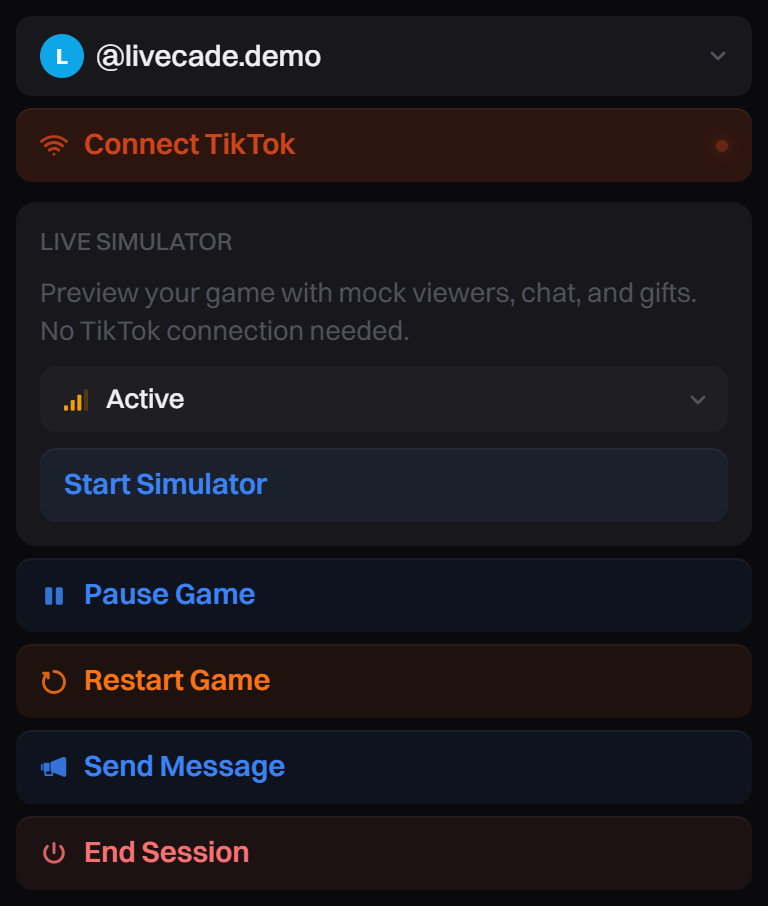
- Connection panel (left): Pause Game, Restart Game, Send Message, End Session.
- The game name above the preview: switch to another game.
- Next to the preview: the host controls dock, in games that have one.
- Right panel: the stats bar, Chat and Gifters.
Set it up
Pause, restart or end the game
The buttons sit in the Connection panel while a game is open.
| Button | What it does |
|---|---|
| Pause Game | Freezes the game. While it is paused, the game ignores everything viewers do, and a Game paused bar above the preview counts the gifts and comments that arrived. |
| Resume Game | Shown while paused. Starts the game again. |
| Restart Game | Asks first, then throws away the current round and starts the game from the beginning. |
| Send Message | Puts your own message on stream. Write it, pick how many seconds it stays, click Send Shoutout. |
| Disconnect TikTok | Stops reading your TikTok LIVE. The game keeps running in your preview. |
| End Session | Asks first, then disconnects from TikTok and closes the session. Click it when your live is over. |
Switch to another game
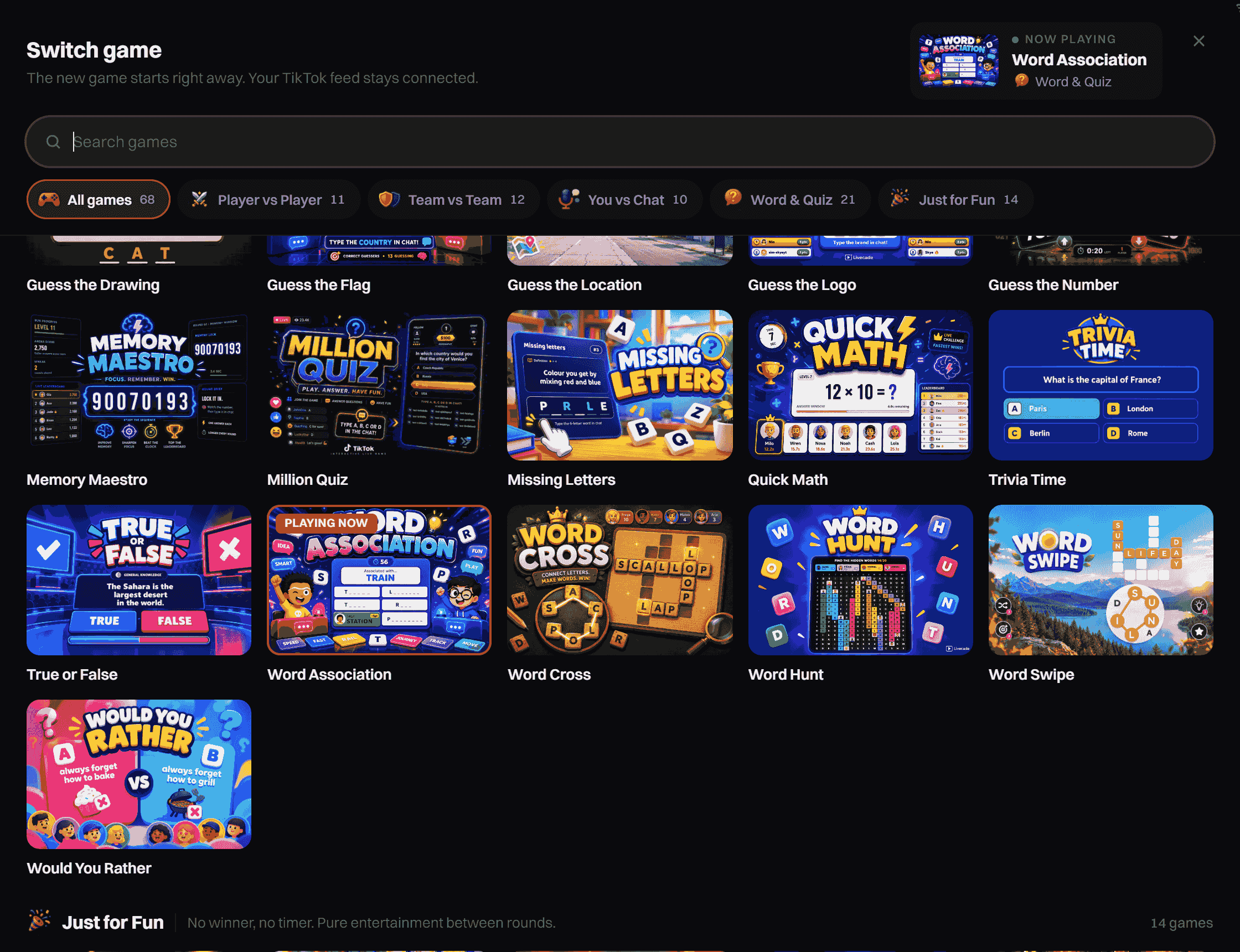
- Click the game name at the top of the preview. Its tooltip says Switch game.
- Pick a game in the Switch game window. The one running is marked Now playing.
- The new game starts right away. Your TikTok feed stays connected and your overlay changes by itself.
Chat, stats and gifters in the dashboard start over for the new game. If the run you just left had real TikTok activity, it is saved to your history as Game switched. A Pro game needs Pro.
Use the host controls dock
Many games put buttons for you next to the preview. They change with the game, for example Reveal a letter, Skip round or End match. Hover a button to see what it does.
End match asks you to confirm, then ends the match and starts a new one. The dock hides while the game is paused.
Show a score board
Games that save points, mostly word and quiz games, have a Score boards button in the dock.
- Click Score boards in the dock.
- Under Show on stream, pick Today, Yesterday, This week, Last week or All time.
- The board shows your top players on stream for a few seconds. To take it down early, click the button again: it now says Hide the score board.
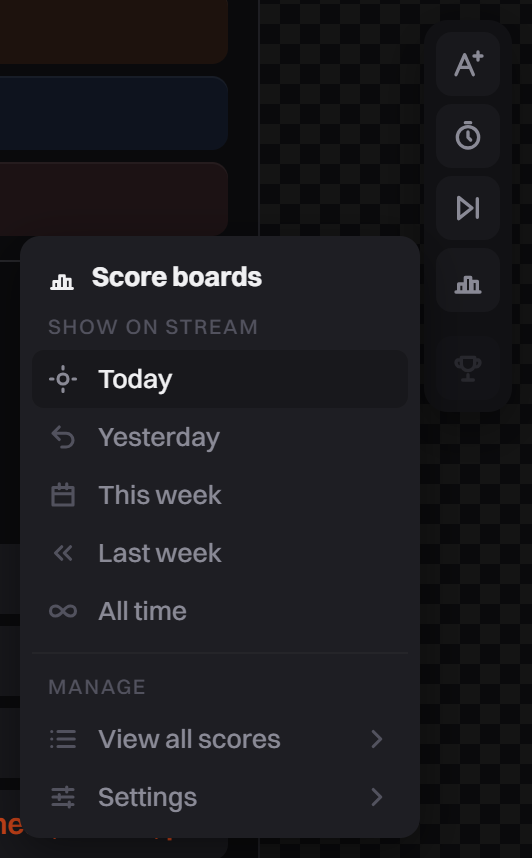
Under Manage, View all scores lists every saved player, and Settings sets the Style (Podium, Clean list or Race bars), the Colour, how long it stays and the Heading. Show a sample plays a board in your preview, so you can see it before you have scores. Weeks run Monday to Sunday.
Use chat and gifters
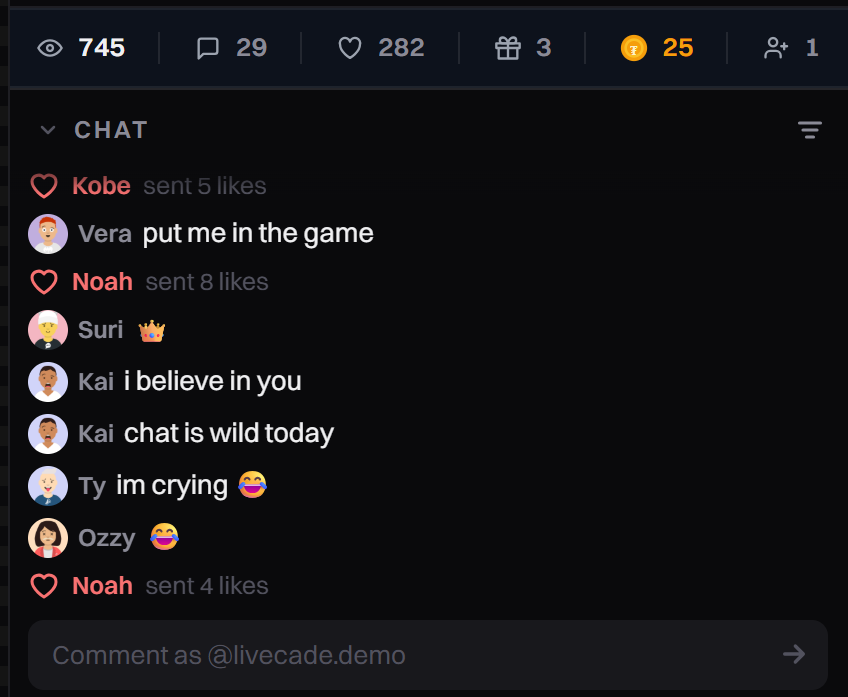
The bar above Chat counts viewers, comments, likes, gifts, coins and new followers. Hover a number to see the exact figure. While the Live Simulator runs, the bar turns faintly blue, so mock numbers never look like a real audience.
- Comment as yourself. Type in the Comment as @yourname box under the chat and press Enter. Your comment goes into the game like a viewer's, so you can play along. It is not posted to your TikTok chat.
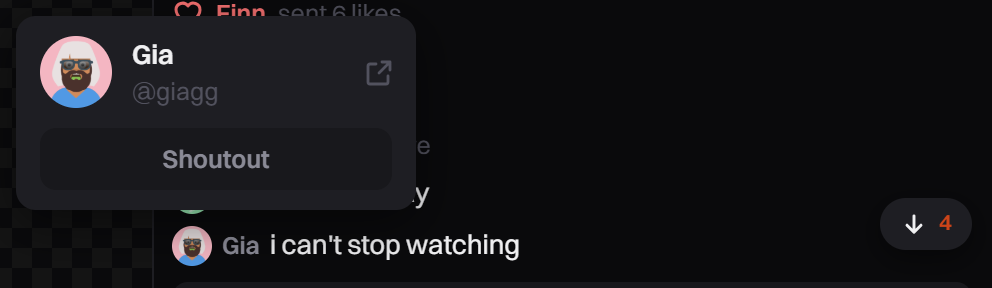
- Give a shoutout. Hover a viewer's name in Chat or Gifters, then click Shoutout. Write the message, pick the seconds and click Send Shoutout. It shows on your stream.
- Filter chat. Click the filter icon in the Chat header (Filter chat events). Tick Comments, Follows, Likes, Shares or Joins, then click Apply filter.
- Spot supporters. A viewer who has sent 100 coins or more across all your lives gets a coloured badge by their name.
- Gifters. Live lists each gift as it lands. Top ranks this session's gifters.
Tips
- Check that no Game paused bar shows above the preview before you start talking to chat.
- Switch games instead of ending the session: your TikTok feed stays up and nothing has to be set up again.
- You can change Action Triggers and widgets while you are live. Changes reach your stream right away.
Common problems
Gifts did nothing for a while
The game was probably paused. A bar above the preview says Game paused and counts the gifts and comments that arrived. Click Resume game.
My chat, stats and gifters were cleared
Switching the game or the TikTok account starts them over. The numbers from before are kept in your history.
The score board says there are no scores
Only real TikTok viewers are saved. The Live Simulator, test buttons and your own comments never count. Use Show a sample in Settings to see the board meanwhile.