Stream Tools
Set up alerts
Set up TikTok LIVE alerts in Livecade for gifts, follows, shares, joins and likes, with spoken callouts, sounds, join greetings and milestones.
Updated
Alerts show a short callout on your stream when a viewer gifts, follows, shares, joins or taps a lot of likes. Each alert can also speak a line and play a sound.
Alerts play inside the Livecade overlay you already use. If your overlay shows in OBS or TikTok LIVE Studio, there is nothing else to add.
Where to find it
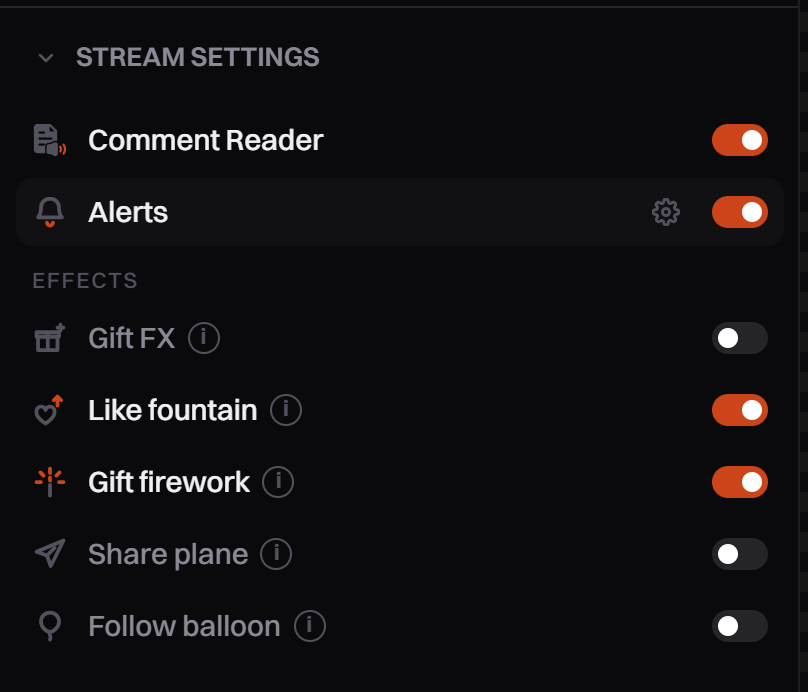
In the left panel, open Stream Settings and click the gear next to Alerts. You can also open Settings from your account menu and pick Alerts.
Set it up
-
At the top, turn on the switch so it says Alerts are on.
-
Click a tab: Gift, Follow, Share, Join, Likes or Milestones.
-
Turn on the switch next to the alert's title, for example Gift alert. A dot on the tab shows it is on.
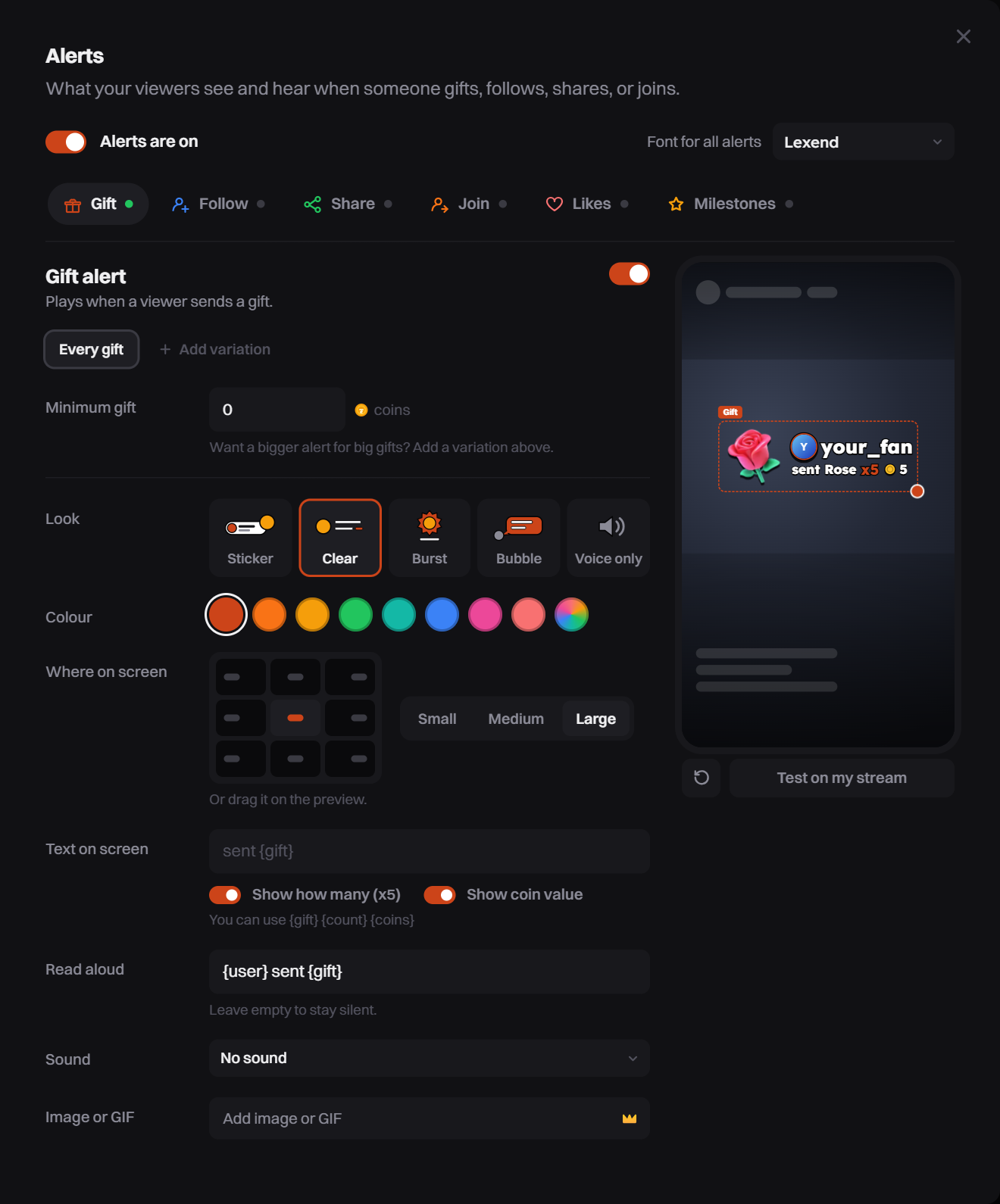
One tab per alert. The open alert's settings sit beside a preview of your stream. -
Pick a Look: Sticker, Clear, Burst or Bubble. Voice only speaks and plays the sound but shows nothing.
-
Place it. Click a spot in Where on screen, or drag the alert on the preview. Drag its corner to resize it.
-
With a game open, click Test on my stream under the preview. Settings close so you can watch the test.
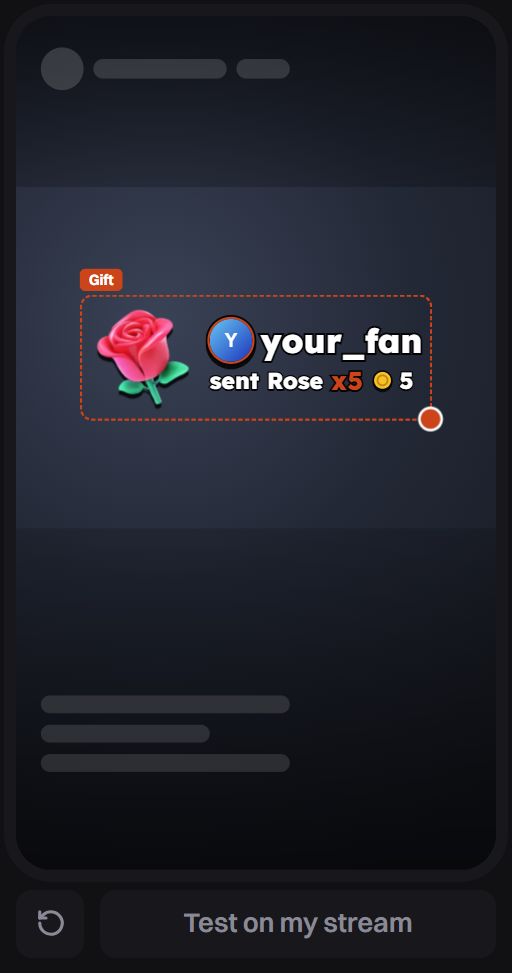
Test on my stream plays the alert on your overlay with a made-up viewer.
Changes save on their own and reach your stream right away, even while you are live.
Options
| Setting | What it does |
|---|---|
| Colour | The colour of the alert's shape. Each kind has its own default colour. |
| Where on screen | Nine spots and Small, Medium or Large. The spot is the same on every game. |
| Text on screen | The line under the viewer's name. Leave it empty for the built-in line, like "sent Rose". |
| Show how many (x5), Show coin value | Gift alerts only. Hide the gift count or the coin value. |
| Read aloud | What the voice says, for example {user} sent {gift}. Leave it empty to stay silent. |
| Sound | A sound from your DJ Pad. It plays when the alert shows. |
| Image or GIF | Pro. Your own image, GIF or short video on the alert. Video plays muted. |
| Font for all alerts | One font for every alert. |
Tags you can use: {user} for the viewer, {gift}, {count} and {coins} for gifts, {likes} for likes, {total} and {metric} for milestones.
Choose which gifts alert
- Minimum gift on the Gift tab: smaller gifts play no alert. It counts the whole send, so 5 Roses is 5 coins.
- Add variation gives one gift, or every gift above a coin value, its own look, colour, text, voice and sound. Pick the gift in Plays for, or keep Any gift and set Minimum gift.
- A variation for that exact gift wins first. Then the highest coin variation the gift reaches. Then the main alert, called Other gifts once you have variations.
- To alert only for your variations, untick Play an alert for gifts that match no variation.
Likes, join greetings and milestones
- Likes: there is no alert for every like. The alert plays when one viewer passes a number of likes (Every, 100 by default), at most once per viewer in the time you set in Once per viewer every.
- Join: a spoken greeting when a viewer enters. It starts as Voice only and says
Hello {user}when you turn it on. Greet each viewer only once and At most one greeting every (20 seconds by default) stop a busy room from flooding the voice. - Milestones: click Add milestone, then set Plays every to a number of likes, gift coins, followers or shares. Totals start at 0 when you connect TikTok.
How long and how loud
- An alert stays on screen for about 5 seconds. You cannot change this.
- Alerts in the same spot take turns. Alerts in different spots show at the same time.
- Spoken lines use the voice you pick in Settings, Stream, Voice (see Read comments out loud). Turning off Read comments aloud does not silence alerts.
- Volume is set in the Mixer (the speaker button at the top of the right panel): Alerts for alert sounds, Voice for spoken lines. See Audio mixer and music.
Tips
- Give gifts their own spot. If follows and gifts share a spot, a gift can wait behind a follow.
- Start the Live Simulator to watch your alerts fire with mock viewers before you go live. See Test your game before you go live.
Common problems
Alerts are on but nothing shows
Check the switch on each alert's tab. A warning icon on the Alerts row in the left panel means no alert is turned on. On the Gift tab, check that Minimum gift is not too high. Alerts play only while a game is open.
The alert shows but says nothing
Read aloud is empty, or the Voice slider in the Mixer is down. Games that talk on their own, like AI Host, keep alerts silent so two voices never overlap.
Test says "Start a session to test alerts on your stream"
The test plays on your overlay. Opening a game starts a session, so open a game, then test again.
Some viewers get no greeting
That is the join limits at work. Turn off Greet each viewer only once or lower At most one greeting every.