Games
Edit Your Game Content
Export your question bank to a spreadsheet, add your own, remove what you do not want, then import it back. Works for every Livecade game with a built-in bank.
Updated
Every Livecade game with a built-in bank lets you make it yours. Add your own questions, remove the ones that do not suit your stream, and fix anything that reads wrong. The fastest way to do it in bulk is a spreadsheet: export the bank, edit it, import it back.
Your changes apply to your streams only. The built-in bank is shared, so nothing you do here affects anyone else.
Games you can edit
 Million Quiz
 Roast Your Photo
 Word Cross
 Guess Your Future
 Find the Word
 Word Swipe
 Word Association
 Crowd Says
 Guess the Logo
 Trivia Time
 True or False
 Would You Rather
 Five Letters
 Context
Everything below works the same way for all of them. Only the columns differ, since a trivia question and a roast are not the same shape.
Open the bank
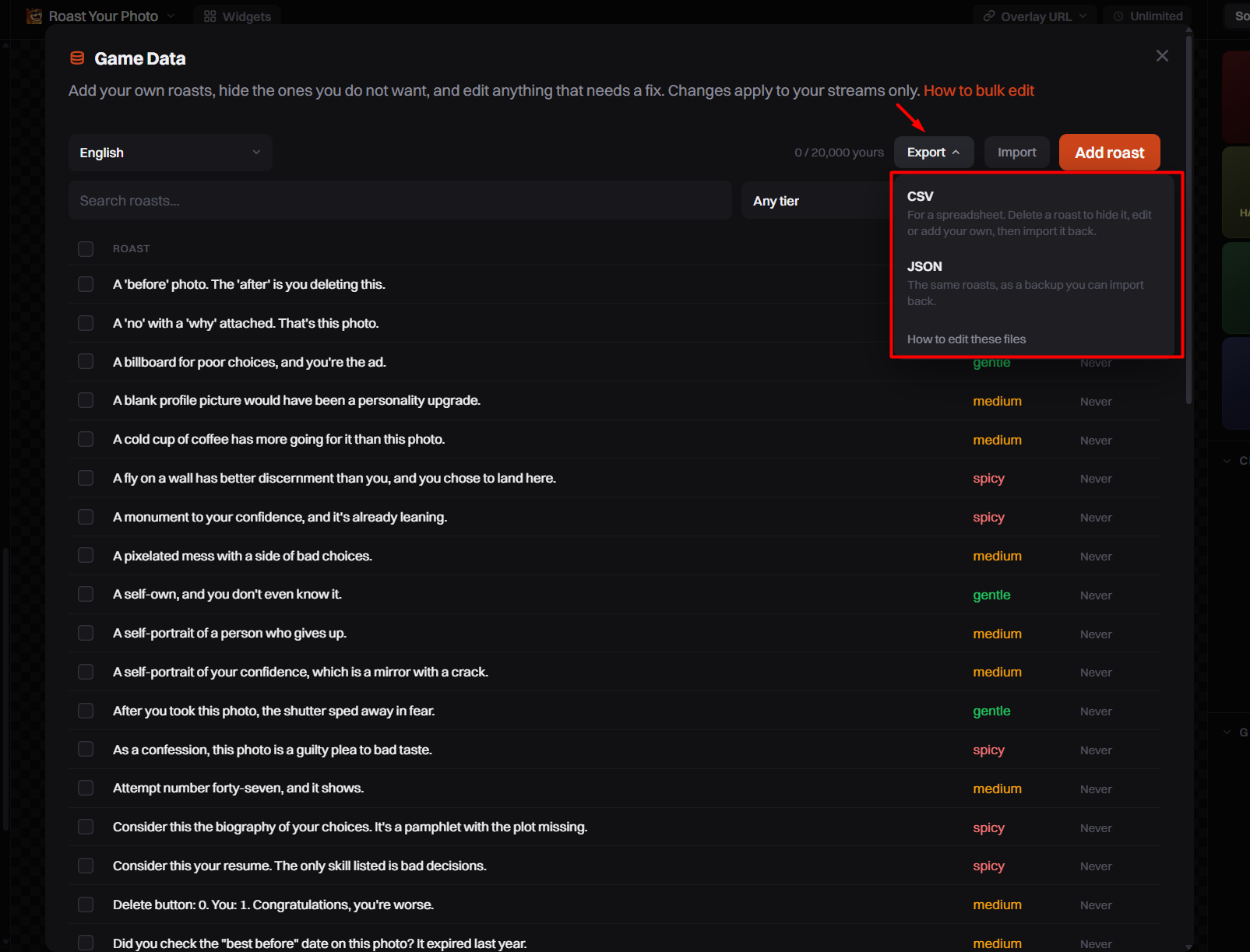
In the dashboard, open a game's settings and click Your question bank. That opens Game Data, which lists everything your game currently draws from: the built-in content plus anything you have added.
Pick the language you want at the top left. Each language is a separate bank, so exporting Russian and importing it into English will be refused rather than silently mixing them.
Export
Click Export and choose a format:
| Format | Use it for |
|---|---|
| CSV | Editing in Excel, Google Sheets or Numbers. This is the one you want for bulk changes. |
| JSON | Keeping a backup, or moving your bank to another account. |
Both hold the same thing: your whole bank for that language.
What the columns mean
Open the CSV and you will see a row per question, with two columns at the front that are not part of the question itself:
| Column | What it is |
|---|---|
ref | Our id for a built-in question. Leave it exactly as it is. |
source | platform for our content, yours for something you added. Just a label, we do not read it back. |
Everything after those two is the question. The exact columns depend on the game — Roast Your Photo
has text and intensity, Million Quiz has question, four options, correct, category and
difficulty.
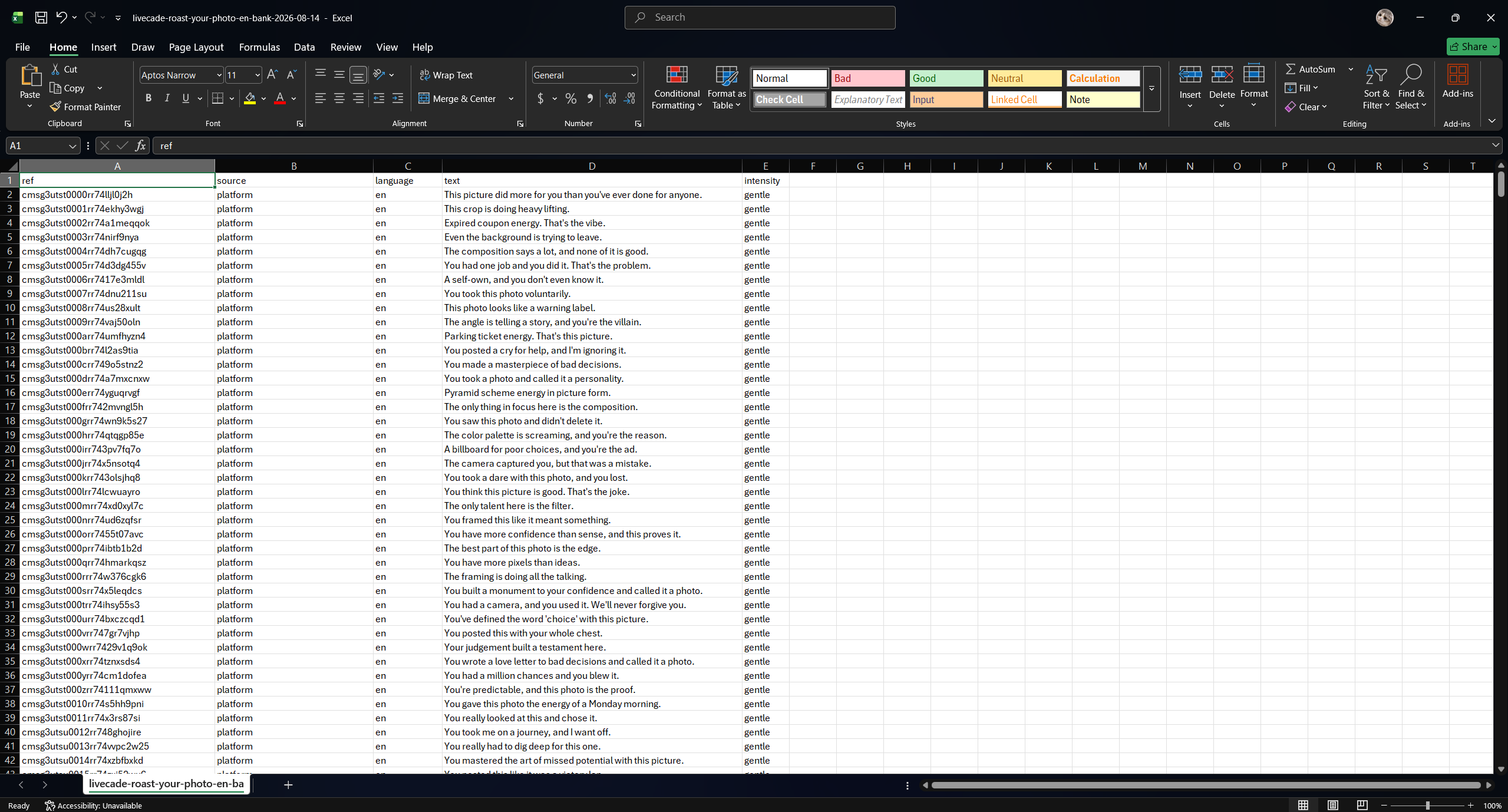
ref. Leave that column alone.The ref column is how we recognise a question we already have. Never make one up, copy one onto a
different row, or renumber the column. If you do, we fall back to matching on the question text,
which usually still works but is not something to rely on.
Make your changes
Four things you can do, all in the same file:
Add your own
Add a row at the bottom and leave ref empty. That is the whole trick: an empty ref means
"this is new", and it becomes yours on import.
Fill in the language column with the same code as every other row (ru, en, and so on) and fill in
the rest of the question. Leave source blank too.
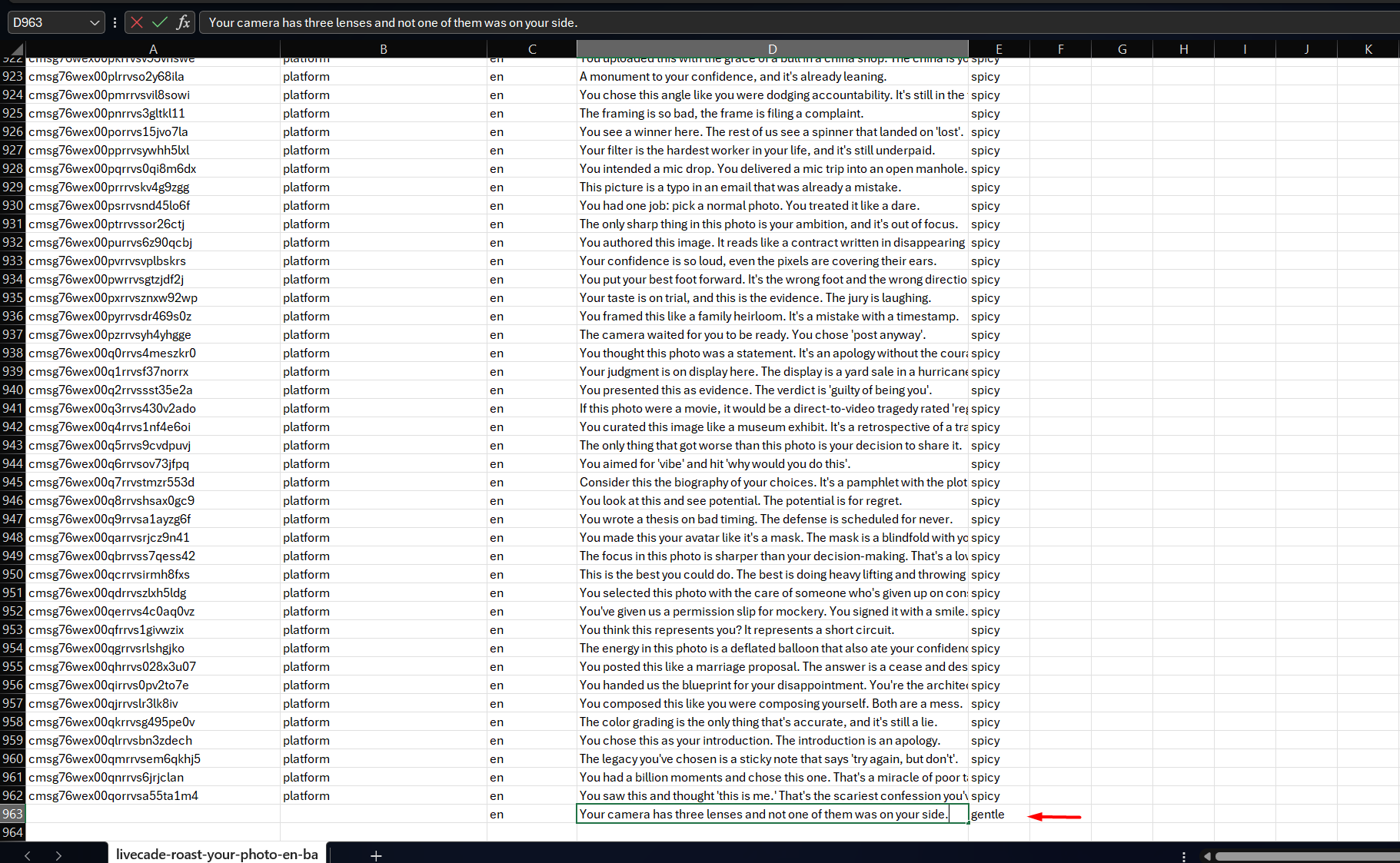
ref and source empty, everything else filled in.Remove what you do not want
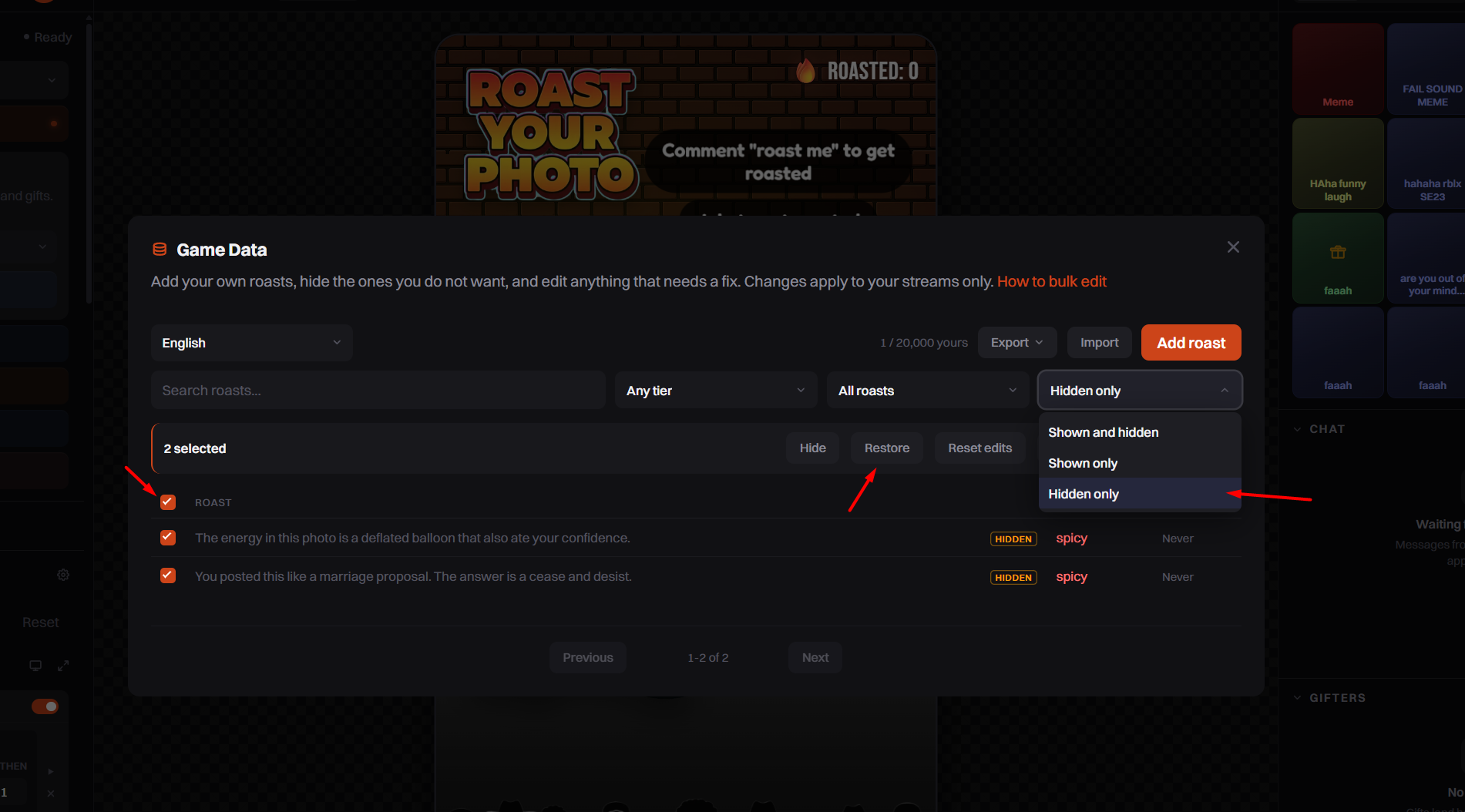
Delete the whole row. On import, that question stops appearing in your game.
Nothing is deleted permanently. Removed questions stay in Game Data with a Hidden tag. Set the last filter to Hidden only to see exactly what you removed, select them, and click Restore. Deleting a row from the file is just a faster way of doing what the Hide button does.
Fix a question
Edit the text in place and leave ref alone. We store your version as a change on top of ours, so if
we later correct a different part of that question, you still get the correction.
Change a tier or category
Edit that column like any other. Use exactly the values the game already uses — for Roast Your Photo
that is gentle, medium or spicy. An unknown value is reported as an error on that row instead of
being guessed at.
Import it back
Click Import, pick your file, and you get a preview before anything is saved. Only the outcomes that will actually happen are shown, so a small edit produces a short preview:
- new — questions being added to your bank
- updated — your own questions being changed
- edited — built-in questions you reworded
- hidden — questions you removed from the file
- merged — the same question twice in one file, collapsed to the last copy
- errors — rows we could not read, listed with a reason
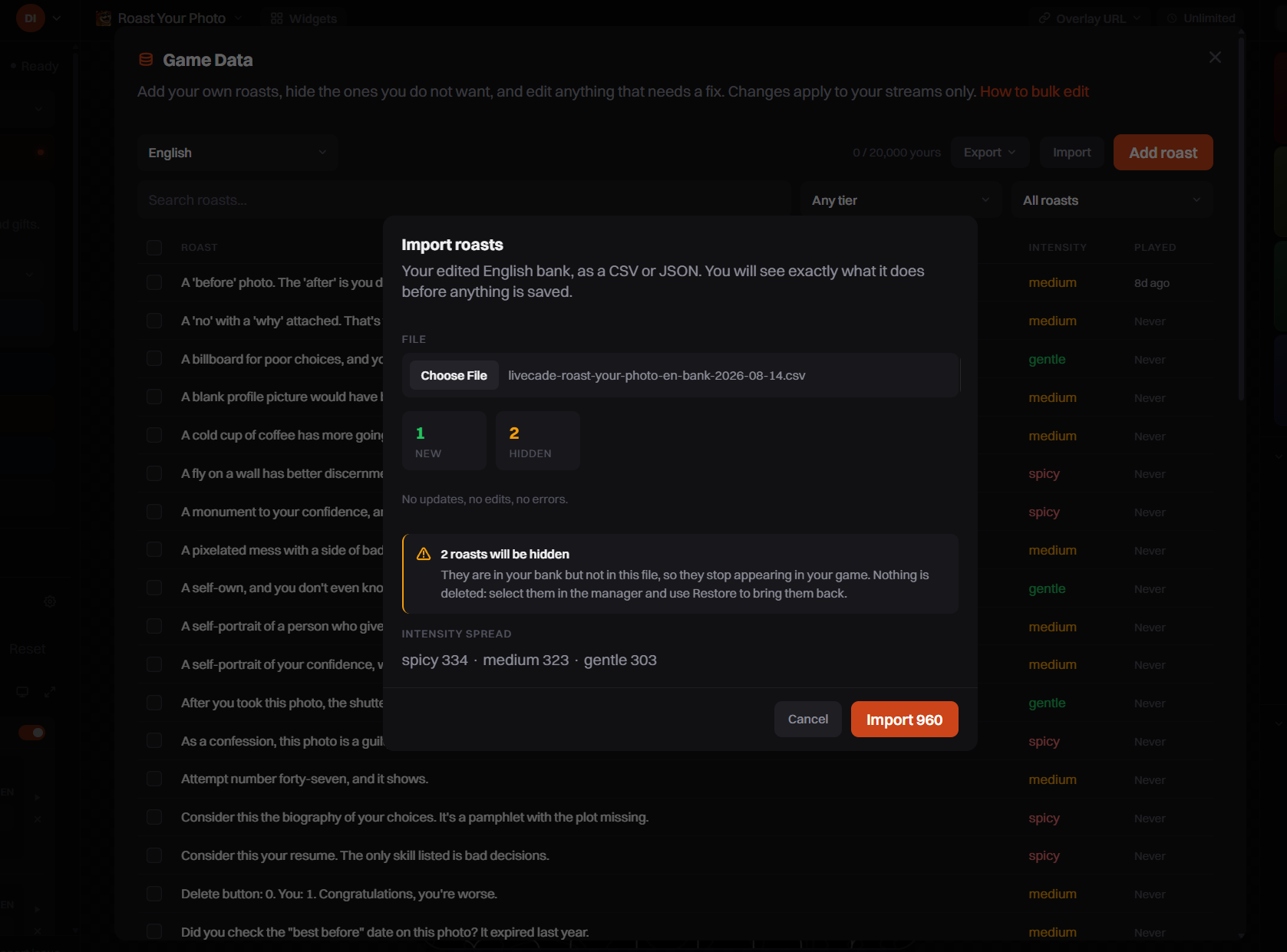
Check those numbers, then confirm. If the file would hide a large part of your bank we ask again with the exact count, because that usually means the file was cut short rather than deliberately trimmed.
Export and import straight back without editing and the result is zero of everything. That is worth trying once, just to see that the file is safe.
Things worth knowing
Rows you did not touch stay ours. They keep getting our corrections and they do not count against your plan's limit. Only questions you actually add are yours.
Errors do not stop the import. A row we cannot read is skipped and reported, and — importantly — its question is left exactly as it was. A mangled row never removes anything.
Save as CSV, not as a spreadsheet file. Excel will offer to save as .xlsx; we cannot read that.
Use Save as → CSV UTF-8, which keeps accents and non-Latin alphabets intact.
Keep the language column filled. It is how we check that the file belongs to the bank you are importing into. Rows with a blank or wrong language are reported as errors rather than being filed under the wrong language.
Limits
| File size | 16 MB |
| Rows per import | 20,000 |
| Questions you can add | Depends on your plan. Removing and editing built-in questions is unlimited on every plan. |
Importing is available on paid plans. Exporting is always available, on every plan, so you can always get your content out.