Games & Triggers
Game settings
Change a Livecade game's language, colours, background, who can play, overlay layout, art and sounds, or reset the game to its defaults.
Updated
Every game has its own settings, like round times, language and colours. They save per game, so a change in one game never changes another.
Where to find it
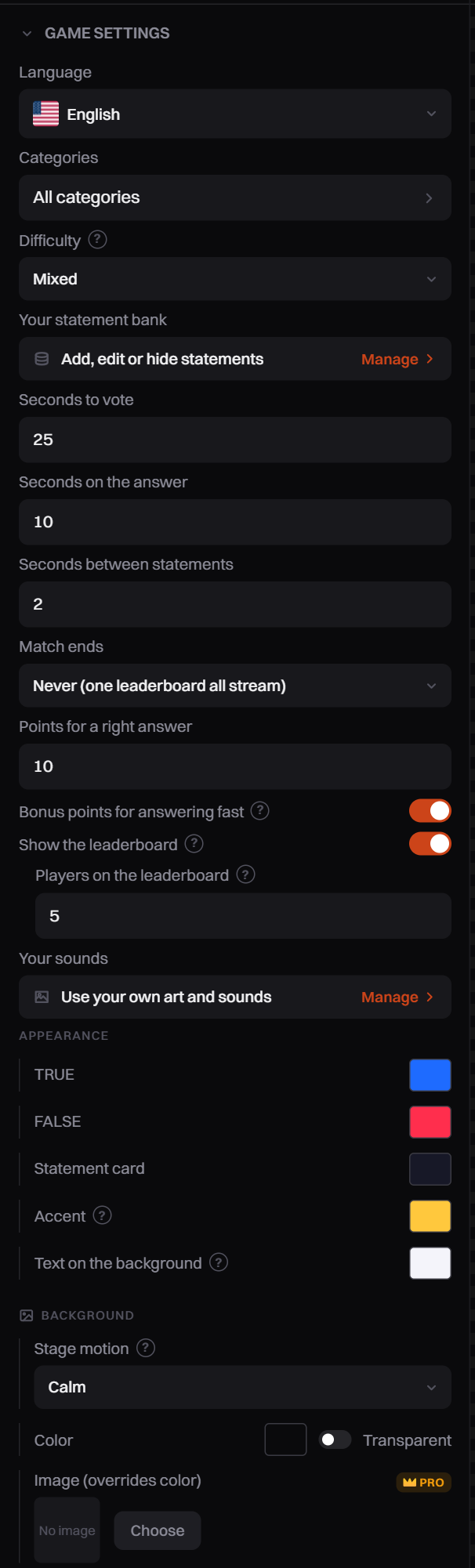
Open a game: click its tile on the dashboard home. In the left panel, under the game's name, open Game Settings. The fields you see depend on the game.
Set it up
Change a setting
- Open Game Settings.
- Change a field. It saves on its own, and a Game settings saved message confirms it.
- Check the preview. Most changes show right away.
- If a yellow bar says Restart required for changes to take effect., click Restart now.
Move overlay elements
You can move parts of the game, like the timer or the leaderboard, to another spot on screen.
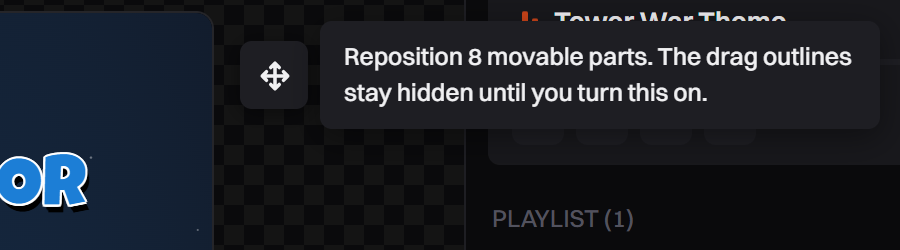
- Click the four-arrow button beside the preview (Move overlay elements).
- Drag a part to move it. Drag its corner to make it bigger or smaller.
- Click the button again when you are done.
A message confirms each move, like Timer position saved. Positions save per game and show on your overlay. The same button moves your widgets. It shows only when there is something on screen you can move.
Use your own art and sounds (Pro)
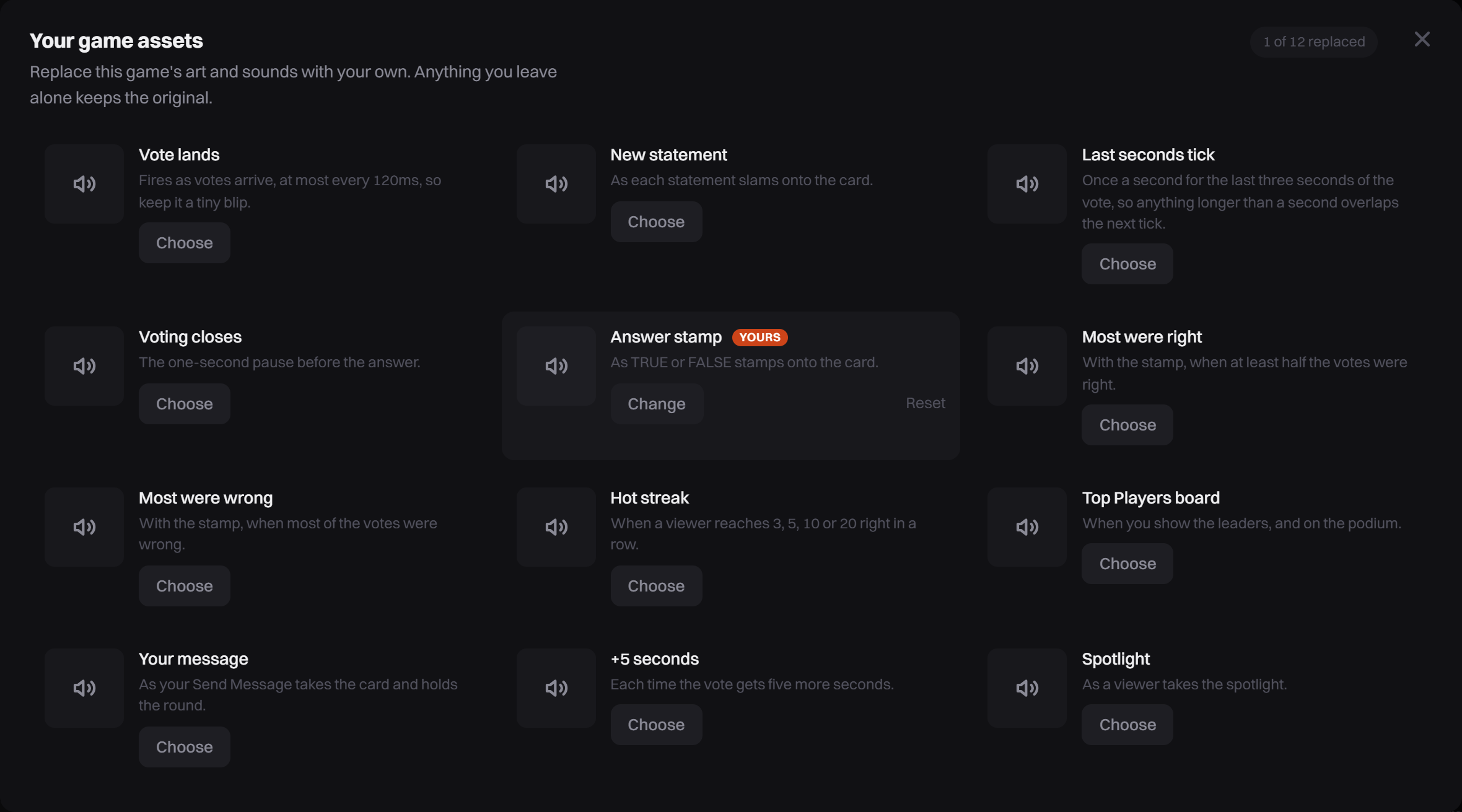
Some games have a row called Your sounds, Your game sounds or Your art and sounds in Game Settings.
- Click Manage on that row. Your game assets opens.
- If there are tabs, pick the group you want.
- On a slot, pick a file from your media library or upload a new one. The slot then shows Yours.
- To go back to the original, click Reset on that slot.
Replacing assets is Pro. On the Free plan you can still open the window and see what can be changed. If your Pro plan ends, the game goes back to its own art and sounds. Your files come back when you upgrade again.
Reset a game to its defaults
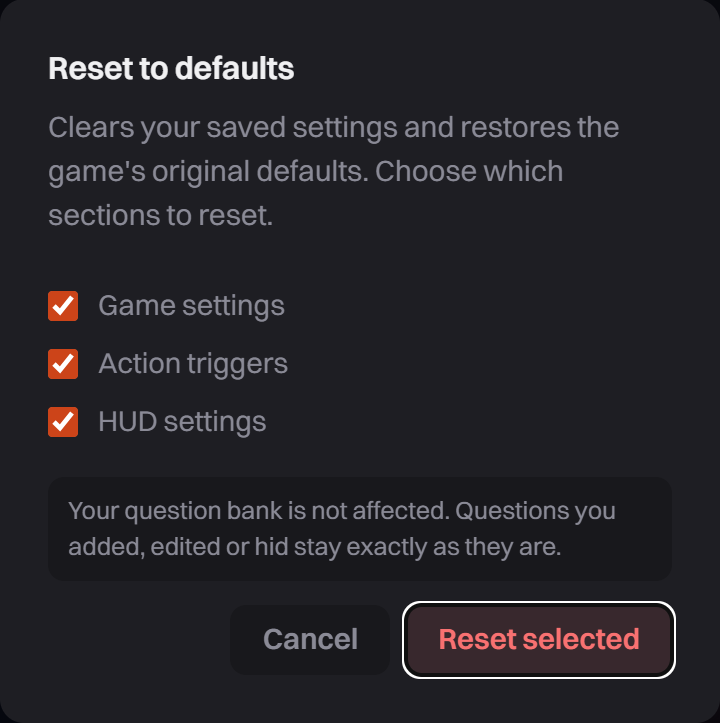
- Click Reset next to the game's name in the left panel.
- Tick what to reset: Game settings, Action triggers, HUD settings.
- Click Reset selected. The page reloads.
HUD settings also puts every moved part back in its first spot. Your question bank is not affected.
Options
These fields appear in many games. Fields with a gold Pro badge need the Pro plan.
| Setting | What it does |
|---|---|
| Language (or Interface language) | The language of the text viewers see on the overlay. |
| Who can play | Everyone, Followers only or Fans club only. It applies to comments and gifts. Likes and joins always count. In many quiz and word games, and AI Host. |
| Appearance colours | The colours of the game's cards, text and buttons. |
| Background Color | The background colour. Transparent removes the background, so what is under the overlay shows through. |
| Image (overrides color) | Your own background picture or GIF. Pro. |
Language
- Each game has its own Language field. It changes the game, not the dashboard. The dashboard itself is in English.
- When you pick a language in one game, other games that offer it start in that language too. A game where you already chose a language keeps it.
- In quiz and word games, the language also picks which questions or words are used. To add or hide your own, see Edit Your Game Content.
Watermark
The Livecade watermark is one setting for your whole account, not per game. Open the account menu, click Settings, then Watermark, and use Show watermark. Hiding it is Pro. You can also click the watermark in the preview to open this setting.
Common problems
My game is in English but my viewers are not
Change the Language field in Game Settings for that game. Each game has its own.
A setting has a Pro badge and won't change
That setting is part of Pro. On the Free plan, the upgrade window opens instead. If your Pro plan ends, these settings go back to the game's default.
I changed a setting and nothing happened
Look for Restart required for changes to take effect. at the top of Game Settings and click Restart now.
I can't find the Move button
It shows only when there is something on screen you can move, and not in full screen.