Going Live
Start a Live Session
Start a session from the dashboard, connect to your live TikTok stream, and let viewers interact with your game in real time.
Updated
Once your overlay is on screen in TikTok Live Studio and a game is picked, the last step is connecting Livecade to your live TikTok stream. This lets the game read chat messages and gifts so viewers can play along.
Before you connect
- Your overlay on screen in TikTok Live Studio. See Connect to TikTok Live Studio if you have not done this yet.
- Your stream started. Click Go LIVE in TikTok Live Studio first. Livecade connects to an active stream, so you need to be live before connecting.
- A game selected and your TikTok account added in the dashboard.
Start a session
-
In the dashboard Connection panel, select a game and your TikTok account.
-
Click Connect. This starts the session and loads the game on your overlay.
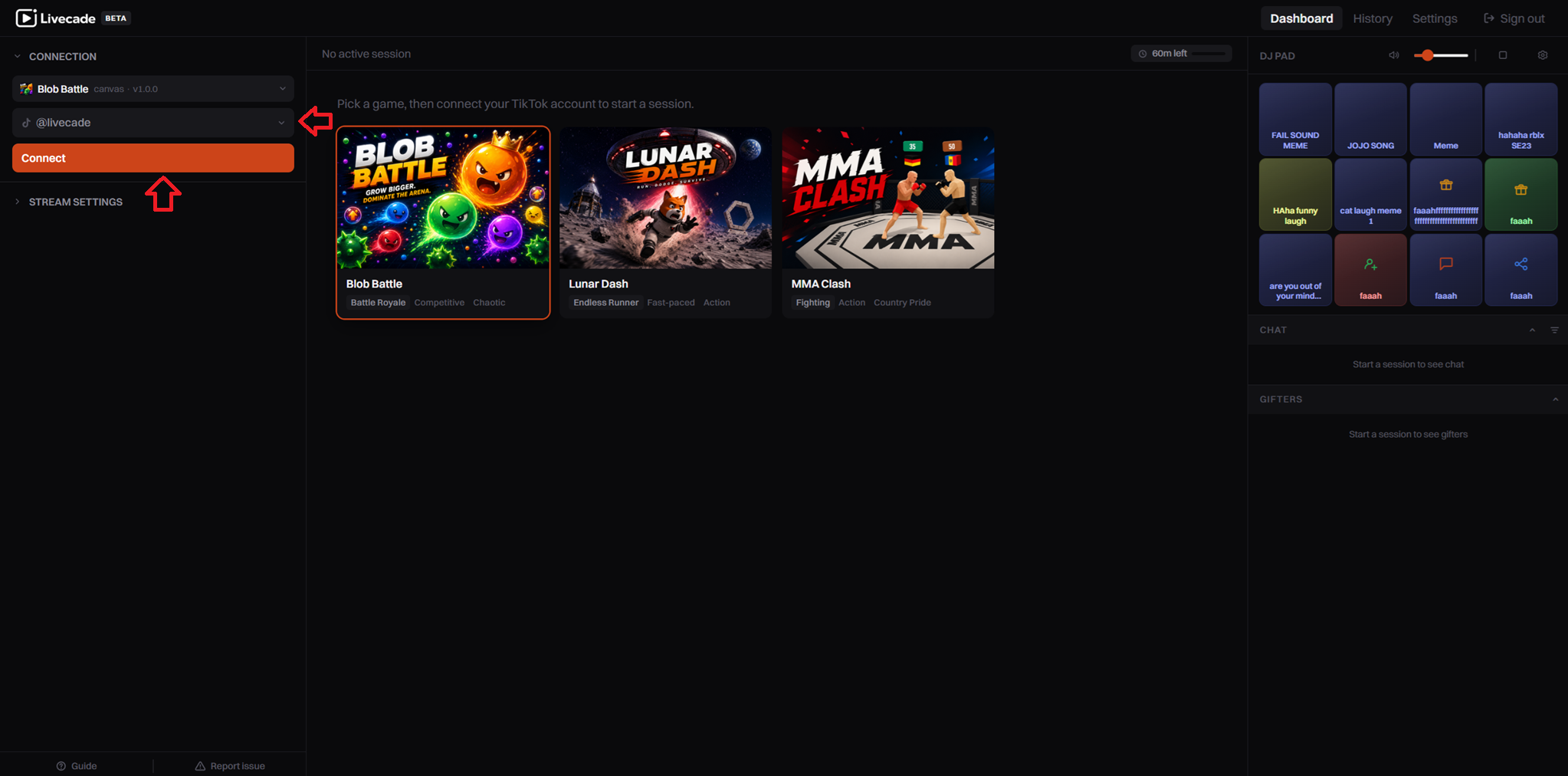
Pick a game and account, then click Connect. -
Click Connect TikTok to link the session to your live stream. The status moves from Connecting to Live.
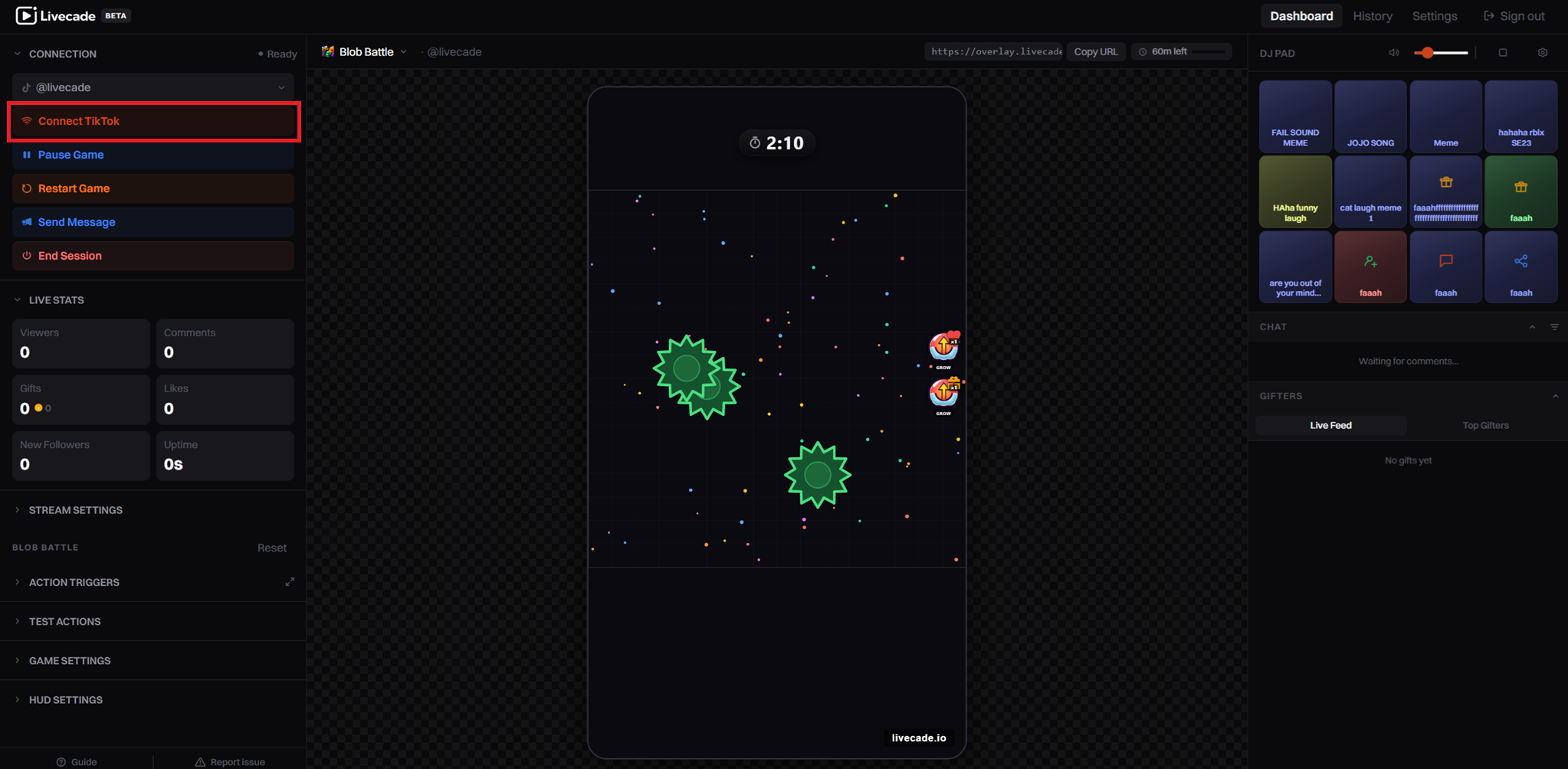
Connect TikTok. When the status reads Live, events are flowing.
When the status reads Live, the overlay is receiving events from your stream. Send a test message or gift from another account to confirm it shows up.
Connection status
The dot at the top of the Connection panel shows the current state.
| Status | What it means |
|---|---|
| Ready | A session is open but not connected to TikTok yet. |
| Connecting to TikTok | Livecade is linking to your live stream. |
| Live | Connected. Chat and gifts are flowing into the game. |
| Not live right now | The account is not streaming. Click Go LIVE in TikTok Live Studio, then click Check again. |
| Reconnecting | The connection dropped and is being restored automatically. |
| Daily limit reached | You hit your plan's daily live minutes. The game keeps running; the TikTok feed pauses. |
| Connection failed | Could not connect. Check the username and try again. |
Double-check that you are live in TikTok Live Studio and that the account is spelled exactly as it appears on your profile.
While you are live
The Connection panel gives you live controls without ending the session:
- Pause Game / Resume Game freezes or resumes the action.
- Restart Game discards the current round and starts over.
- Send Message pushes a shoutout to the overlay.
Going offline
When your stream ends, click End Session in the dashboard. This disconnects from TikTok and closes the session cleanly, so the overlay is ready for next time.