Getting Started
Getting Started
Create your account, copy your overlay URL, and follow the path to your first live interactive game with Livecade.
Updated
Livecade turns your TikTok Live stream into an interactive game show. Viewers join in from chat and gifts, and the action plays out on a browser overlay you put on screen in TikTok Live Studio. This guide gets you set up in the dashboard, then points you to the next steps to go live.
Create your account
Register a Livecade account with your email, or sign in with Google or Discord. There is a free plan to start, so you can set everything up before going live.
When you first sign in, onboarding asks for the TikTok account you will go live on. Enter your username without the @. You can add more accounts later in settings.
Pick a game
In the dashboard Connection panel, choose a game from the dropdown. Each game has its own settings, like round length and how viewers interact. You can preview a game before going live to make sure it looks right.
Copy your overlay URL
Livecade gives you one overlay URL. It never changes, so you set it up once and every session appears on it automatically.
Click Overlay URL at the top right of the dashboard preview, then click Copy.
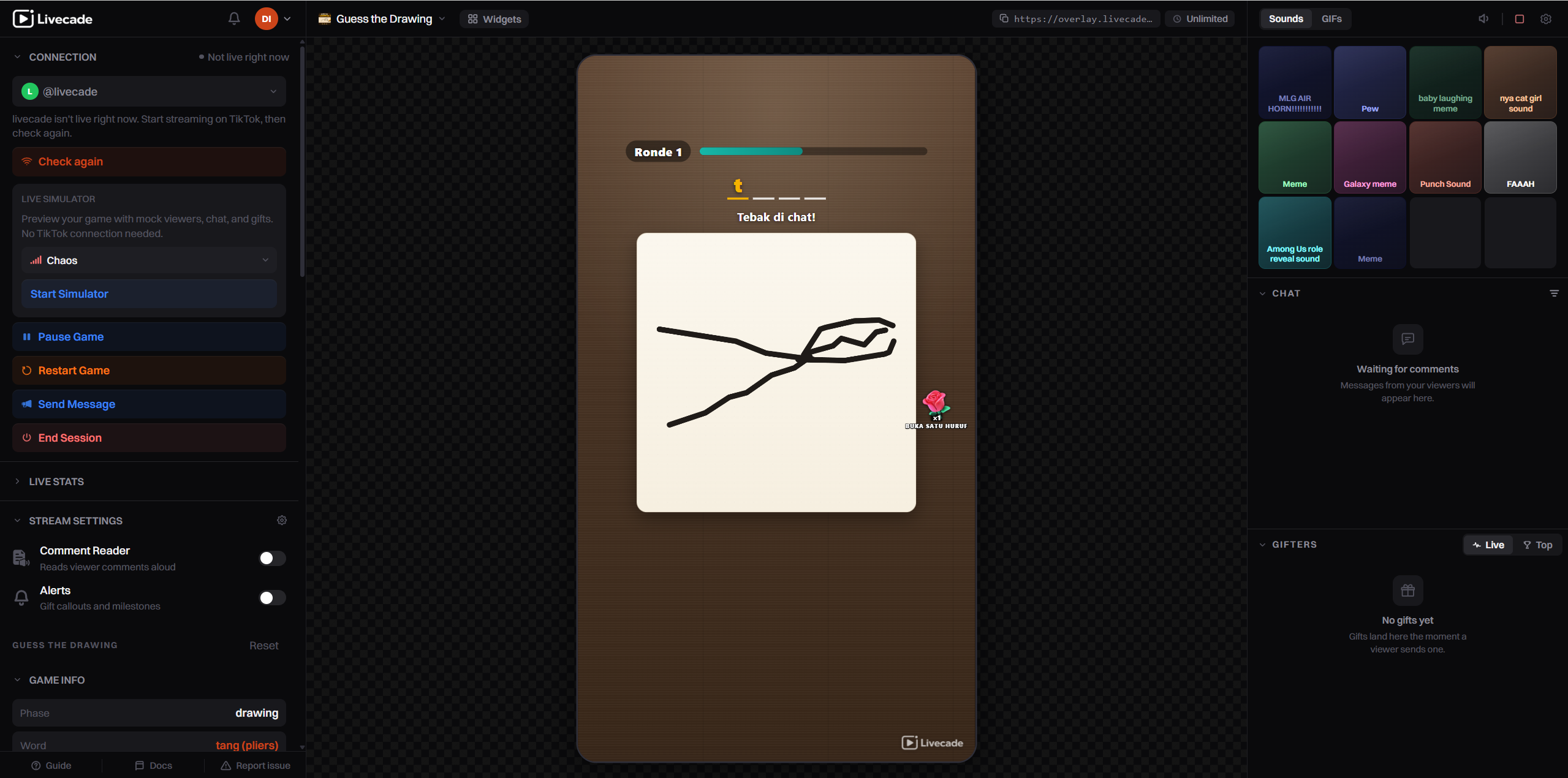
Keep this URL handy. You will paste it into TikTok Live Studio in the next step.
Your path to going live
You are set up in the dashboard. Two steps remain:
- Get the overlay on screen. There are a few ways to do it, and how to go live compares them so you can pick one.
- Start a live session. Connect Livecade to your live TikTok stream so chat and gifts flow into the game. See Start a Live Session.